

Switching Between Light and Dark Mode
Contents3 sections
Easy on the Eyes, Whatever the Hour: Late close, early open, or reading on a phone in a dark office: Boost Academy comes in a light theme and a dark one, and you choose which you see.
Where to find it
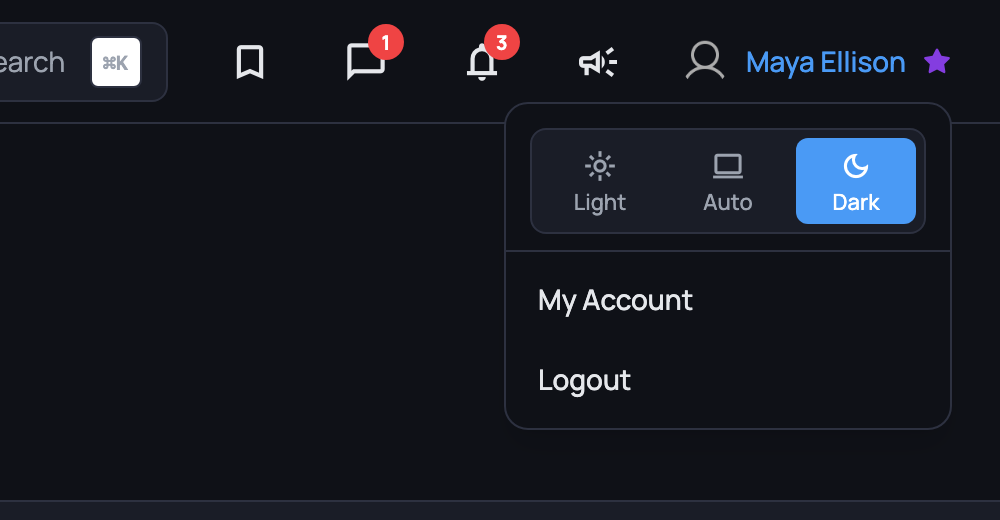
One Click Away: Click your name in the top bar to open your account menu. The theme control sits at the top, with three options:
- Light keeps the light theme, whatever your device is doing
- Auto follows your device's own light or dark setting, and switches when it does. This is the default.
- Dark keeps the dark theme
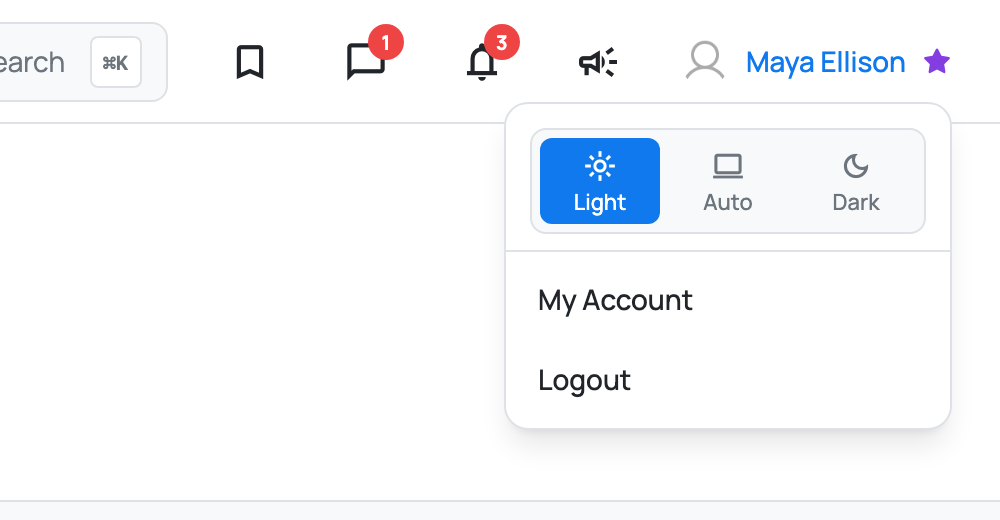
The change lands straight away, and the menu stays open so you can see it before you move on.
Where your choice is saved
Remembered on This Device: Your choice is saved in the browser you picked it in, so the site opens the way you left it next time. It does not follow your account to another browser or device, so set it once on each one you use.
Not Signed In? A single theme icon sits in the top bar instead. Each click moves it on to the next option: Light, then Dark, then Auto. On a phone-sized screen, the menu carries the same three options.
Ready to dig in?
Log in to Boost Academy, click your name in the top bar, and pick the theme that suits your day.
Access: All members