

Managing Locations and Plans
Contents5 sections
Locations are how Boost Back Office knows which shop it is talking about. Every count, order, report, and tablet belongs to one, and each location carries its own plan.
Open locations
Go to Account > Locations. The page opens on Plan & Billing and then lists your shops.
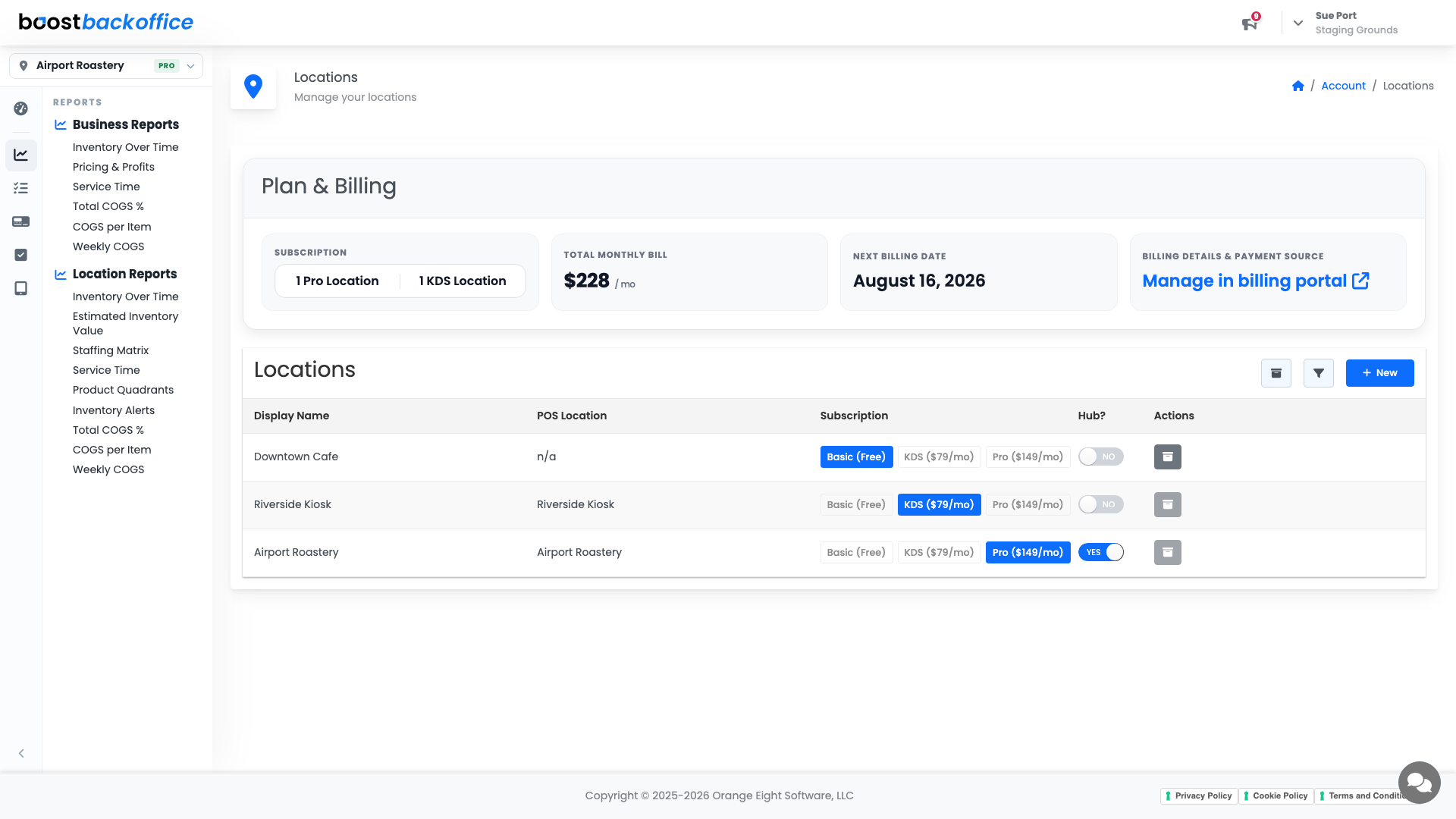
The summary at the top tells you what you are running: how many locations on each plan, your total monthly bill, and your next billing date. Manage in billing portal takes you to your billing details and payment source.
Set each location's plan
Plans are chosen per location, not per account, which is the point. Your busy roastery can run on the top plan while the cart down the road stays on the free one, and you only pay for what each shop needs.
Pick the plan on the row for that location. What each plan unlocks shows up immediately in the nav: locked pages carry an upgrade marker rather than disappearing, so you can always see what the next plan up would give that shop.
Plan seats
Each paid plan carries seats, and every shop you move onto KDS or Pro takes one. Move a shop back to Basic and its seat frees up for another. If they are all spoken for, add one from Plan & Billing first — Boost tells you which plan is short rather than failing quietly.
Nothing paid for and forgotten: if a seat is not assigned to any shop, Boost calls it out above Plan & Billing so it does not sit on your bill unnoticed. The same note appears when a shop is set to KDS while the seat you are paying for is a Pro one, since a Pro seat does not cover a KDS location.
Note
Adding, renaming, and archiving locations, and anything billing-related, is owner or manager only.
The other columns
- POS Location links this shop to the matching location in your POS. Without it, sales cannot be attributed to the right place.
- Hub? marks a location that supplies the others, which turns on internal transfers to and from it.
- New adds another shop; the archive action in Actions retires one you have closed.
Careful
Archiving a location hides it from the app but keeps its history, so your old reports still make sense. Do not create a fresh location to "start clean" after a refit; you will split that shop's history in two.
What you should see
One row per shop you actually trade from, each on the plan that matches how it is used, each linked to the right POS location, and a monthly bill you can explain.
Account Level: All