

Creating and Receiving an Inventory Order
Contents4 sections
Ordering is where guesswork costs real money: order light and you 86 a drink on a Saturday, order heavy and you are pouring milk down the drain. Boost Back Office drafts the order for you from what you actually use, and you keep the final say.
Let Boost draft the order
Go to Inventory > Ordering > Create New Order. Suggestions are grouped into a tab per supplier, with the number of items waiting for you on each tab.
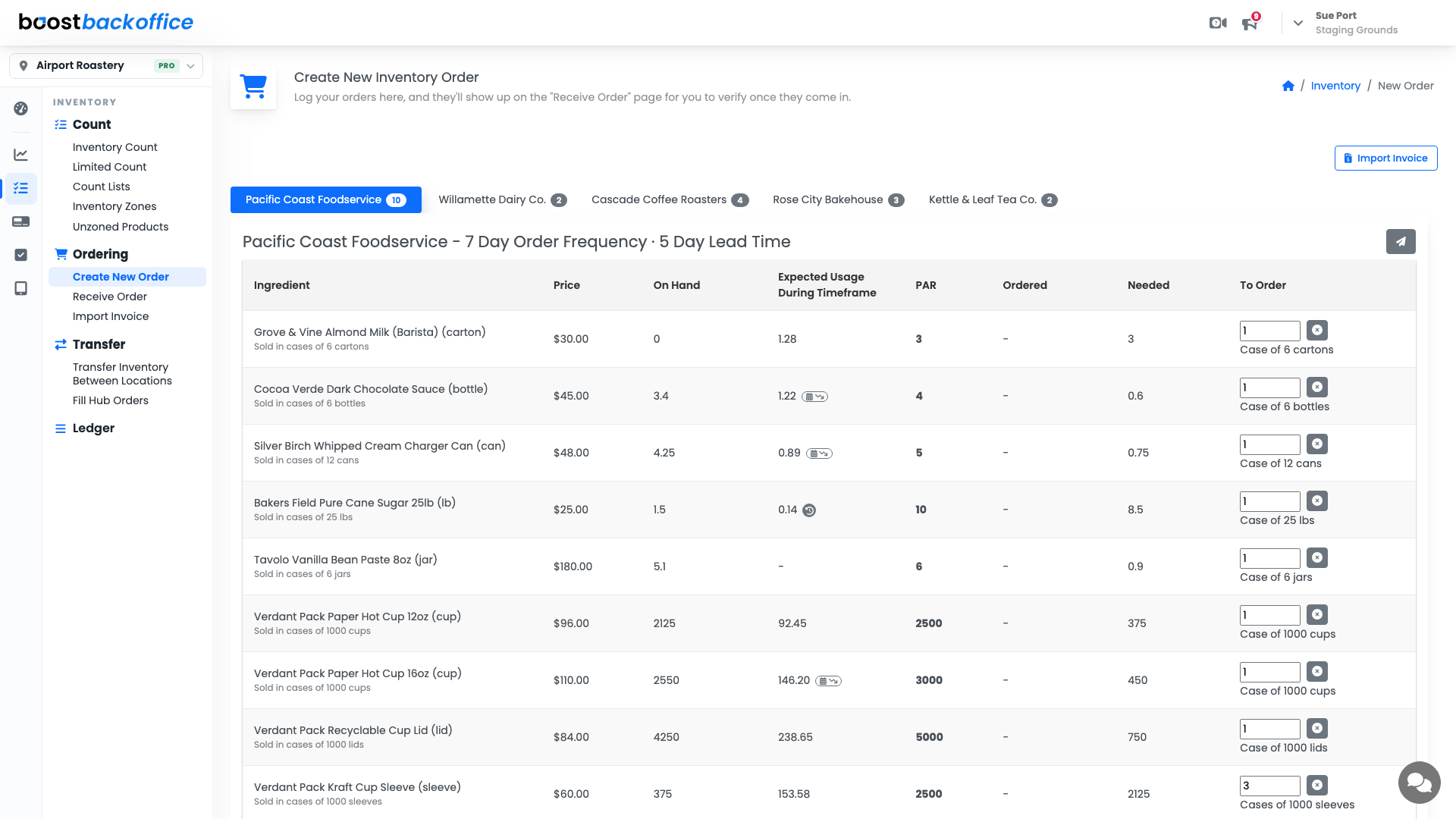
Each row shows its own math, so you can see why the number is what it is.
| Column | What it means |
|---|---|
| On Hand | What Boost thinks is on the shelf right now |
| Expected Usage During Timeframe | What you will get through before the next delivery, based on your own history |
| PAR | The level you want to keep on hand |
| Needed | On hand and PAR and expected usage, resolved into a number |
| To Order | What is actually going on the order, rounded into the case size you buy |
Price, PAR, and your supplier's order frequency and lead time are all click-to-edit. Change one and the suggestions recalculate against it, so a supplier who moved you to twice-weekly delivery does not keep producing week-sized orders.
Tip
The To Order box is always yours to overrule. Boost gets you a sensible starting number in seconds; you still know about the wedding party on Saturday.
Add what the math could not know
Press Add To Order to pull in any other ingredient from that supplier, for the week you want an extra sleeve of cups even though usage did not ask for it.
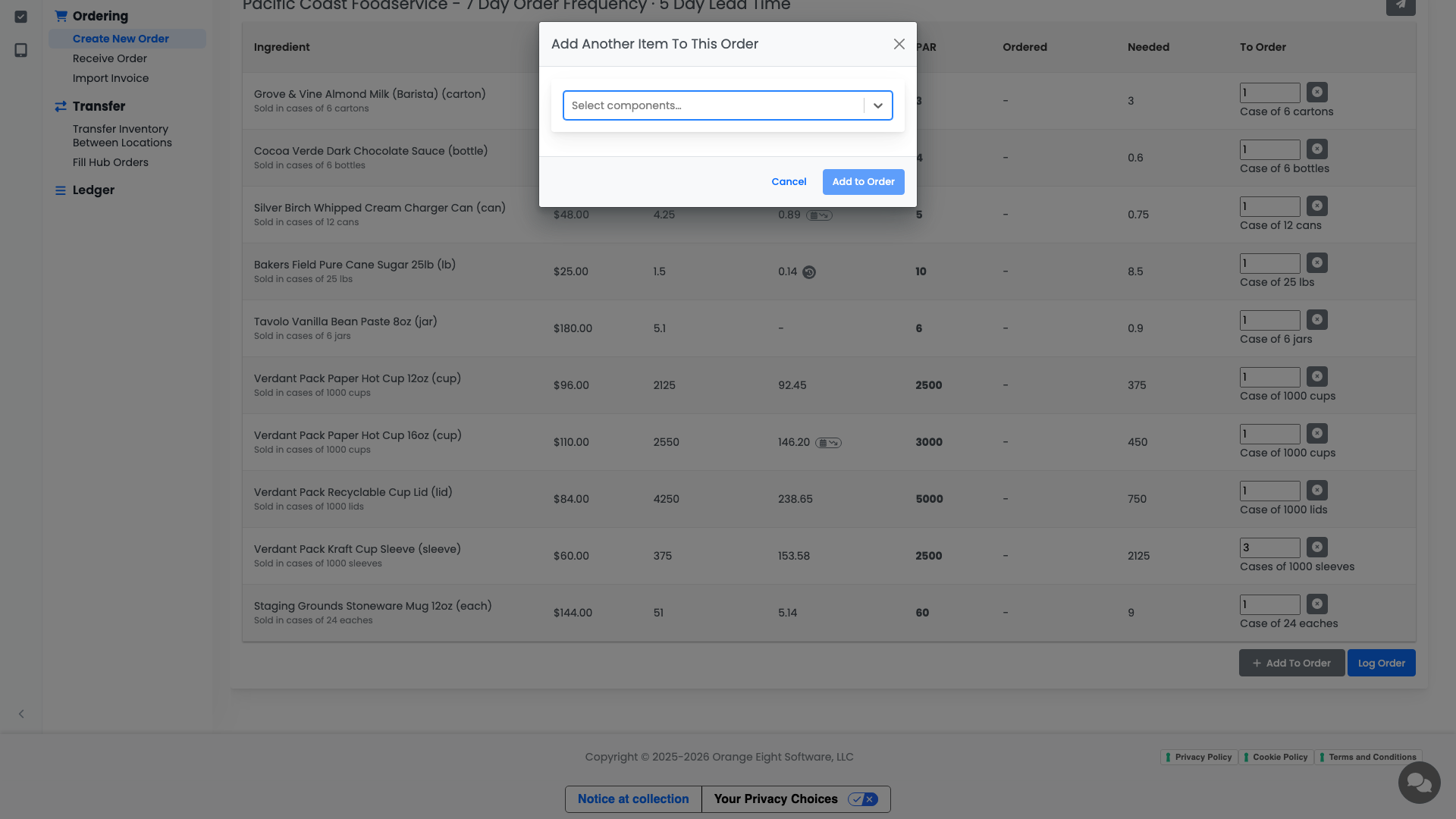
When the order looks right, press Log Order. That records it and puts it on the Receive Order page. The paper-plane button next to the supplier name emails or downloads the order if your supplier wants it that way.
Check the delivery in
When the boxes land, go to Inventory > Ordering > Receive Order. Each logged order gets a tab, and each line shows what you ordered against what has arrived so far.
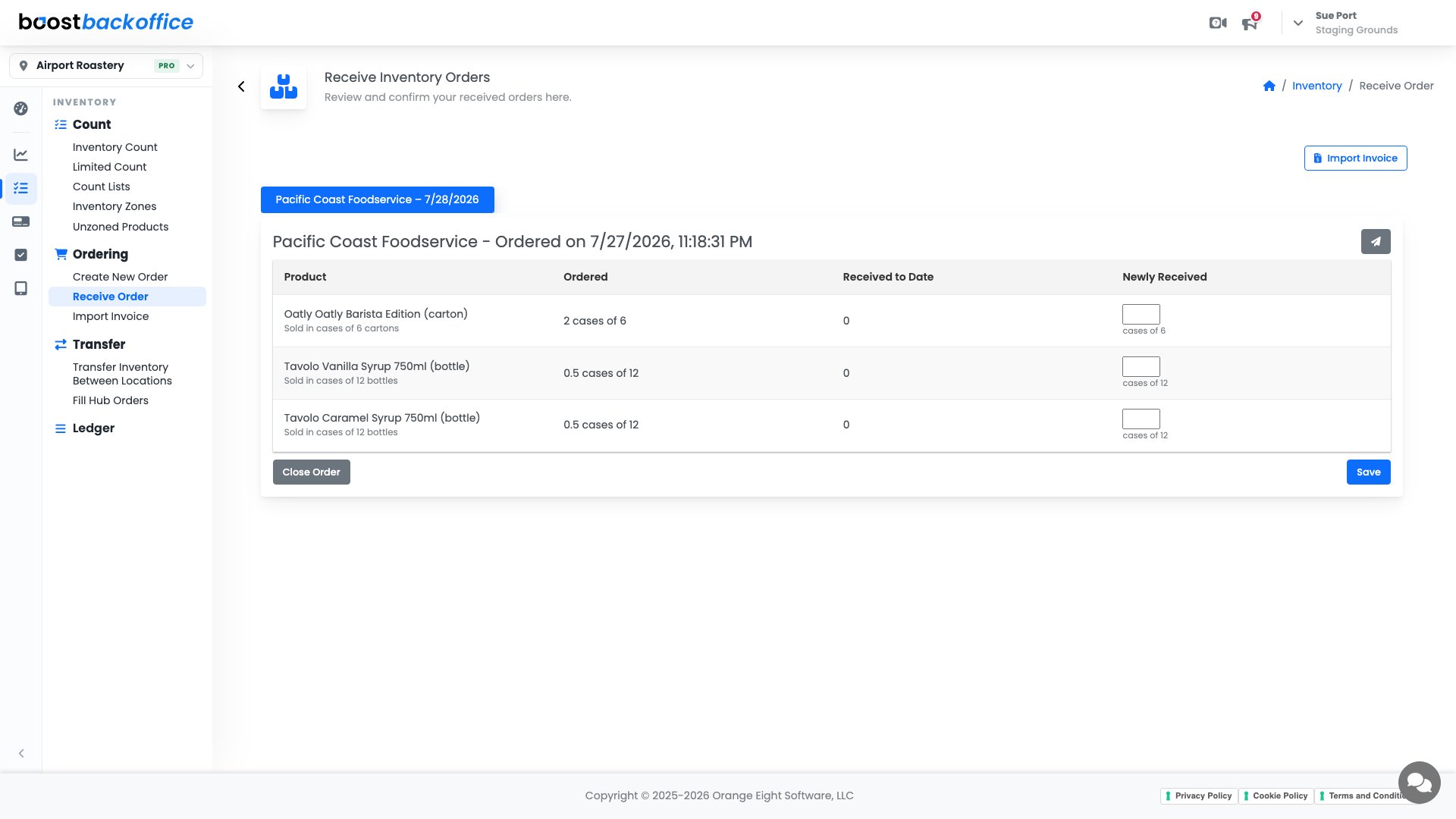
- Type what actually arrived into Newly Received, in cases, the way the box is labelled.
- Press Save. That quantity goes straight onto your shelves.
- When nothing more is coming, press Close Order.
Important
Receive what actually turned up, not what you ordered. A short delivery you record as complete becomes a shortage you find out about mid-rush.
Partial deliveries are normal: save what came, leave the order open, and save again when the rest arrives. Received to Date keeps the running total for you.
What you should see
A logged order on the Receive page, on-hand numbers that jump when you save the delivery, and a Purchased line in the ledger for every item you received.
Account Level: All