

Importing a Supplier Invoice
Contents8 sections
Typing a delivery in line by line is the slowest job of the week, and the one where a digit goes missing. The invoice importer reads the invoice for you and turns it into an order you review rather than retype.
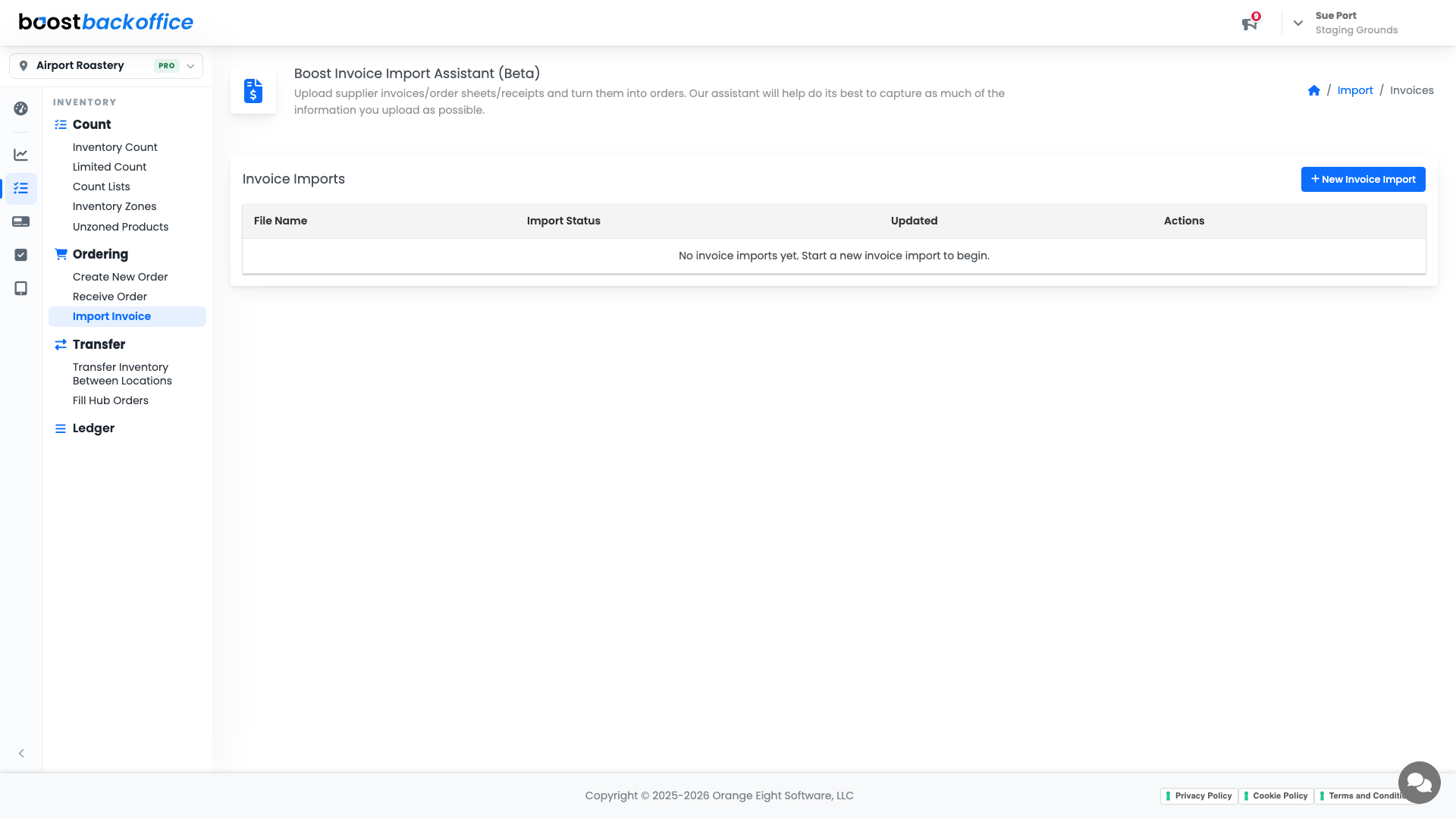
Open your invoice imports
Go to Inventory > Ordering > Import Invoice. The list shows every invoice you have imported, its status, and when it last changed.
Upload the invoice
Press New Invoice Import and give Boost the file. Drag it onto the page or press Select a file.
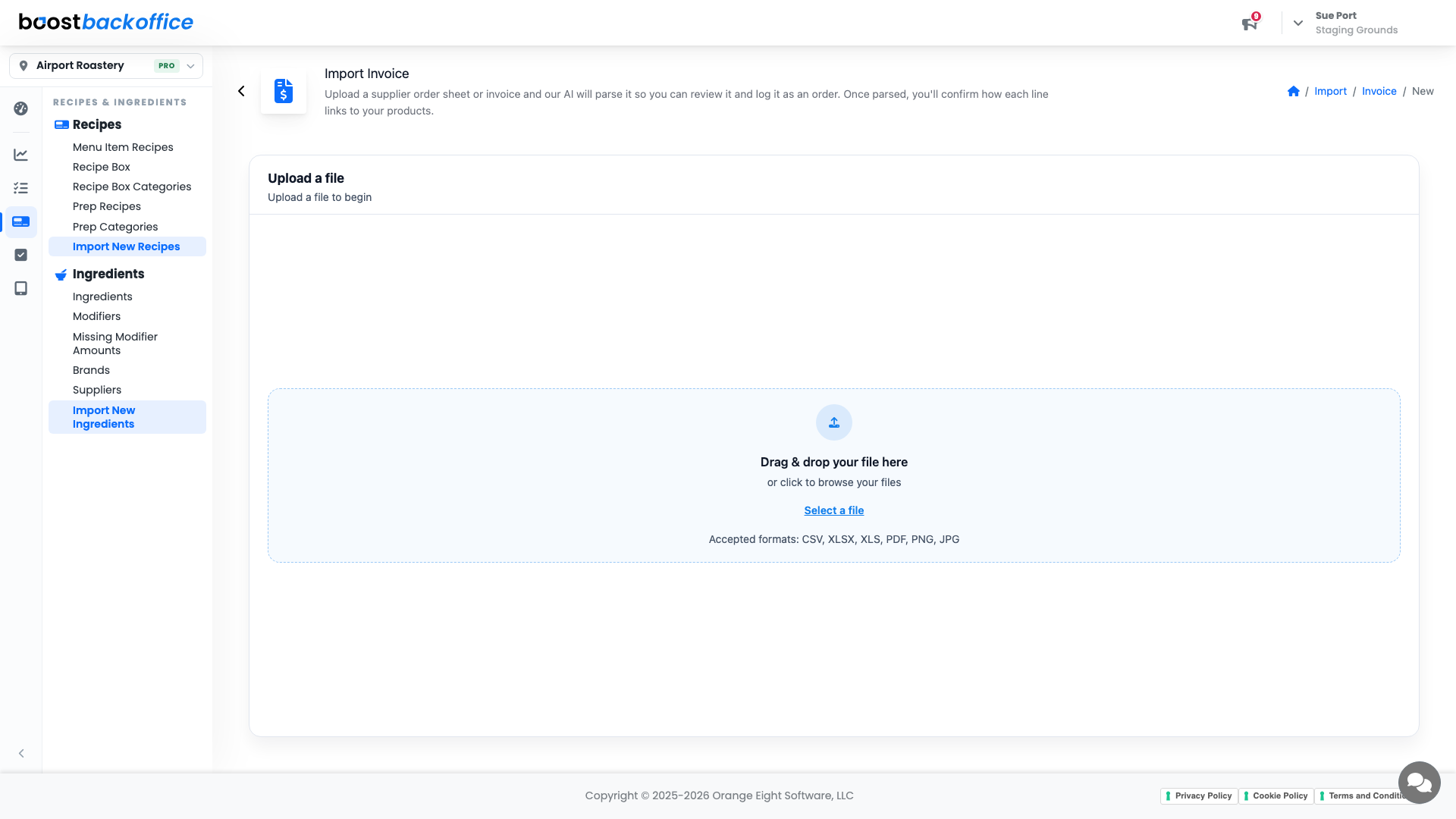
Boost accepts the formats invoices actually arrive in: CSV, XLSX, XLS, PDF, PNG, and JPG. A photo of the paper invoice that came in the box is a perfectly good input.
An order confirmation from an online store works too — the emailed or printed order page is just another invoice as far as Boost is concerned, and it reads the products right off it.
Review before anything is logged
Parsing happens on upload, then you land on Review Imported Invoice, where you match the invoice to your suppliers and products. This is the step that matters: an invoice line is only useful to Boost once it points at the product you actually track.
Important
Nothing touches your inventory until you finish the review. The importer proposes, you confirm.
Once you confirm, the invoice is logged as an order, which means it shows up on the Receive Order page like any other order, ready to receive against.
Note
The importer is marked Beta in the app. It does its best on a messy scan, so give the matches a proper read on the review screen before you finish.
What you see once it is logged
Finishing the review does not clear the invoice away. The same screen stays on as a read-only record of what went in, so you can check your work without going looking for the order.
Along the top you get the supplier, the file you uploaded, how many lines were imported and what they came to, and whether you imported the delivery as already received. Underneath, every line is listed the way Boost read it, next to the product you matched it to, with the cost per unit, the quantity, the line total, and the amount received. Lines you chose to leave out are marked Skipped rather than dropped, so the decision is written down.
Nothing on this screen can be typed into or switched, and there is no import button, so an invoice cannot be logged twice by accident. From here you can go straight to Receive Order or start your next invoice.
Tip
This record keeps. Open any finished import from Inventory > Ordering > Import Invoice weeks later and it is still there, exactly as it was logged.
If Boost asks you to match columns
Nearly every invoice goes straight through to the review screen. Now and then a file arrives that Boost cannot read as an invoice on its own — usually a spreadsheet whose column headings it does not know — and that one stops on a column-matching step first.
Point Line Description, Quantity and Amount at the right columns of your file, then press Apply Mapping. Boost re-reads the file with your matches and takes you to the same review screen.
The supplier only has to be linked once
Boost takes its best guess at the supplier from the name printed on the invoice, but the name on the letterhead is often nothing like the name you use for them. The first time you set it yourself, Boost saves the billing name that invoice arrived under, and every later invoice under that name opens with the supplier already chosen. Your six-letter shorthand and their full corporate name stay linked from then on.
The supplier box tells you which billing name it is about to remember and which supplier it will point at, so you can see what is being learned before you finish the review. Choose a different supplier and it learns that one instead.
Note
One billing name is remembered per supplier, the most recent one. A vendor that invoices you under two different names is matched automatically on whichever name you imported last.
Save a product's reorder link
When an invoice line carries a product link — common on an online store's order confirmation — the review screen shows it under the line with a Save invoice order link? switch. Leave it on and Boost stores the link on the matched product, so next time you can jump straight to that product's page to reorder.
What you should see
An invoice that took a few seconds to upload, a review screen where every line points at one of your products, and a logged order waiting on the Receive Order page.
Account Level: Pro