
Transferring Inventory Between Locations
Contents4 sections
When one of your locations supplies the others, that stock still has to move on the books as well as in the van. Boost Back Office treats your hub like a supplier: shops order from it, the hub fills the order, and both sets of shelves update.
Start the transfer
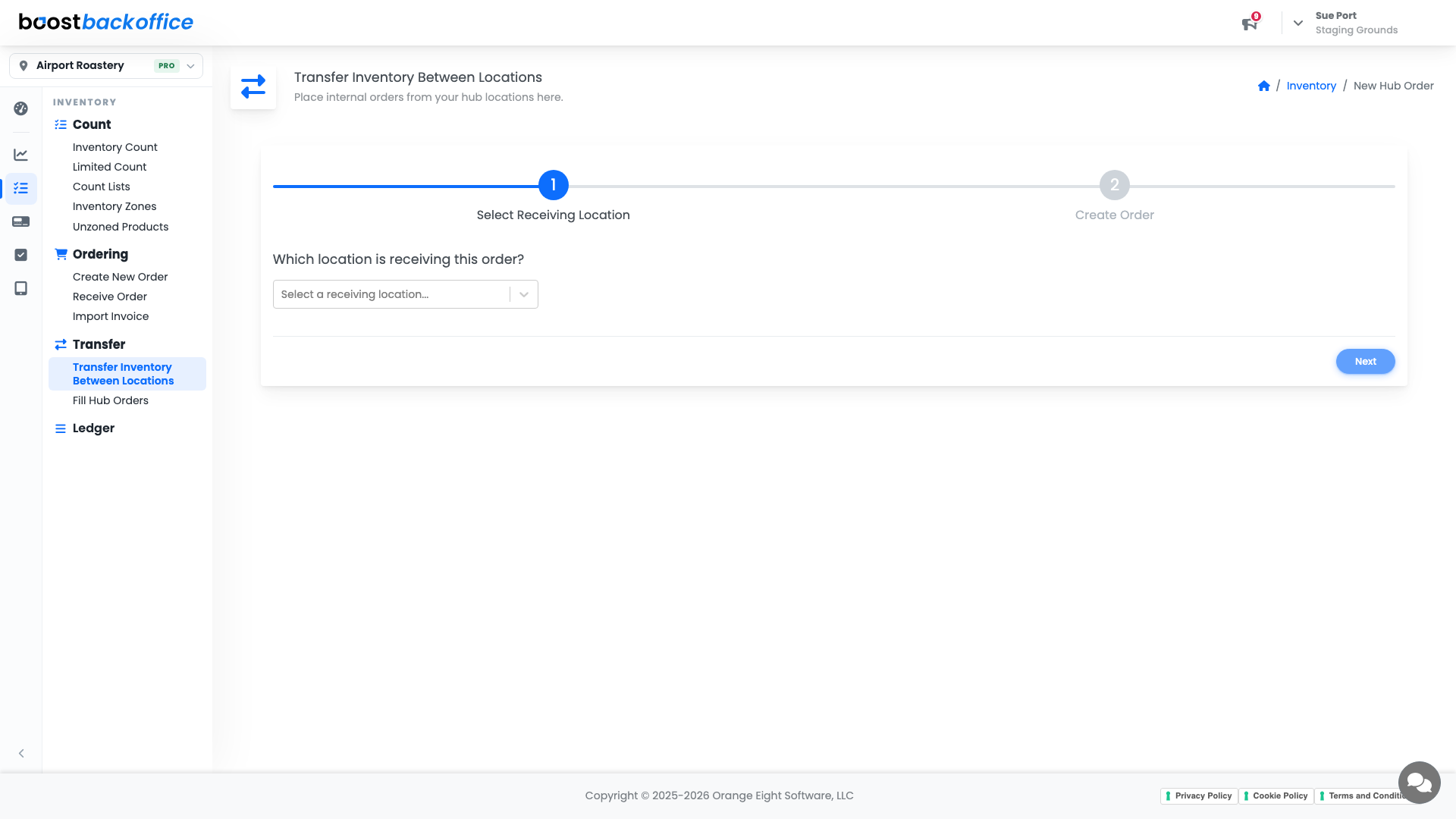
Go to Inventory > Transfer > Transfer Inventory Between Locations. The first step is just the two ends of the move.
- From a hub, you choose which location is receiving.
- From a shop, you choose which hub is sending.
Build the order
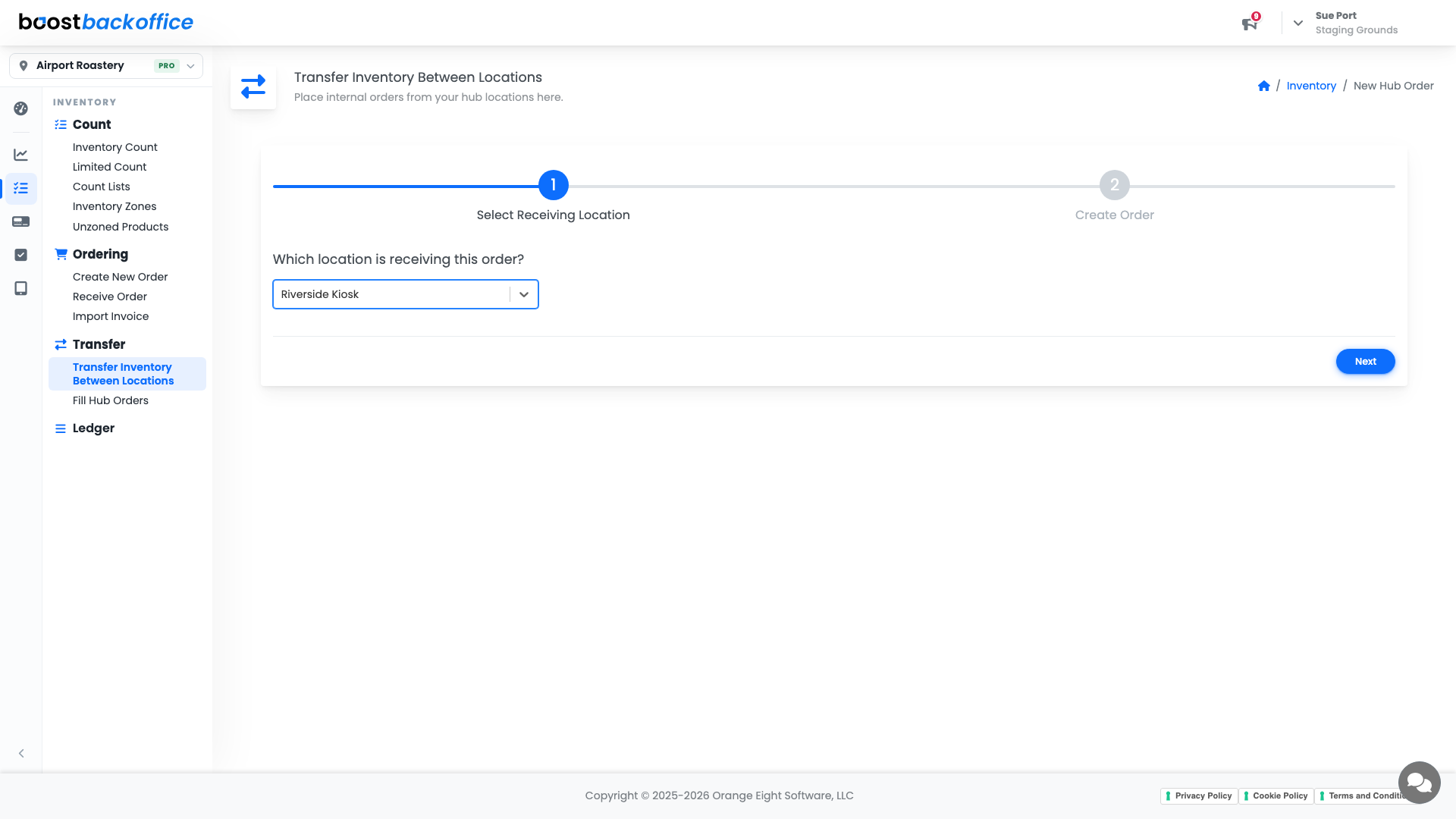
Step two is the order itself, and it reads exactly like a supplier order: on hand, expected usage, PAR, and a To Order column you can overrule.
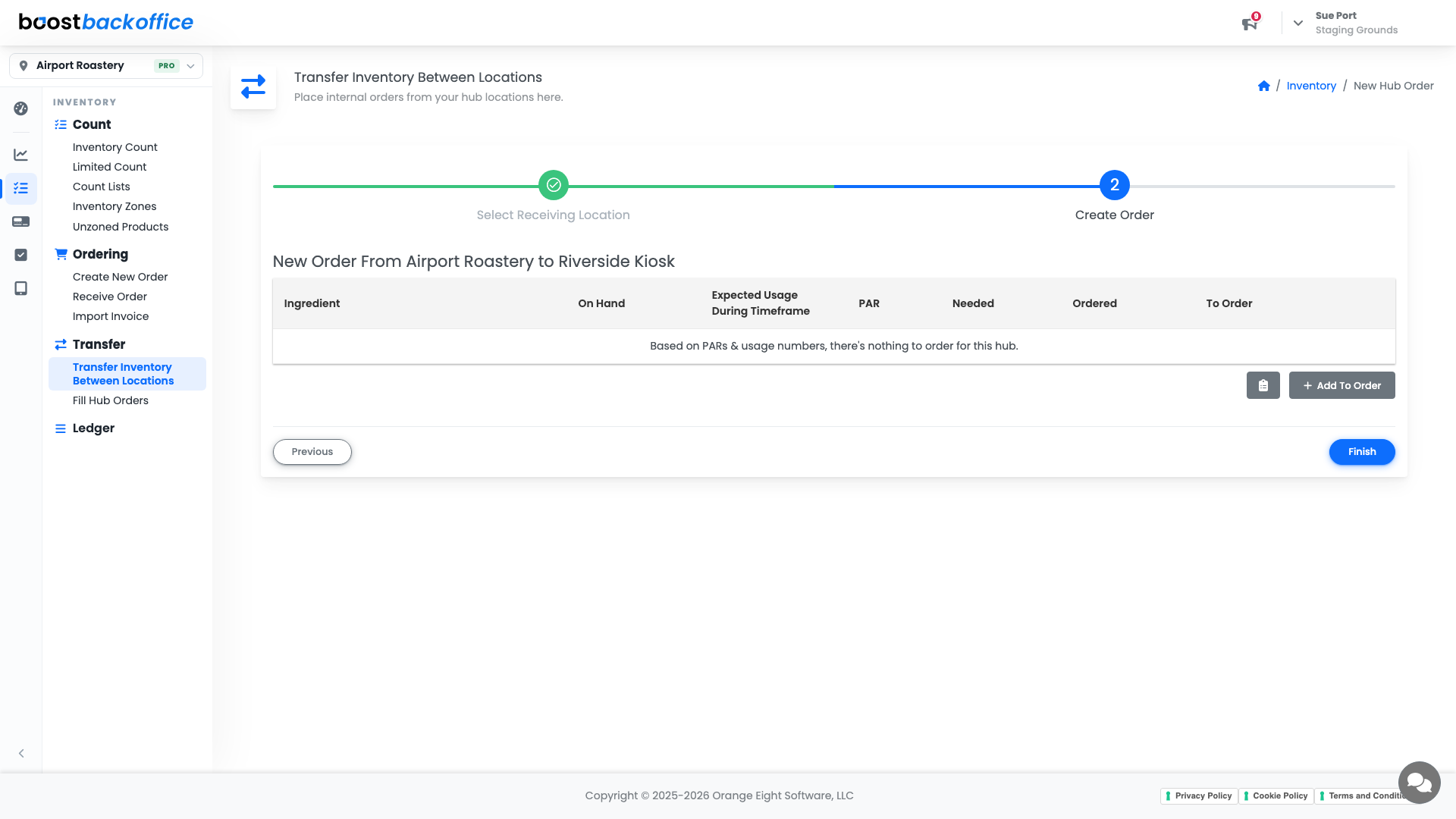
- Load Suggested Items fills the order from PAR and usage, so the common case is one click.
- Add To Order pulls in anything else the receiving shop needs.
- Finish places the order.
Note
If the hub has nothing to send against PAR and usage, the list comes back empty and says so. That is a real answer, not an error: nothing needs moving today.
Fill the order from the hub
On the hub side, go to Inventory > Transfer > Fill Hub Orders. Everything the other shops have asked for is listed in one place, so whoever is packing the van works from one screen instead of a stack of notes.
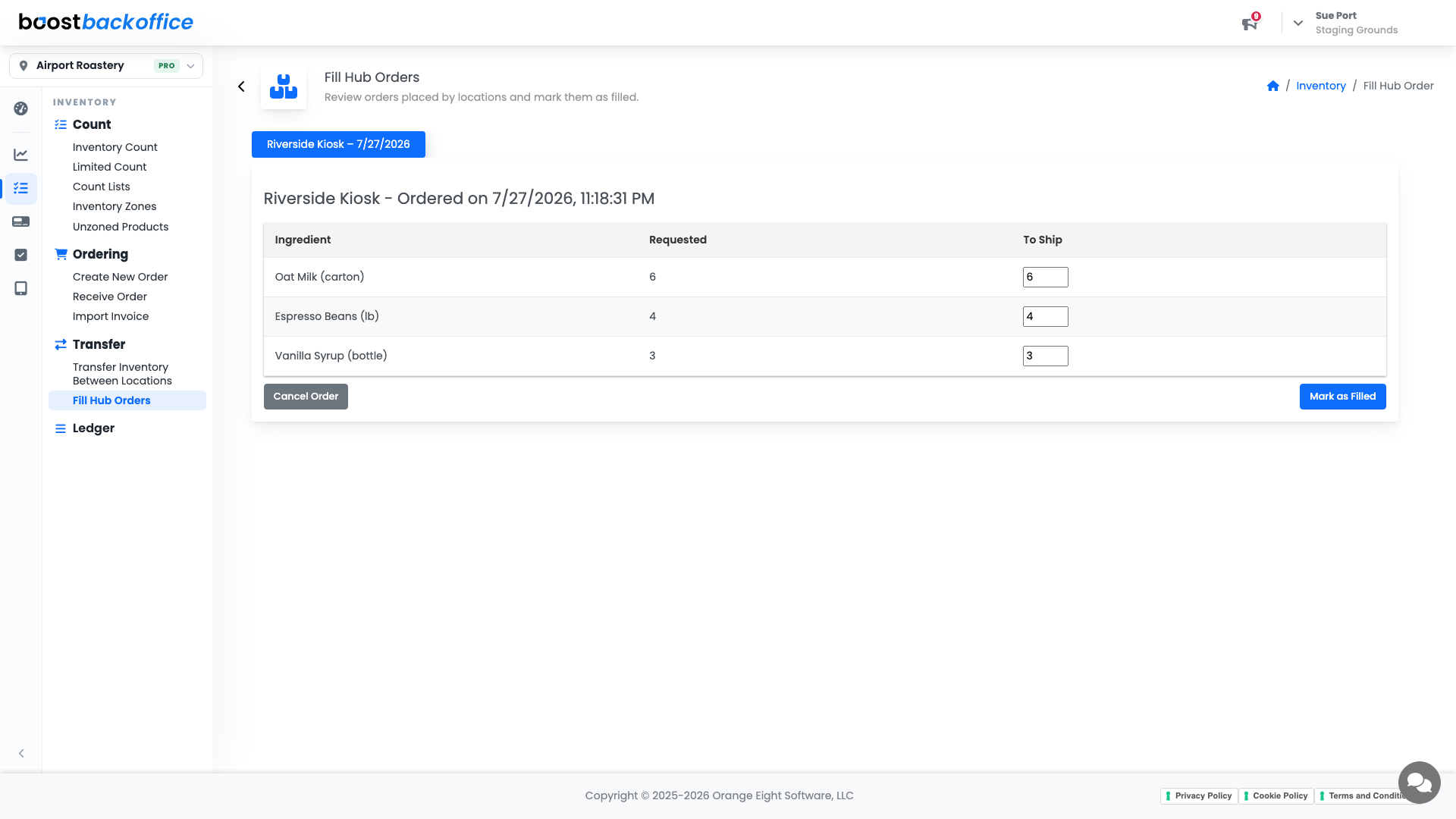
Fill what you are actually sending and submit. The stock leaves the hub's inventory and lands on the receiving shop's, and both locations get ledger lines for the move.
What you should see
Stock that left the hub and arrived at the shop, with no counting fiction in between: two ledgers that agree, and a transfer you can point to when a number moves.
Account Level: Pro