

Building and Scheduling Checklists
Contents4 sections
A checklist is your shift written down. Instead of hoping the closing routine happened the way you taught it, you get a list your team works through and signs off, and a record afterwards.
See what your team has to do
Go to Checklists > Checklists. Daily and weekly lists are kept separate, because they are scheduled differently.
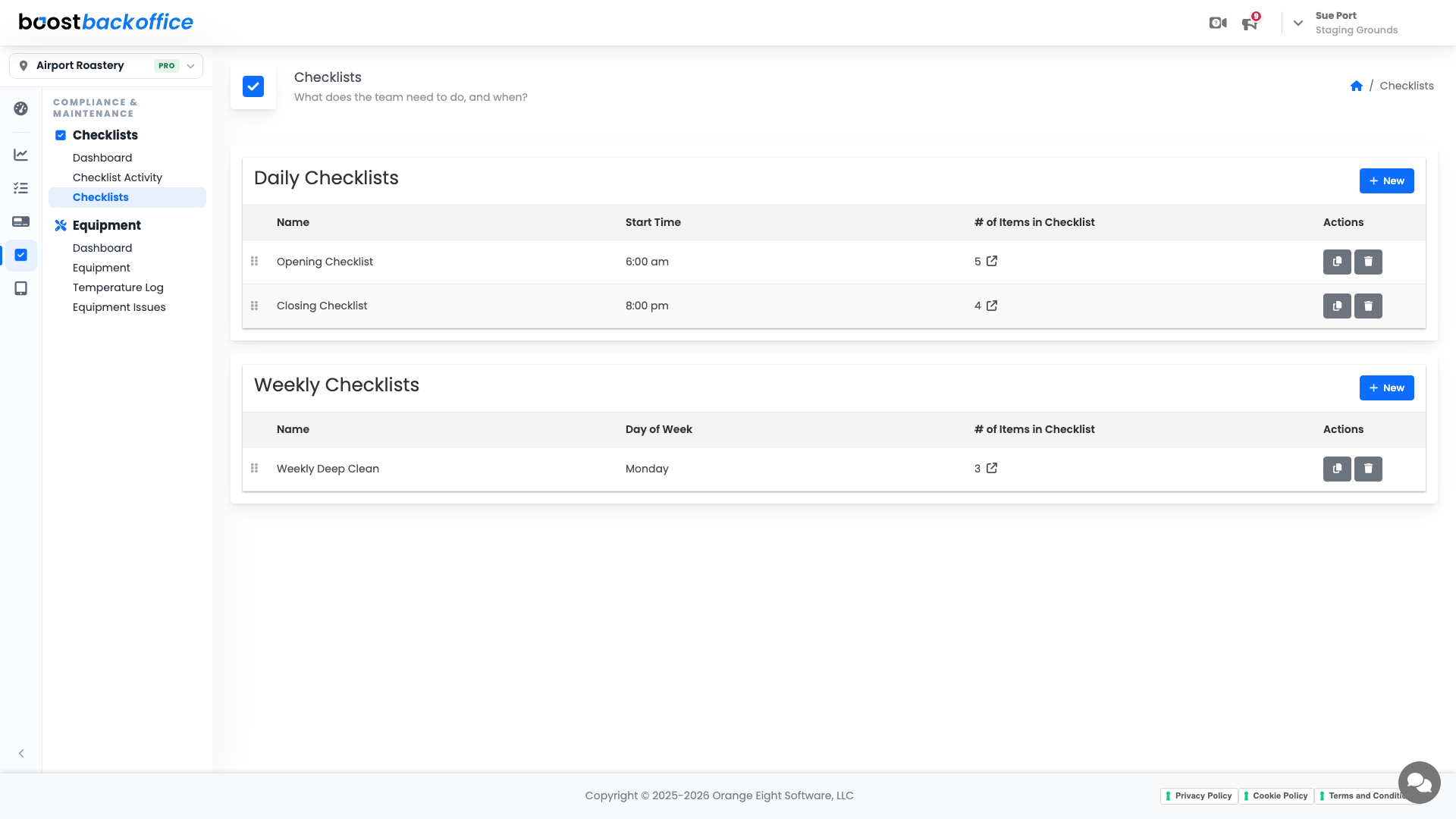
| Section | Scheduled by | Good for |
|---|---|---|
| Daily Checklists | A Start Time | Opening, closing, shift changeover |
| Weekly Checklists | A Day of Week | Deep cleans, stock rotation, filter changes |
Each row shows how many items are on the list, and the whole thing can be dragged into the order you want your team to see.
Create one
Press New on the section you want, daily or weekly. Then set the timing:
- A daily checklist's Start Time is when it appears for your team.
- A weekly checklist's Day of Week does the same job.
Name, start time, and day of week are all click-to-edit on this page, so adjusting the schedule later takes a second.
Tip
The copy button in Actions duplicates a checklist. Building the Sunday version of your closing routine is a copy and two edits, not a rebuild.
Add the items
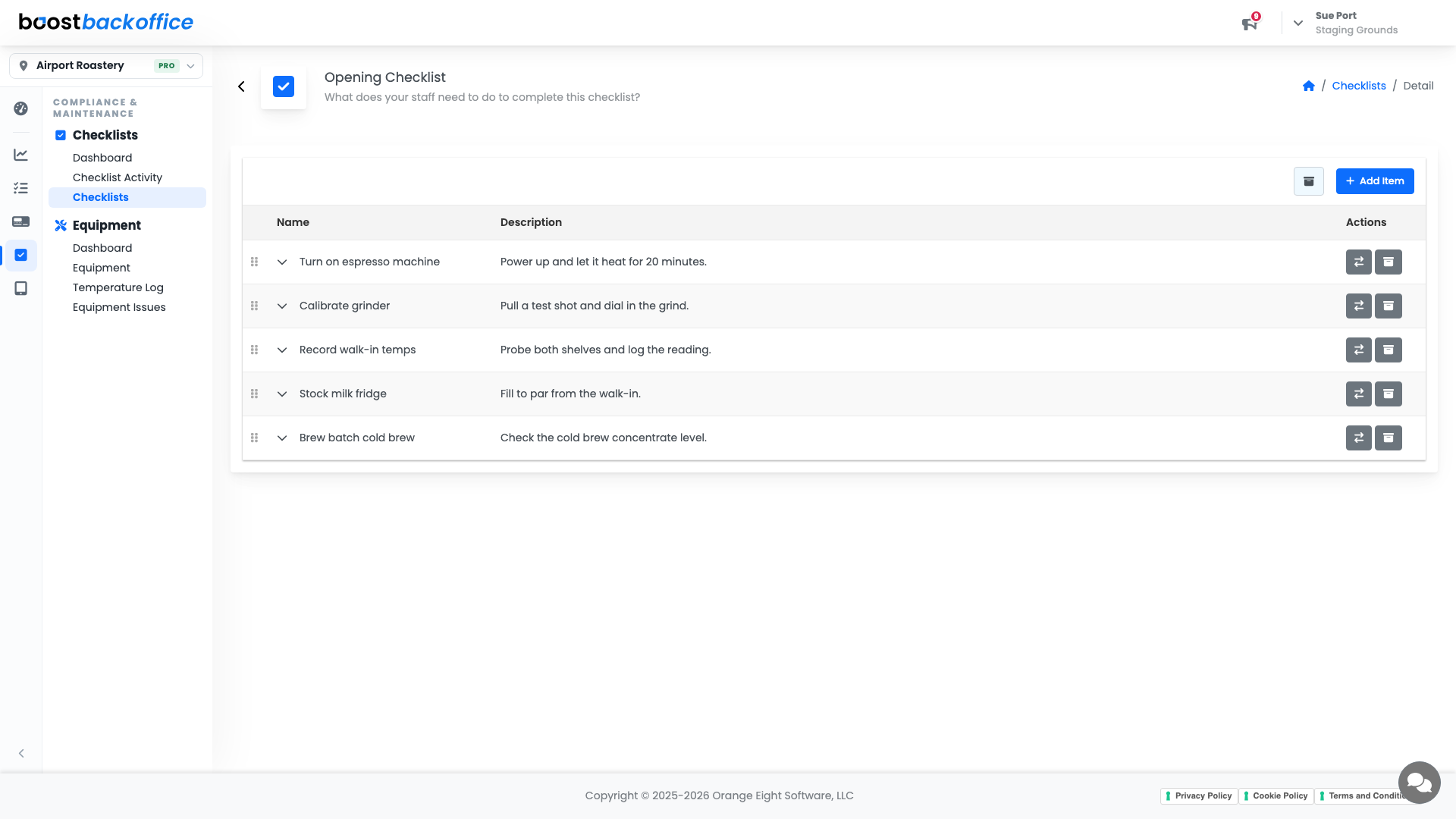
Open a checklist to work on its items. Each item is one task somebody signs off, and items can be added, dragged into the order the work actually happens, and archived when they stop being relevant.
Important
Write items as actions with a clear finish: "Record walk-in temperature" beats "check fridge". The person doing it at 6am should never have to interpret.
What you should see
A short list of checklists that match how your shop really runs, each with items in the order your team works, appearing on the tablet at the time it is needed.
Account Level: KDS & Pro