

Emailing Invoices to Boost
Contents8 sections
Invoices already land in your inbox. Instead of downloading each one and uploading it again, send it straight to Boost: every location has its own invoice email address, and anything sent there shows up in Import Invoice already read, waiting for you to check it and log it.
Before you start
Invoice import is part of the Pro plan. Approving new senders, managing trusted senders and regenerating an address need an owner or manager login.
Get your location's address
Every location gets its address automatically, so there's nothing to set up.
-
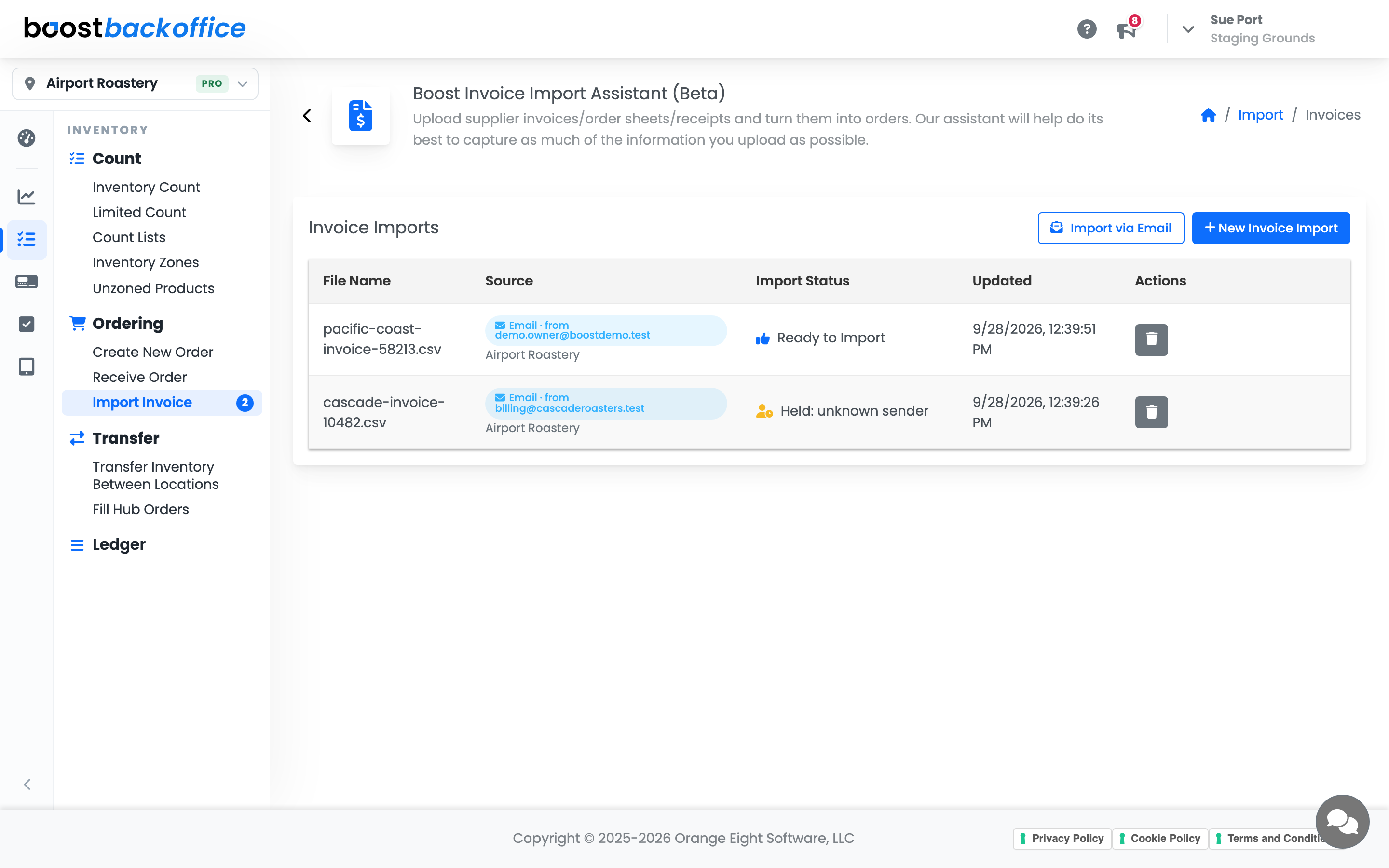
Open Inventory > Ordering > Import Invoice and press Import via Email, next to New Invoice Import.
-
The window shows the address for the location you're working in. Press Copy address, then give it to your suppliers or save it in your contacts so you can forward invoices yourself.
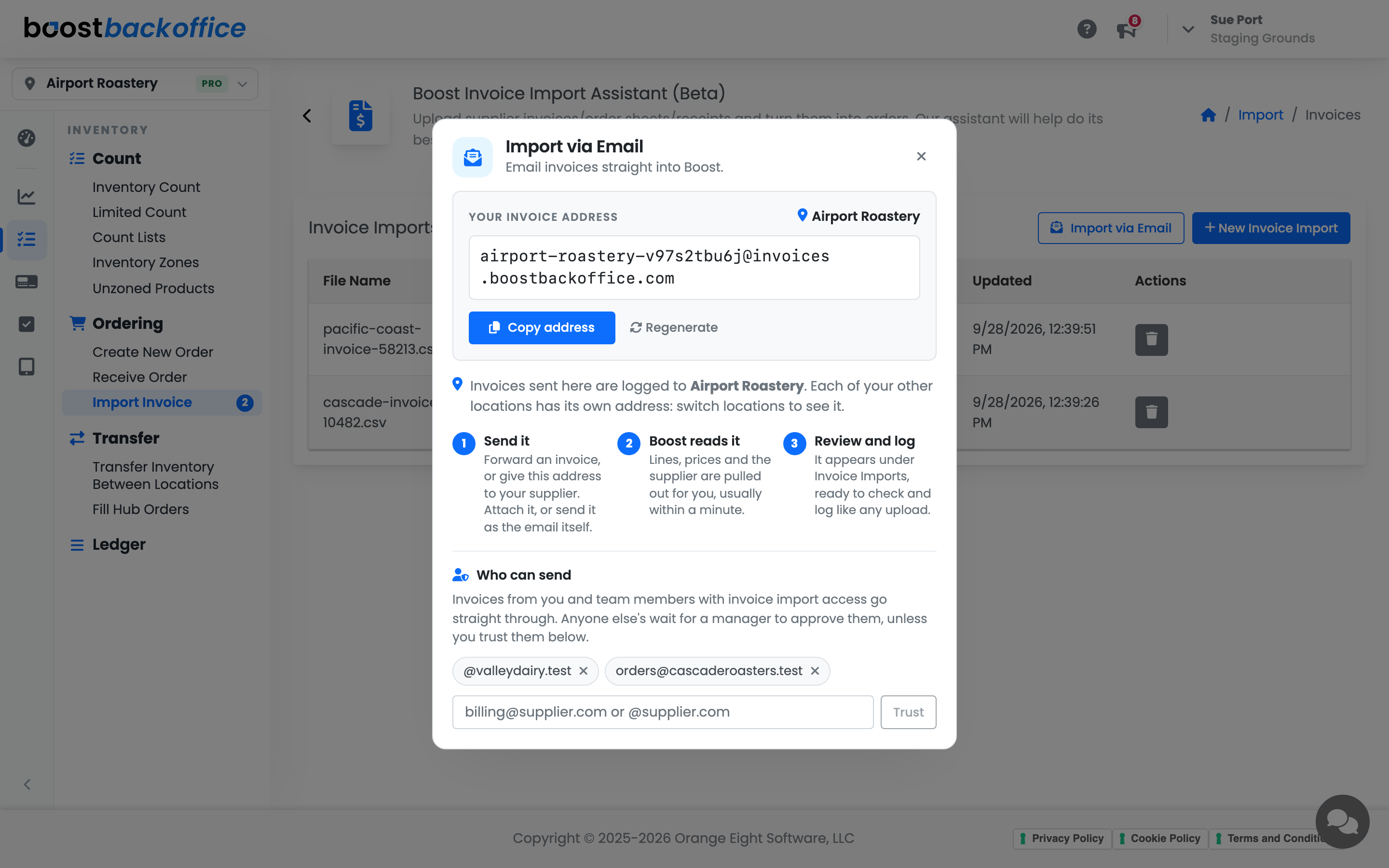
Invoices sent to that address are logged to that location. Each of your other locations has its own address: switch to that location and open Import via Email again to see it.
Send an invoice
Send the invoice to the address in whichever form you have it:
- Attached as a PDF, photo, CSV or Excel file. Each attachment becomes its own import, up to 10 per email and 15 MB each.
- As the email itself. Many online order confirmations and supplier invoices arrive as the email rather than an attachment. Forward it as it is and Boost reads the invoice from the email.
Logos and signature images in the email are ignored. When an invoice file is attached, Boost reads the file and ignores the message around it, so a note like "here's this week's invoice" is fine.
Within moments the invoice appears in the Invoice Imports list. The Source column shows who emailed it and which location it was sent to. When the sender is one Boost already trusts (see below), a short reply confirms what was received, and lists anything that was already received or skipped (for example a file type Boost can't read).
Who can send invoices
| Sender | What happens |
|---|---|
| You, your managers, and team members with invoice import access to that location | Imported automatically |
| An address or domain on that location's trusted list | Imported automatically |
| Anyone else | Held until an owner or manager approves it |
Boost also checks that the email really came from the address it claims to be from. An email that fails that check is held for approval, even when it carries a teammate's address.
Trust a supplier
In the Import via Email window, owners and managers see the trusted list under Who can send. Type a supplier's full address or an @domain and press Trust, or press the × on a sender to remove it.
Each location keeps its own list, so a supplier trusted at one store still needs approving at another.
Approve an invoice from a new sender
-
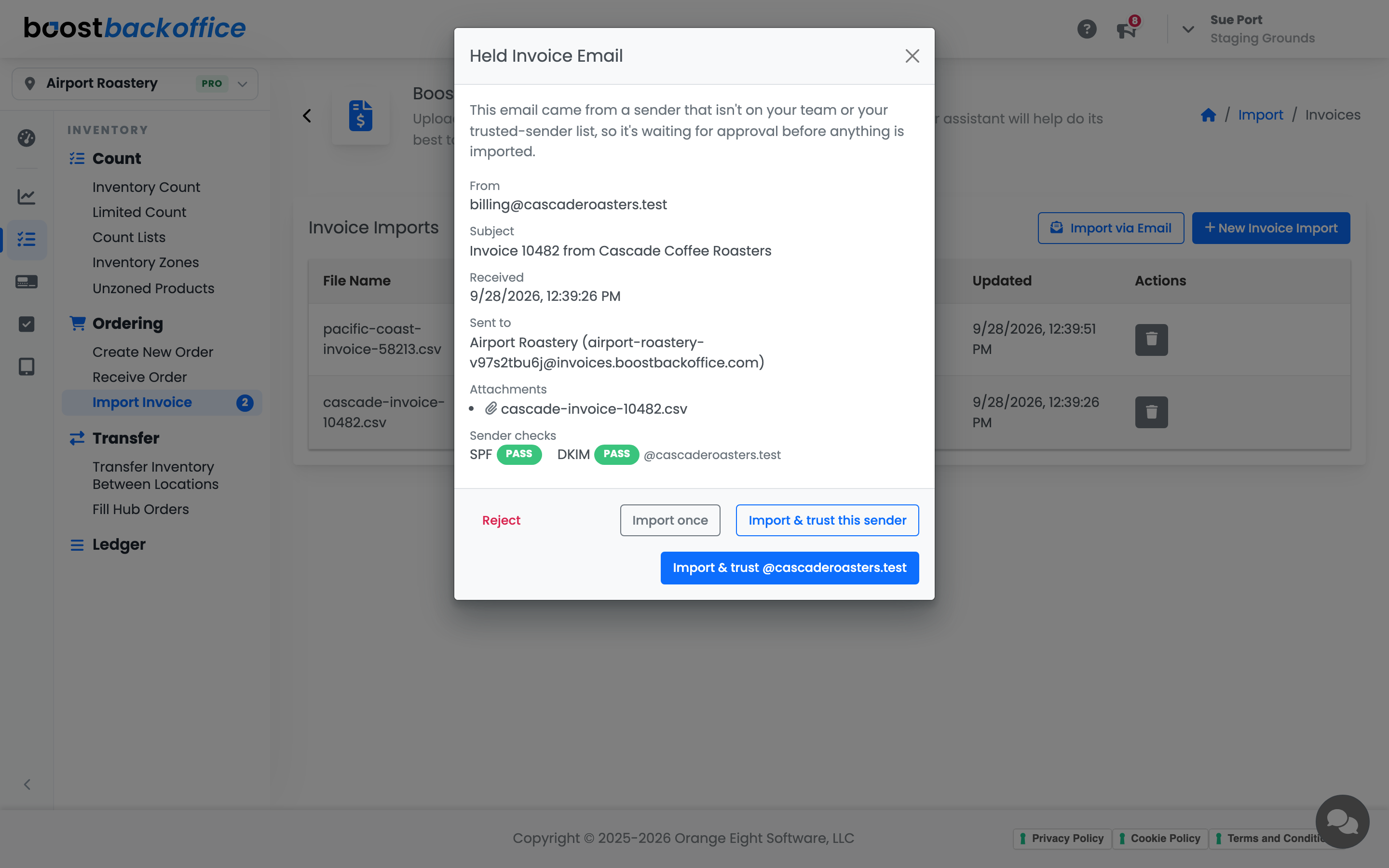
A held email shows Held: unknown sender in the list. Click it.
-
Check the sender, subject and attachments.
-
Choose what to do:
- Import once reads this email and leaves the sender unknown.
- Import & trust this sender reads it and adds that address to the location's trusted list.
- Import & trust @domain reads it and trusts everyone at that supplier's domain.
- Reject discards the email without importing anything.
The trust buttons are turned off for an email that failed its sender check, and domain trust isn't offered for shared providers like Gmail, where it would trust everyone who uses them. Team members without manager access can open a held email but see that it's waiting for a manager.
Note
A held email that nobody approves is discarded after 30 days.
Review and log the invoice
Click an invoice marked Ready to Import to open the review screen. Logging to starts on the location the invoice was emailed to, and the line underneath shows who emailed it. Change the location if the delivery went to a different store, then match the supplier and products and log it exactly as you would an uploaded invoice (see Importing a Supplier Invoice).
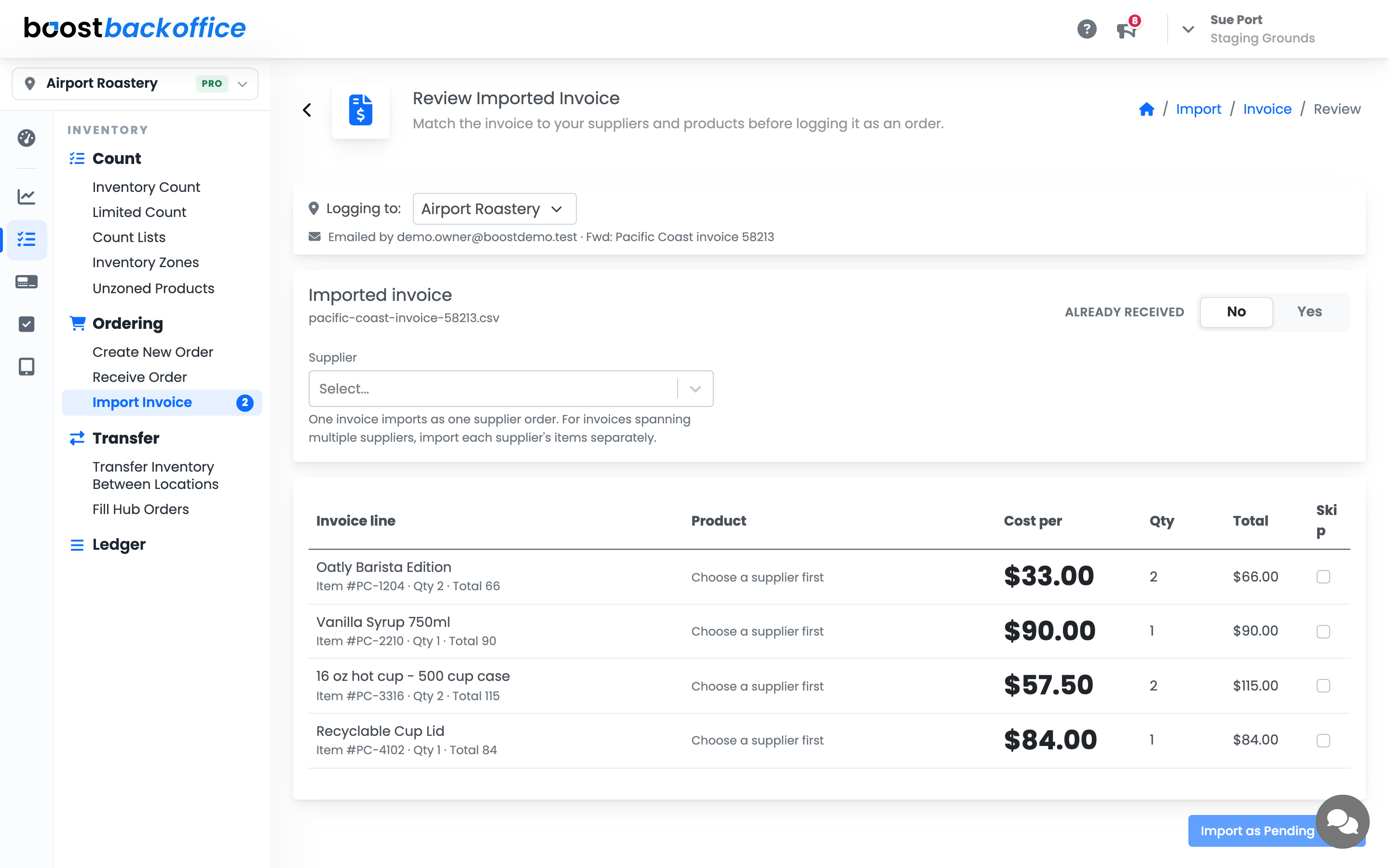
Emailing the same invoice twice doesn't create a second import, and the review screen warns you if that supplier's invoice number has already been imported.
If Boost can't read an emailed invoice, its row shows a Retry button. If it reads the file but can't recognize it as an invoice, it opens on the same column-matching step as an upload.
Replacing an address
If an address ends up somewhere it shouldn't, an owner or manager can press Regenerate in the Import via Email window to issue a new one.
Careful
The old address stops working immediately, and anything sent to it afterwards is not imported. Give the new address to every supplier that emails invoices to that location. Your trusted senders carry over.
What you should see
Your supplier sends an invoice, it appears in Import Invoice a few moments later marked Ready to Import, and logging it takes the time it takes to check the lines.
Account Level: Pro