

Setting Up the Pickup Screen
Contents4 sections
The question every customer asks is the one your baristas should not have to answer. The Pickup screen puts the answer on the wall and keeps it current, straight off your KDS.
Before you start
The display needs to be paired first. See Pairing a Screen with a QR Code, then come back here. Pickup screens run at Pro locations.
Point a display at the Pickup view
Open On Location > Screens > Device Settings. Every paired display has a row here.
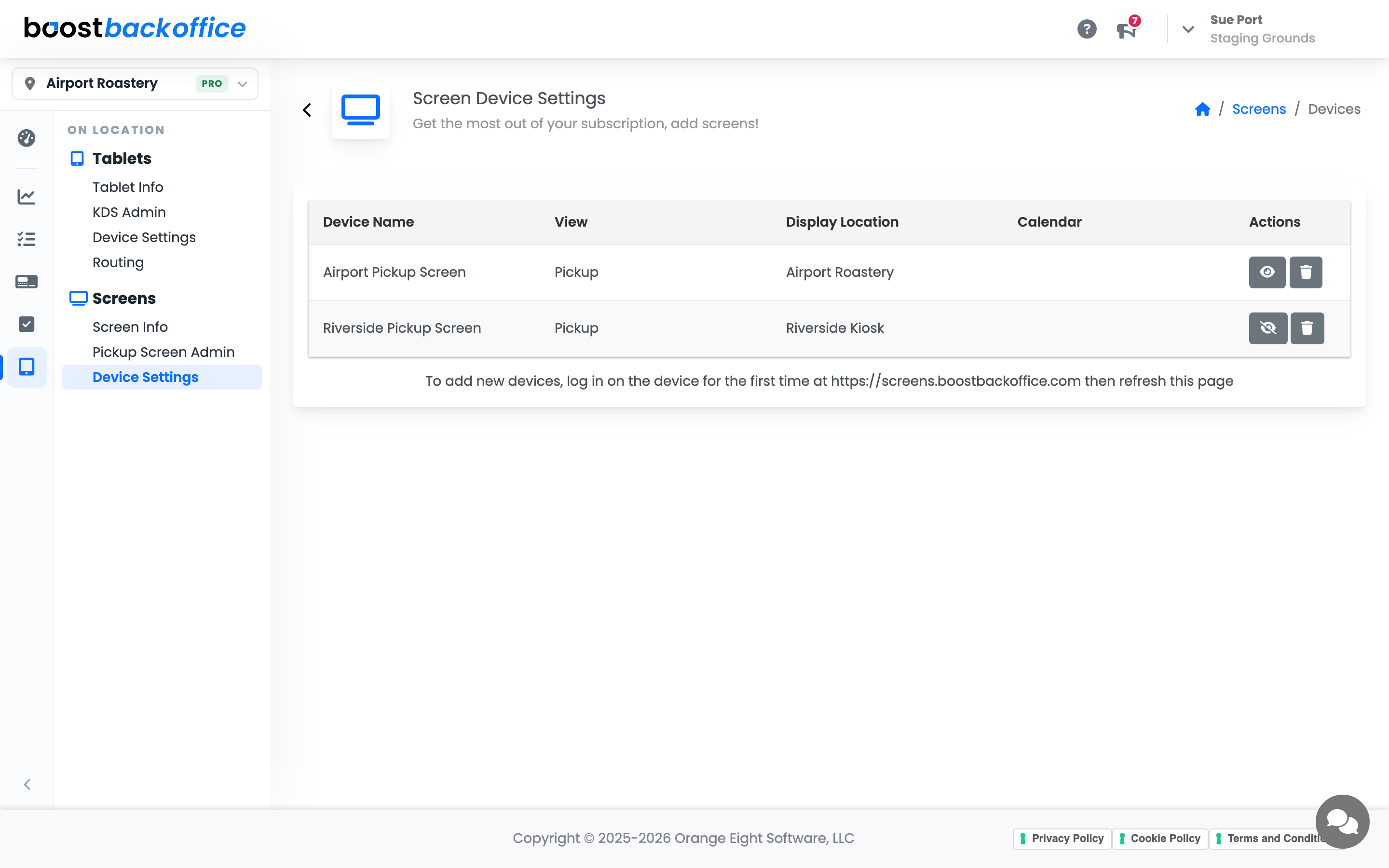
Set two fields on the display you want:
- View, set to
Pickup. - Display Location, set to the shop whose queue it should show.
Both are click-to-edit, and the display switches over by itself within a few seconds. You never have to touch the screen on the wall, which matters when it is mounted above head height.
Tip
Not sure which physical screen a row belongs to? Click the eye button in Actions and that display shows its own name in the corner for 30 seconds.
What customers see
Every order in the queue gets its own row, and the row fills in from left to right as the drink moves through the bar.
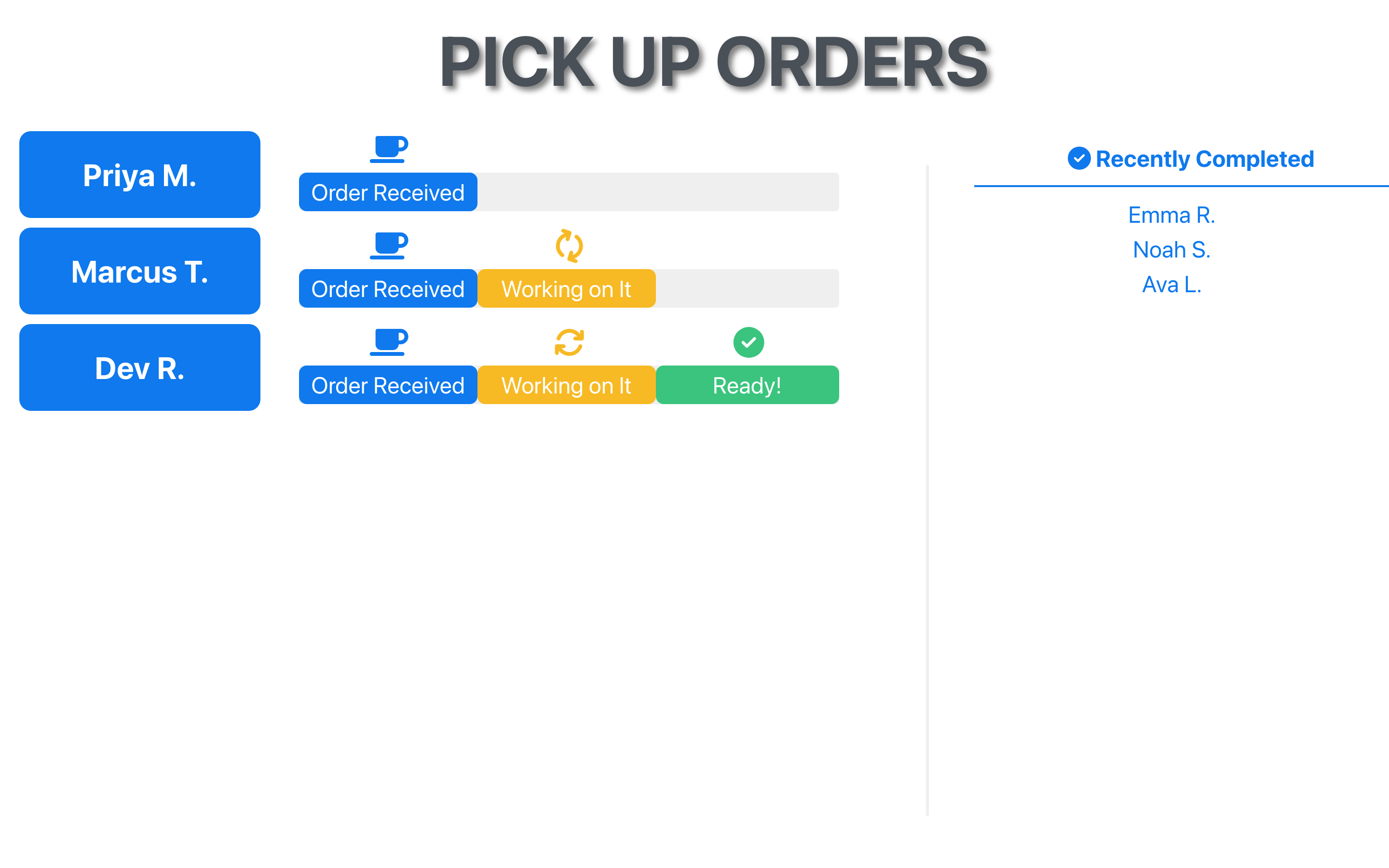
| Stage | What it means |
|---|---|
| Order Received | The order has landed and is waiting on the bar. |
| Working on It | Someone has started at least one item on the KDS ticket. |
| Ready! | The order has been expo'd and is on the handoff counter. |
Nobody has to update any of this. The stages follow what your team is already doing on the KDS, so the wall stays honest without anyone tending it.
Once an order is picked up it leaves the main list and moves under Recently Completed, which keeps the name visible a while longer for the customer who wandered off to find a seat.
Tune it for your shop
Open On Location > Screens > Pickup Screen Admin.
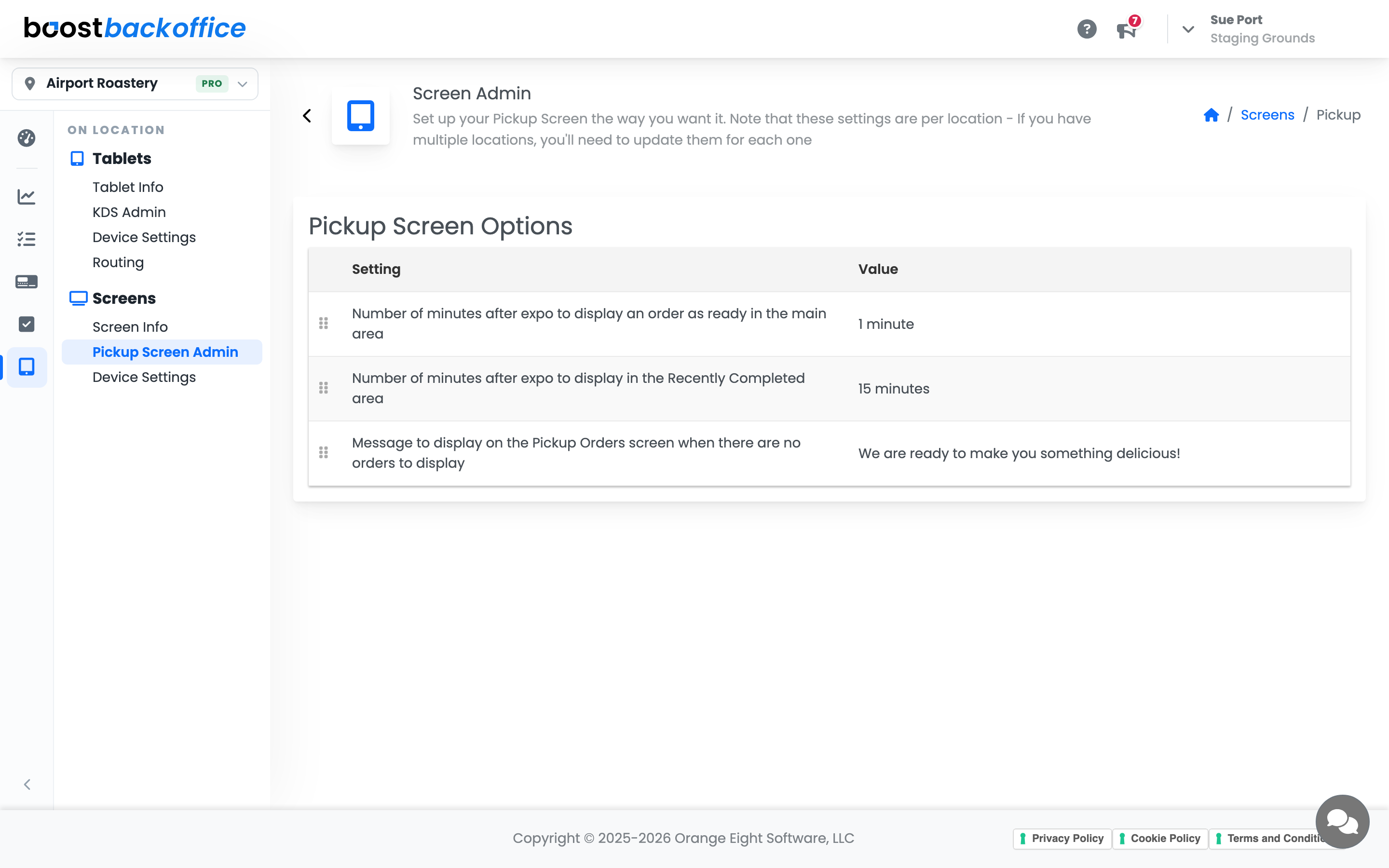
Three settings, all click-to-edit:
- Minutes to display an order as ready in the main area. How long a finished order holds its spot in the main list after expo.
- Minutes to display in the Recently Completed area. How long the name stays in the side list after that.
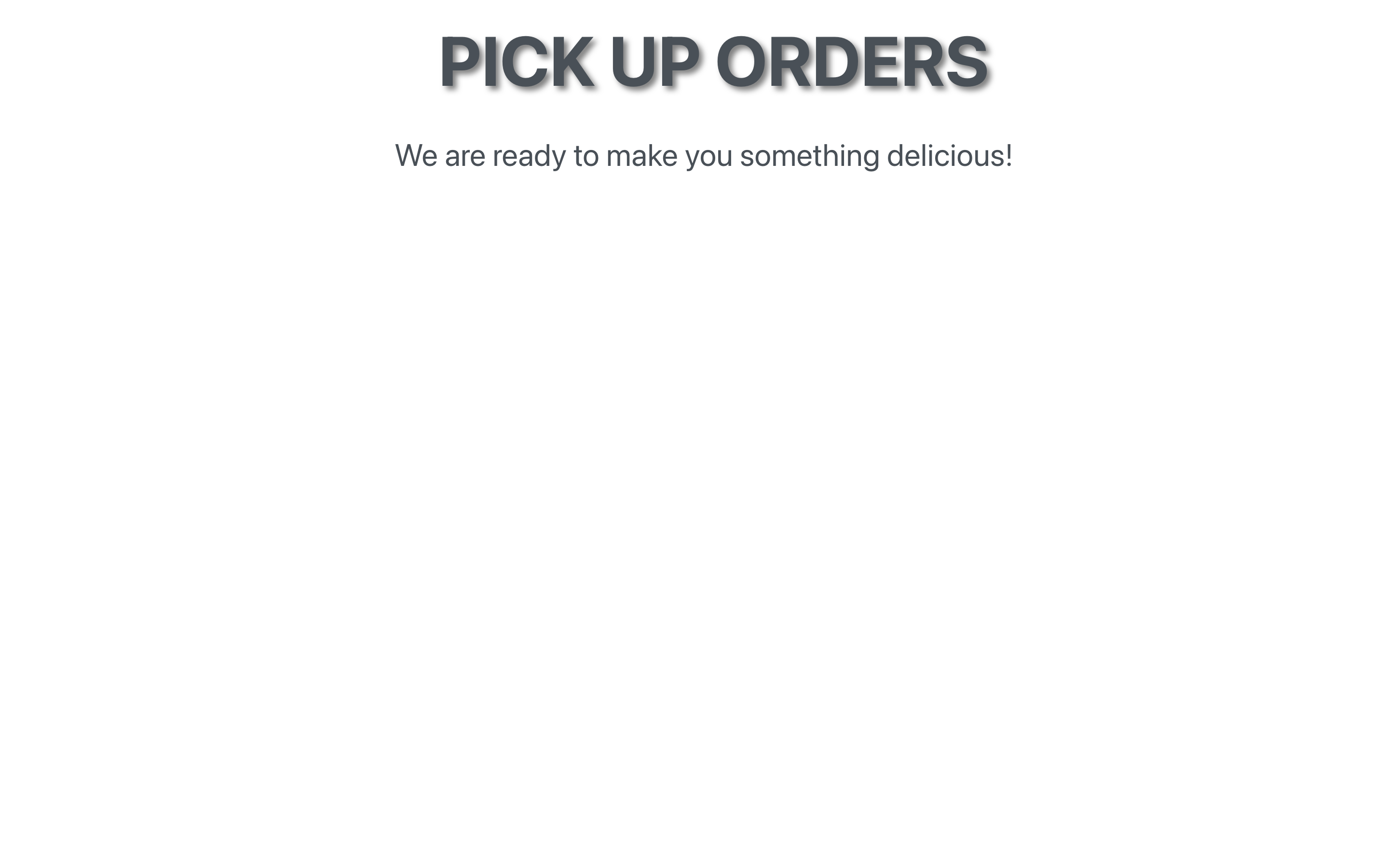
- Message when there are no orders to display. What the screen says during a lull.
Important
These three are per location, not per screen. A second shop needs its own pass, and two displays at the same shop will always agree with each other.
That last setting is worth a minute of thought. An empty board is not a broken board, and the right line makes a quiet moment look deliberate.
What you should see
A display that moved to the Pickup view on its own, orders appearing the moment they hit the bar, and each row lighting up stage by stage until it is ready. When the queue empties, your own message, not a blank wall.
Account Level: Pro