

Showing Several Locations on One Screen
Contents5 sections
Running more than one shop? One display in the office or the commissary can show each location's board in turn. Every location gets its own link, and a screen shows whichever one you open on it.
Get the links
-
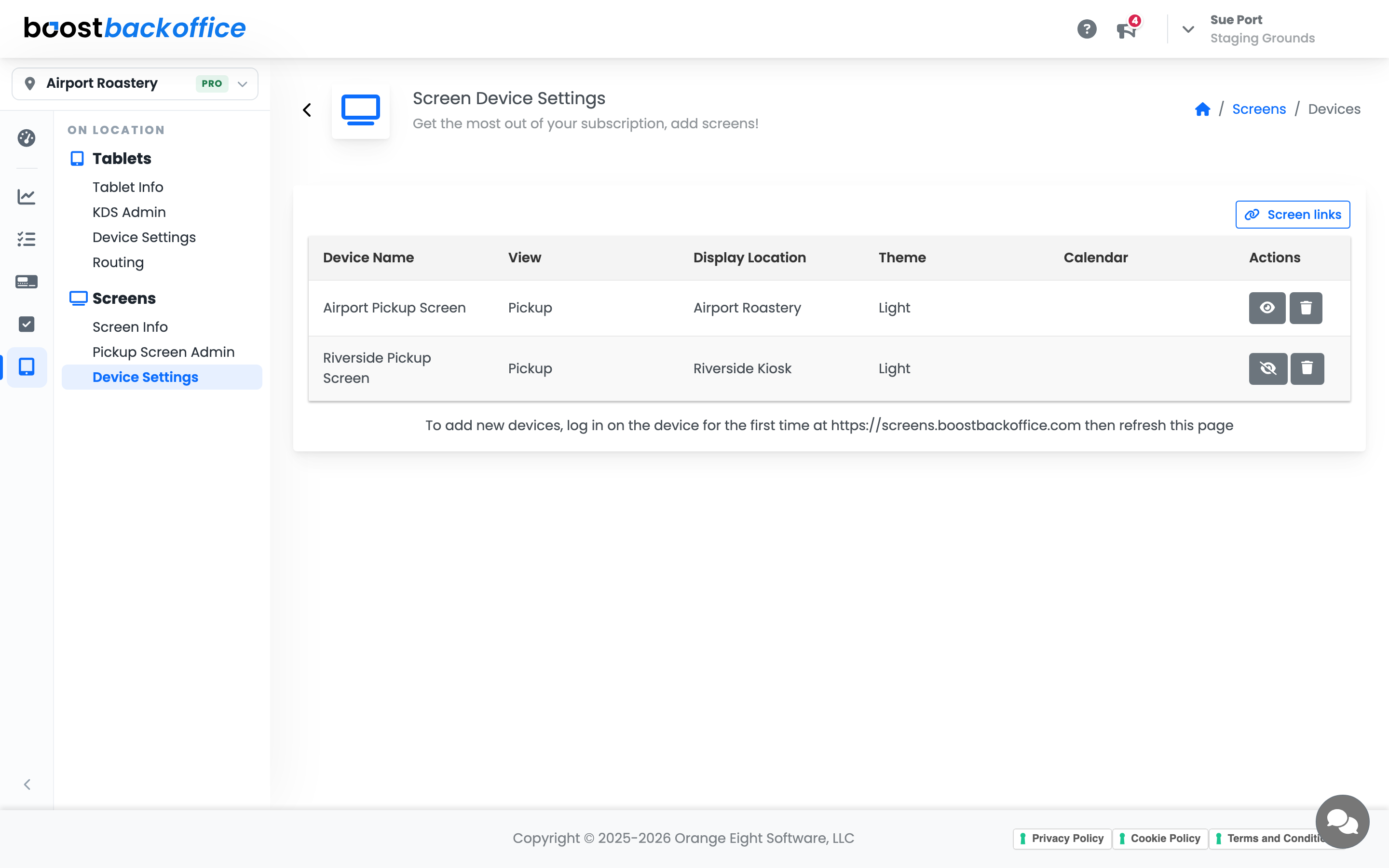
Go to On Location > Screens > Device Settings.
-
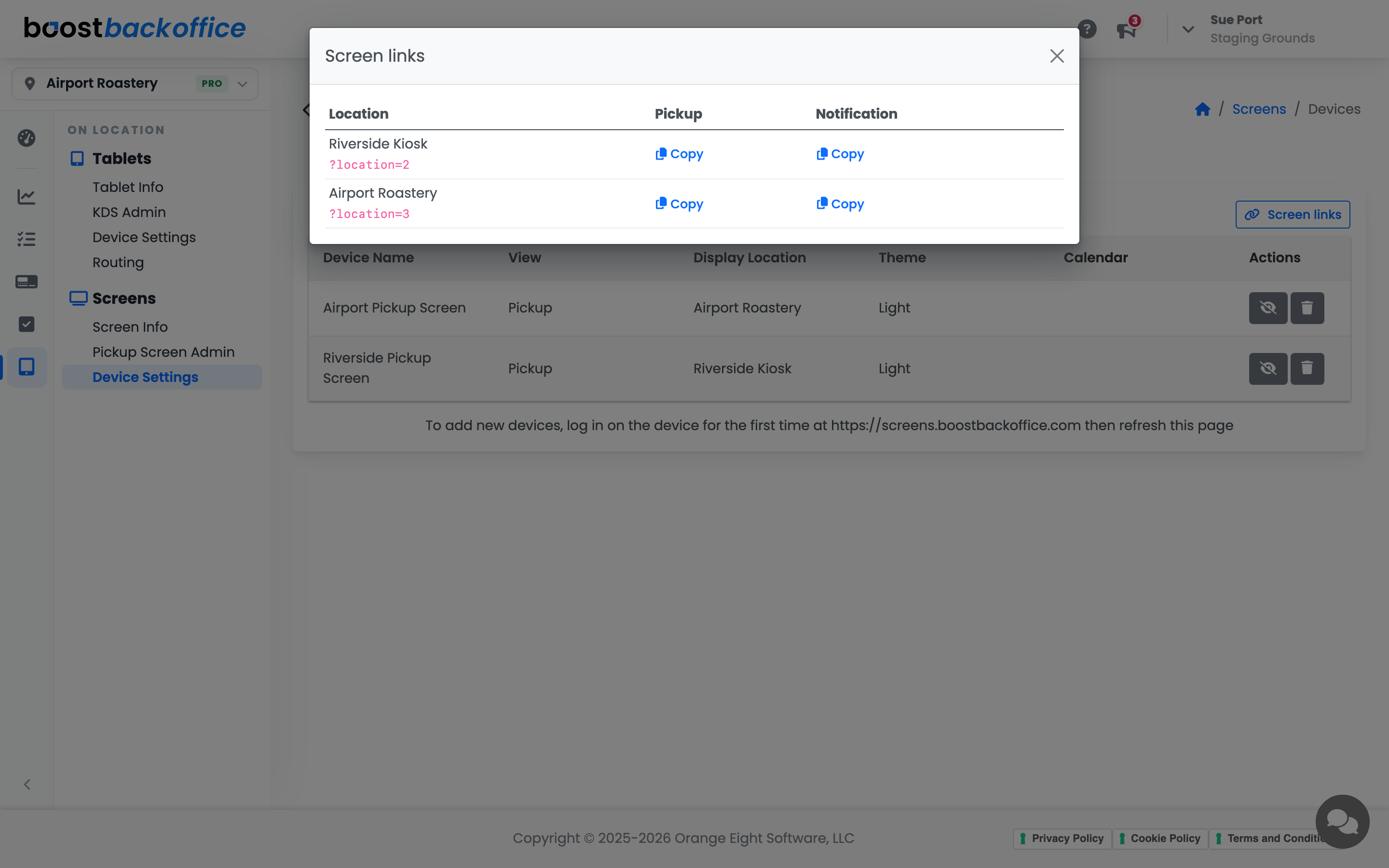
Press Screen links. You get one row per Pro location, with a Pickup link and a Notification link.
-
Press Copy under the view you want, on the location's row. The link is the screens address for that view with the location's number on the end, for example
/notification?location=2.
Show it on a screen
Open the link on a display that is already paired and signed in. It shows that view for that location, whatever View and Display Location the device has in Device Settings. The location's name sits in the bottom-right corner, so anyone watching knows which shop is up.
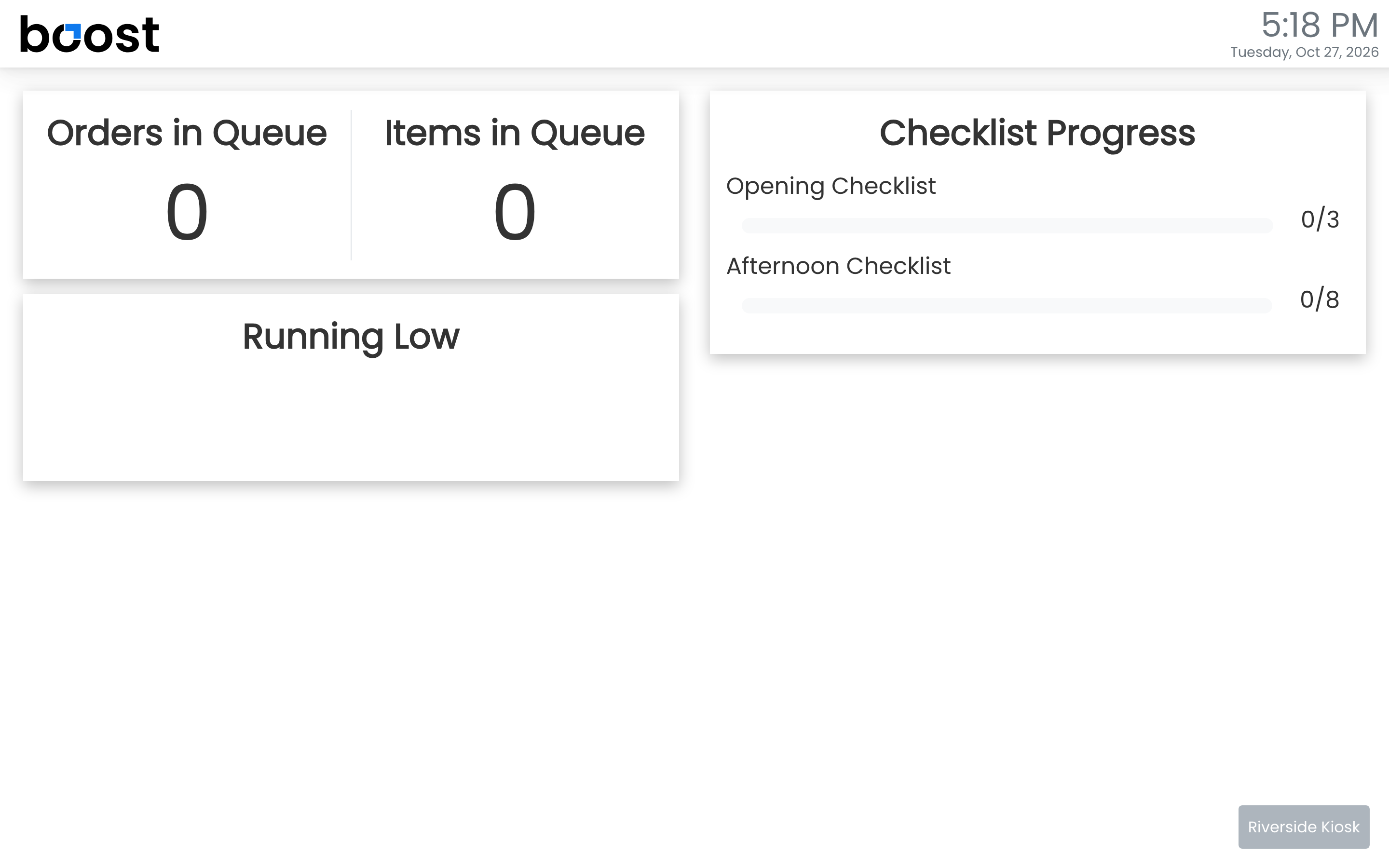
To rotate through your shops, add one link per location to whatever already cycles your display, such as a signage player, a slideshow or a tab rotator. Each link stands on its own, so several can even run side by side.
Note
A screen opened without ?location= works exactly as before: it follows the View and Display Location set in Device Settings, and changes there still reach it straight away.
Typing a link by hand
The location's name works in place of its number, for example /notification?location=riverside-kiosk. Capitals, spaces and punctuation don't matter. The number from Screen links keeps working when a location is renamed; a name-based link stops working.
If the screen shows a message instead
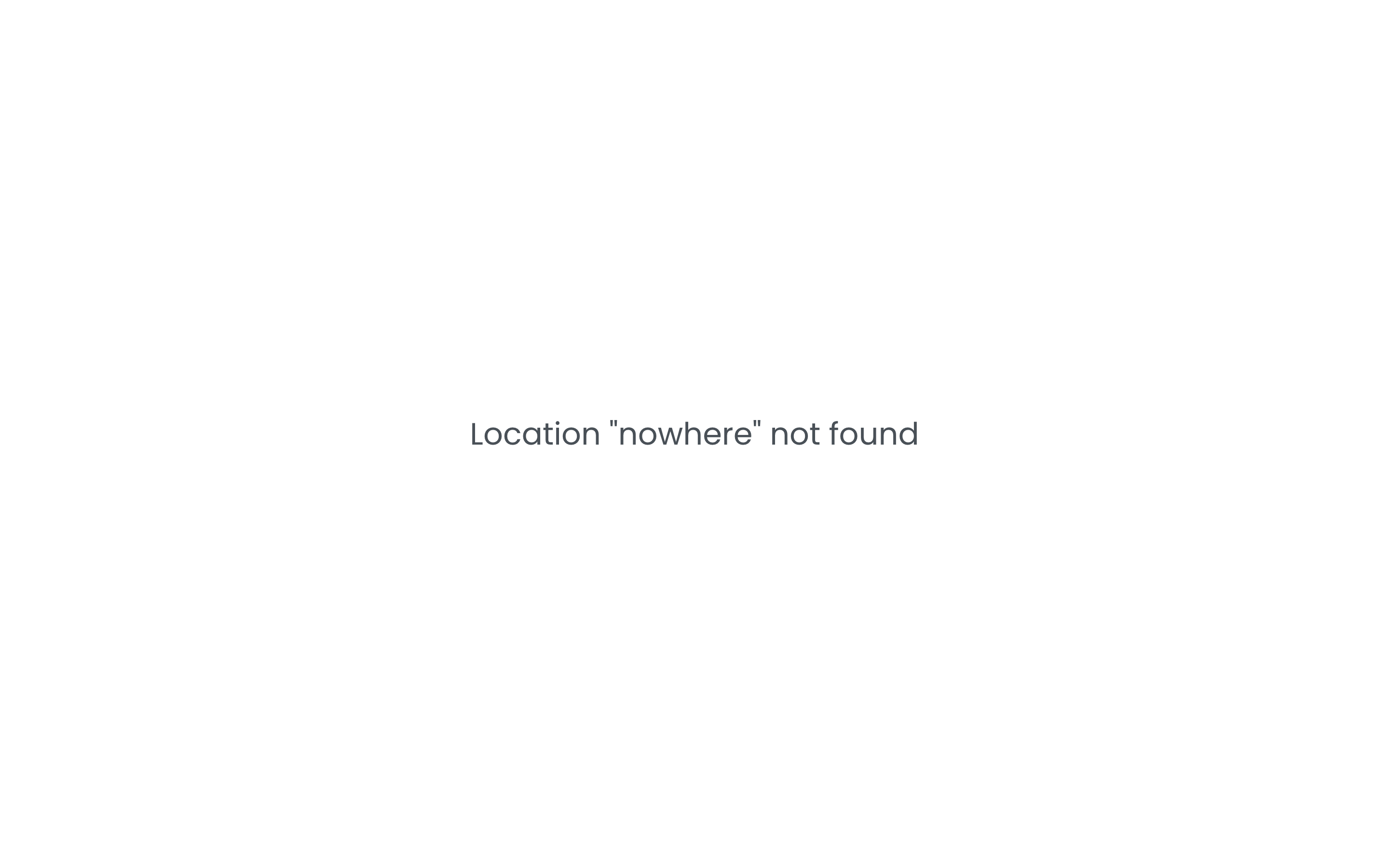
A screen that can't show the location you asked for says so, naming what it was given, and shows no data until the link is fixed.
| The screen says | What to do |
|---|---|
| Location "…" not found | The name or number doesn't match a location. Copy the link again from Screen links. |
| "…" matches more than one location | Two locations share that name. Use the location's number instead. |
| No access to location "…" | The person who signed the screen in can't see that location. Sign it in as someone who can. |
| "…" needs the Pro plan for screens | Screens are part of Pro. Pick a Pro location, or upgrade that one. |
Note
The calendar card belongs to the device, not the link, so every location shown on one screen shows the same calendar.
What you should see
Each link opens its own location's board, with that location's name in the corner, on any screen your team has signed in.
Account Level: Pro