
Your profile and settings on the Underground
Contents8 sections
Everything about your account lives on the Operator Underground: who you are, what your shop looks like, what we are allowed to interrupt you about, and the things you have saved to come back to.
Find It Fast: Press your initials at the top right to open your account menu. The theme switch sits at the top; Edit profile and Settings are at the bottom, with Bookmarks and Your goals above. Settings has six tabs: Notifications, Profile, Friends, Blocked, Referrals and Podcast feed. (Friends and Blocked have their own article: Messaging and friends on the Underground.)
Your profile and shop
Let Operators Know Who They're Talking To: Open Settings → Profile, or Edit profile on your own profile page.
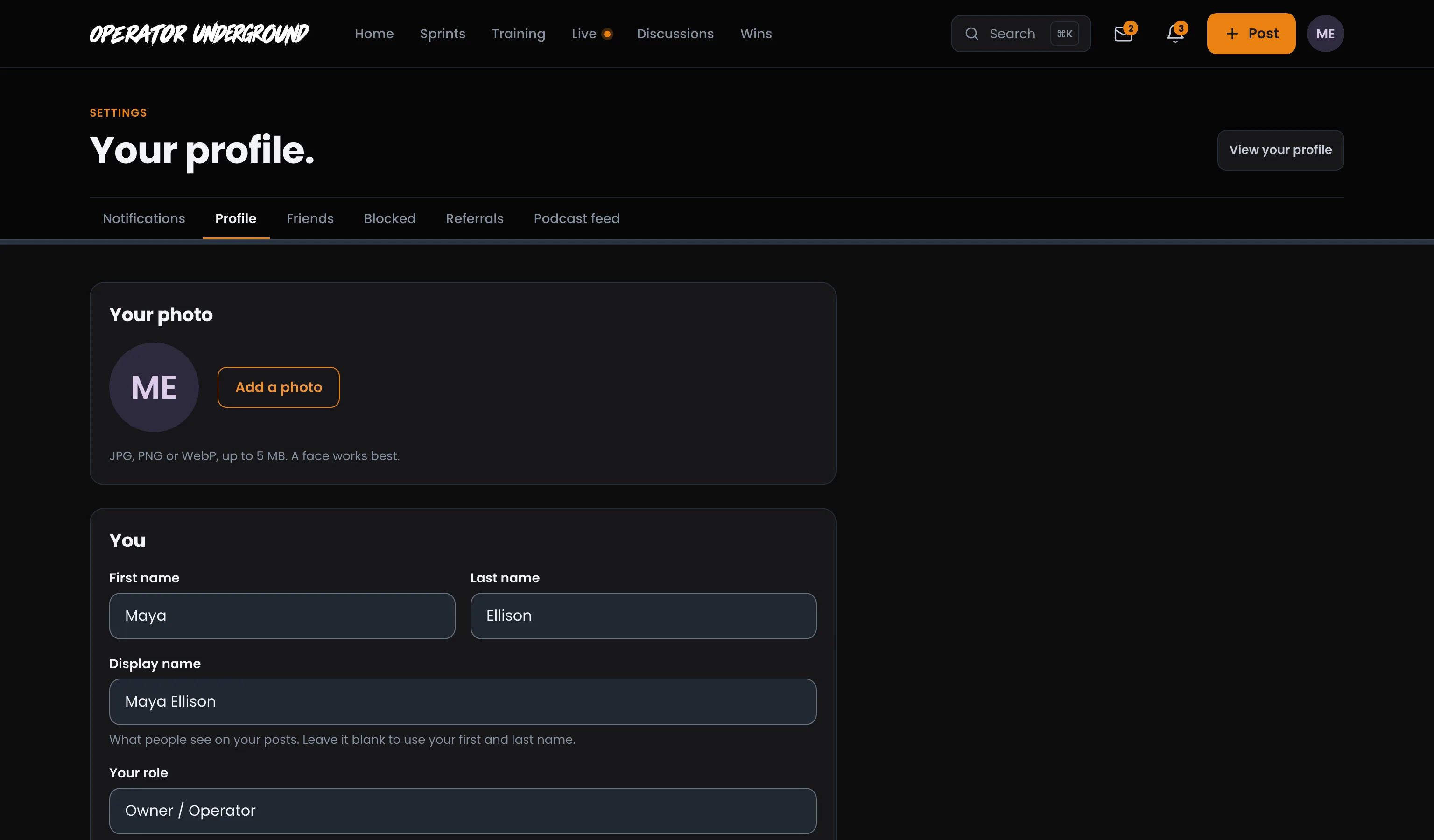
- Your photo: Add a photo (or Change photo), then crop and zoom it. JPG, PNG or WebP, up to 5 MB.
- You: first and last name, a display name (what people see on your posts), your role, In your words, what you are working toward, where you are and your website.
- Your shop: its name, where you are with it, the concept, city, state, number of locations and when it opened (or opens).
- Who sees your activity: Everyone in the Underground, or Just me. With Just me, your profile shows your name and shop only, and your posts still appear where you posted them.
Press Save profile when you are done.
Note
Your sign-in email is the address we send your sign-in links to. To change it, email the support address shown under the profile form.
What reaches you
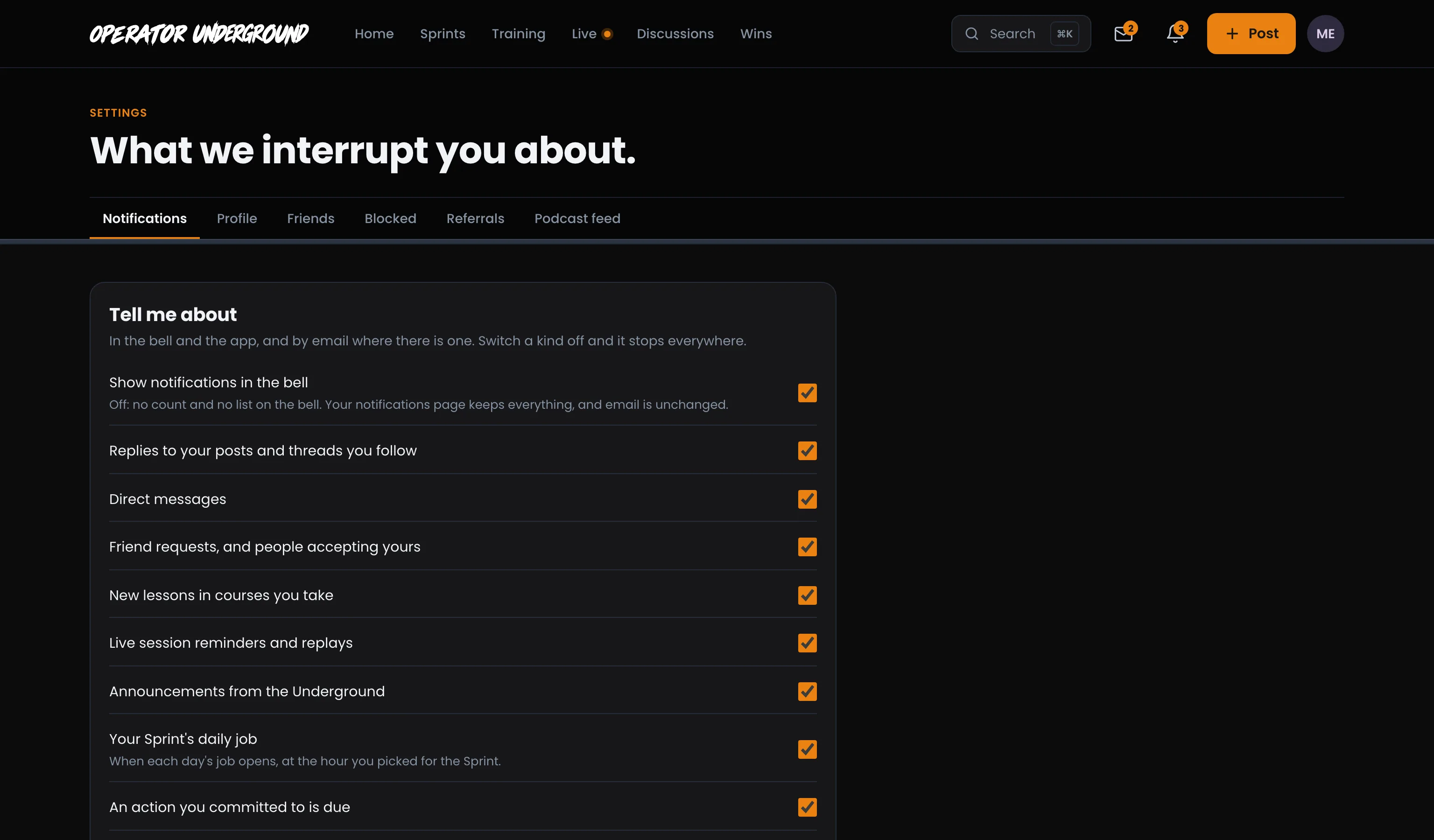
Hear About What Matters, Skip the Rest: Settings → Notifications sets what reaches you in the bell, in the app and by email. Switch a kind off and it stops everywhere: replies to your posts and threads you follow, direct messages, friend requests, new lessons in your courses, live session reminders and replays, announcements, your Sprint's daily job (when each day's job opens, at the hour you picked for the Sprint), actions coming due, and recognition you earn (when you pass a new standing title; posting never counts).
Show notifications in the bell, at the top, turns the bell itself off: no count and no list on it. Your notifications page still keeps everything, and email is unchanged.
Under By email:
- A digest of what happened while you were away: Never, Daily or Weekly.
- Email me when someone replies to: Replies to my posts, Every thread I follow, or None (they still show in the bell).
- Sprint prompts and reminders, on or off.
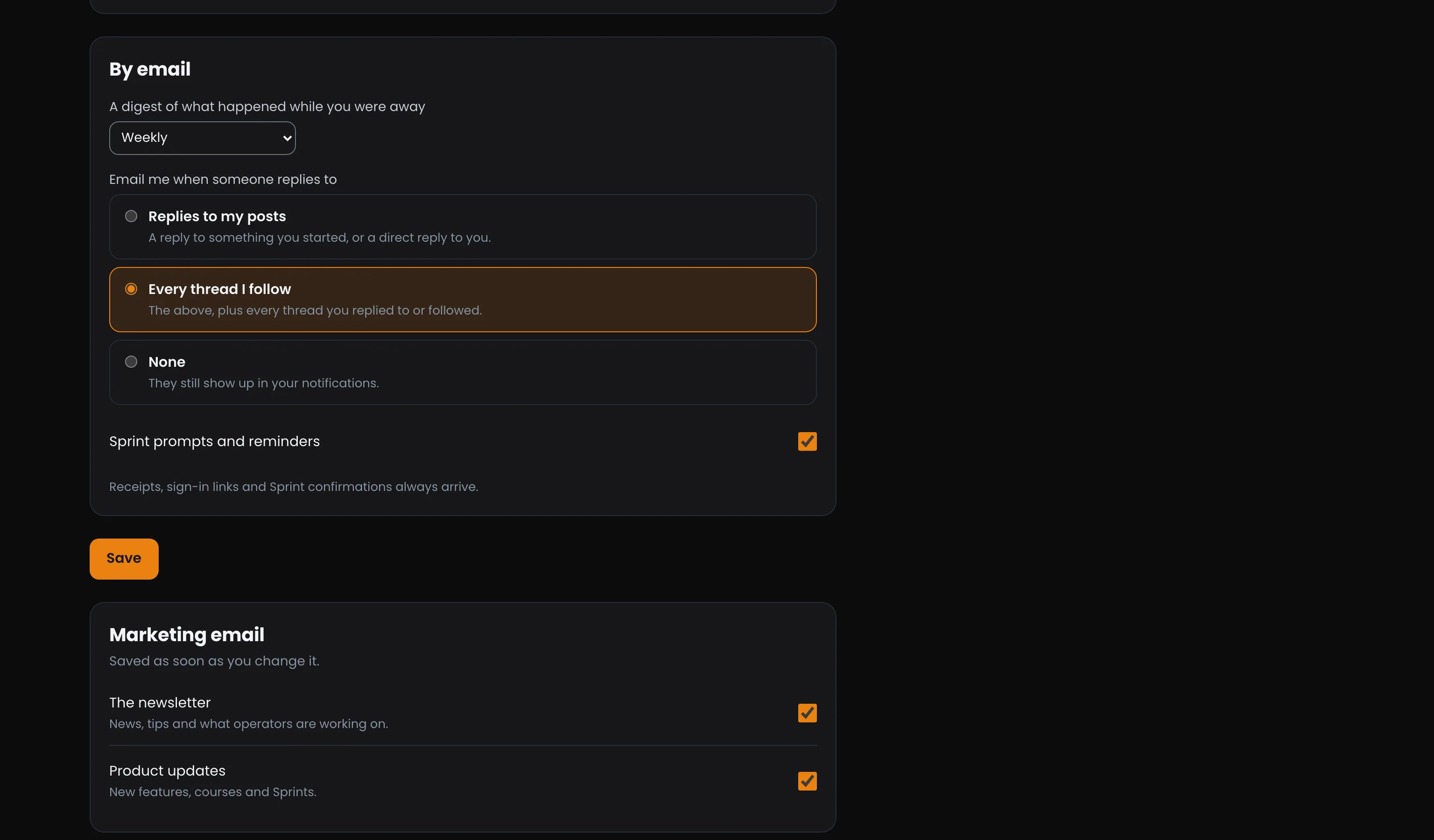
Press Save. Receipts, sign-in links and Sprint confirmations always arrive, whatever you choose.
Marketing email (the newsletter and product updates) saves the moment you change it.
Light, dark or auto
Easy on the Eyes: Appearance, near the bottom of Settings, has the same Light, Auto and Dark switch as the top of your account menu. Light and Dark stay put; Auto follows your device's own setting and switches with it. It saves the moment you pick, and it is how you get back to Auto on a phone after flipping the theme with the header icon.
Bring an operator in
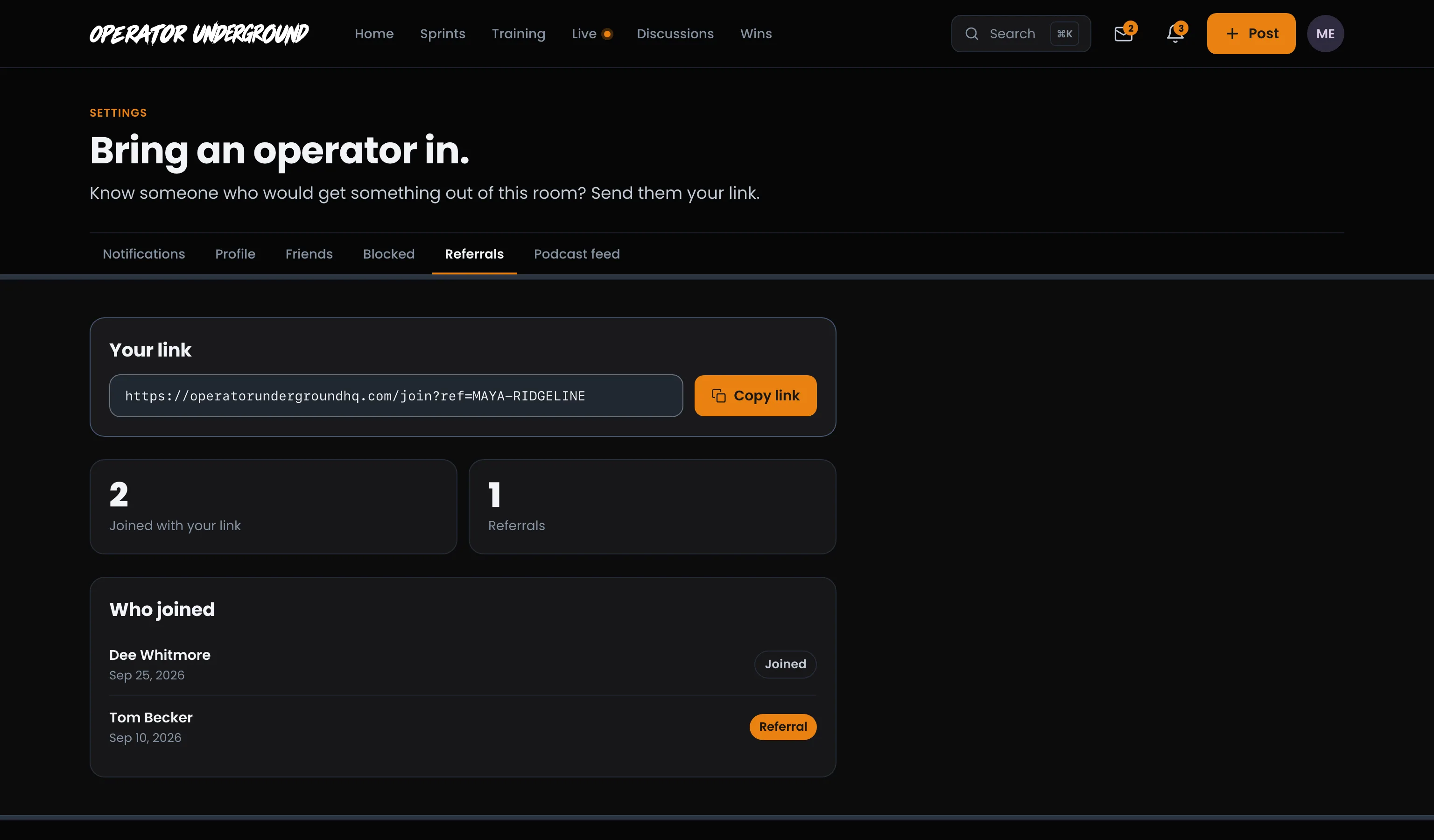
Share the Room: Settings → Referrals gives you a link to send. Press Get your link the first time, then Copy link. The page counts who joined with your link and your Referrals: people who joined with your link and went on to buy the Training Pass. Under Who joined, each person shows Joined, or Referral once they have bought the pass.
Listen on the drive in
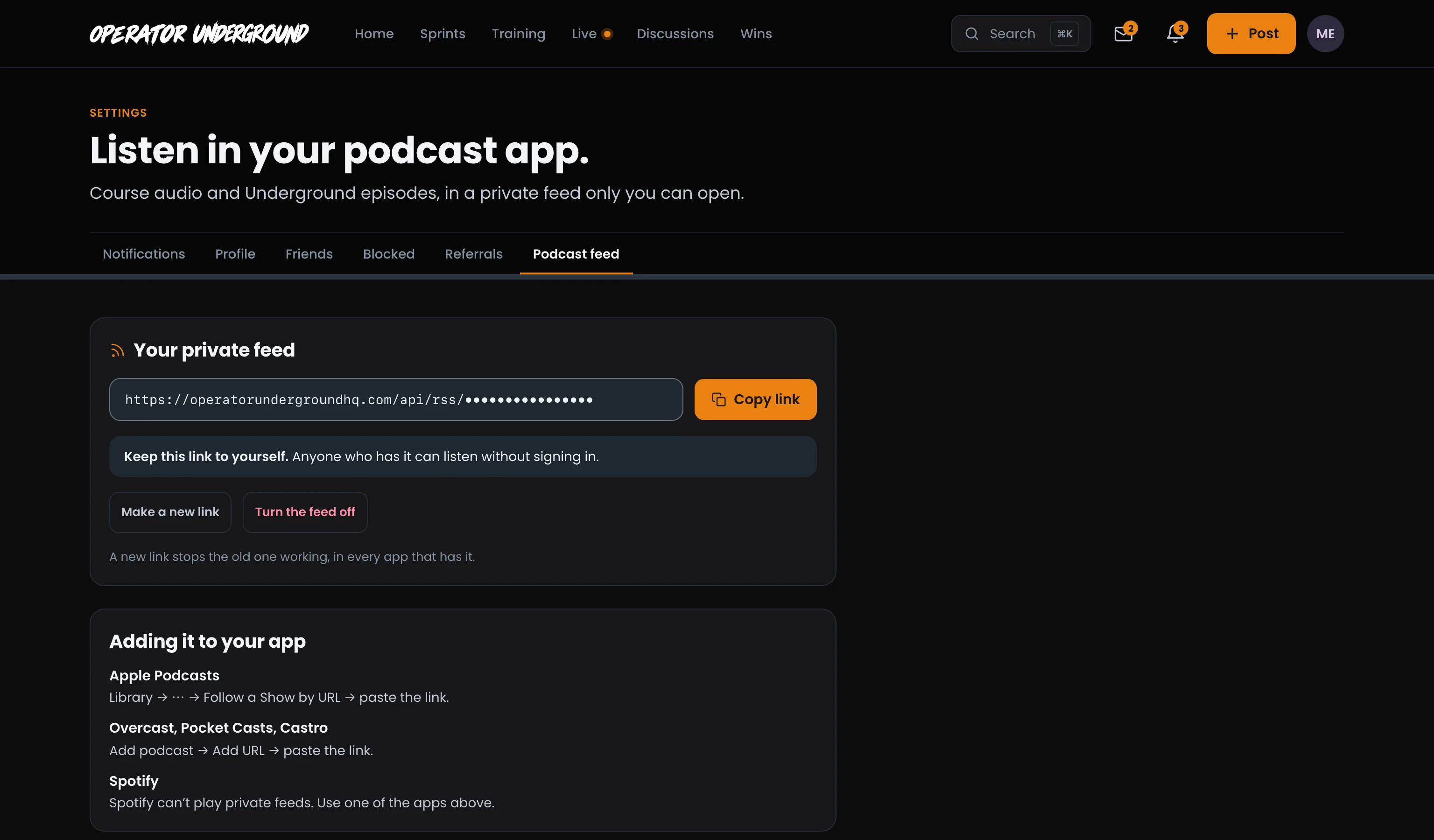
Learn Between Shifts: Settings → Podcast feed turns course audio and Underground episodes into a private feed for your podcast app. The feed comes with the Training Pass: without the pass, the page offers Get the Training Pass instead, and a link you made earlier is paused until you have the pass again.
- Press Make my feed.
- Press Copy link and paste it into your podcast app. The page shows how for Apple Podcasts, Overcast, Pocket Casts and Castro.
- New episodes show up in the app on their own.
Careful
Keep the link to yourself: anyone who has it can listen without signing in. Make a new link stops the old one working in every app that has it, and Turn the feed off ends it. Spotify can't play private feeds.
Bookmarks
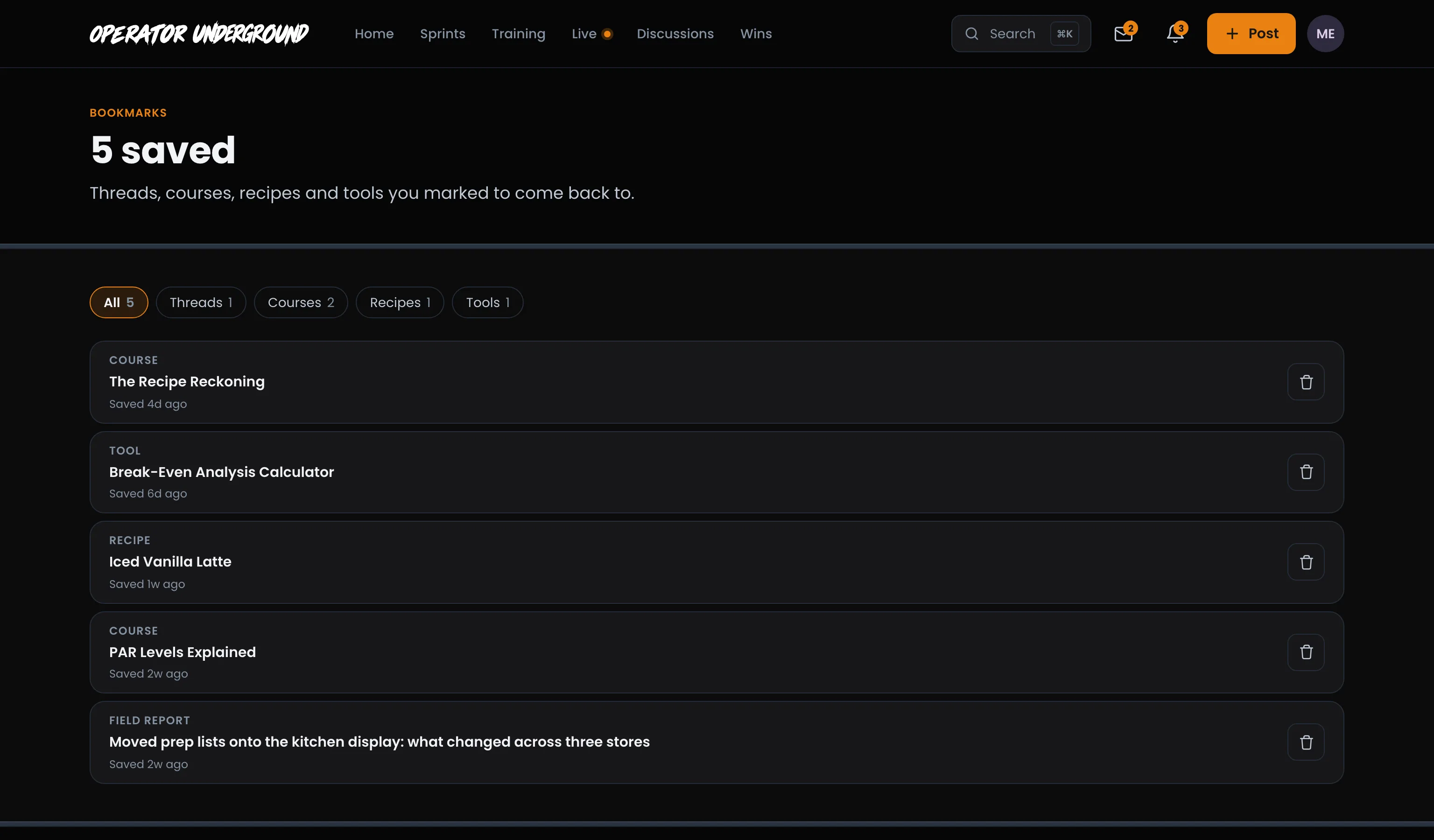
Save It for Later: On any thread, press Save for later in the side panel. Bookmarks (in your account menu) lists everything you have saved, threads, courses, recipes and tools, newest first. Filter by kind along the top, and press the bin icon to take something off the list.
Goals
Name the Bigger Thing: Your goals holds what you are working toward over months, not days. The week-sized steps toward them are your actions.
- Press New goal.
- Say what you want to get done. Add why it matters, a date to hit it by, and a course that helps, if you like.
- Press Save goal.
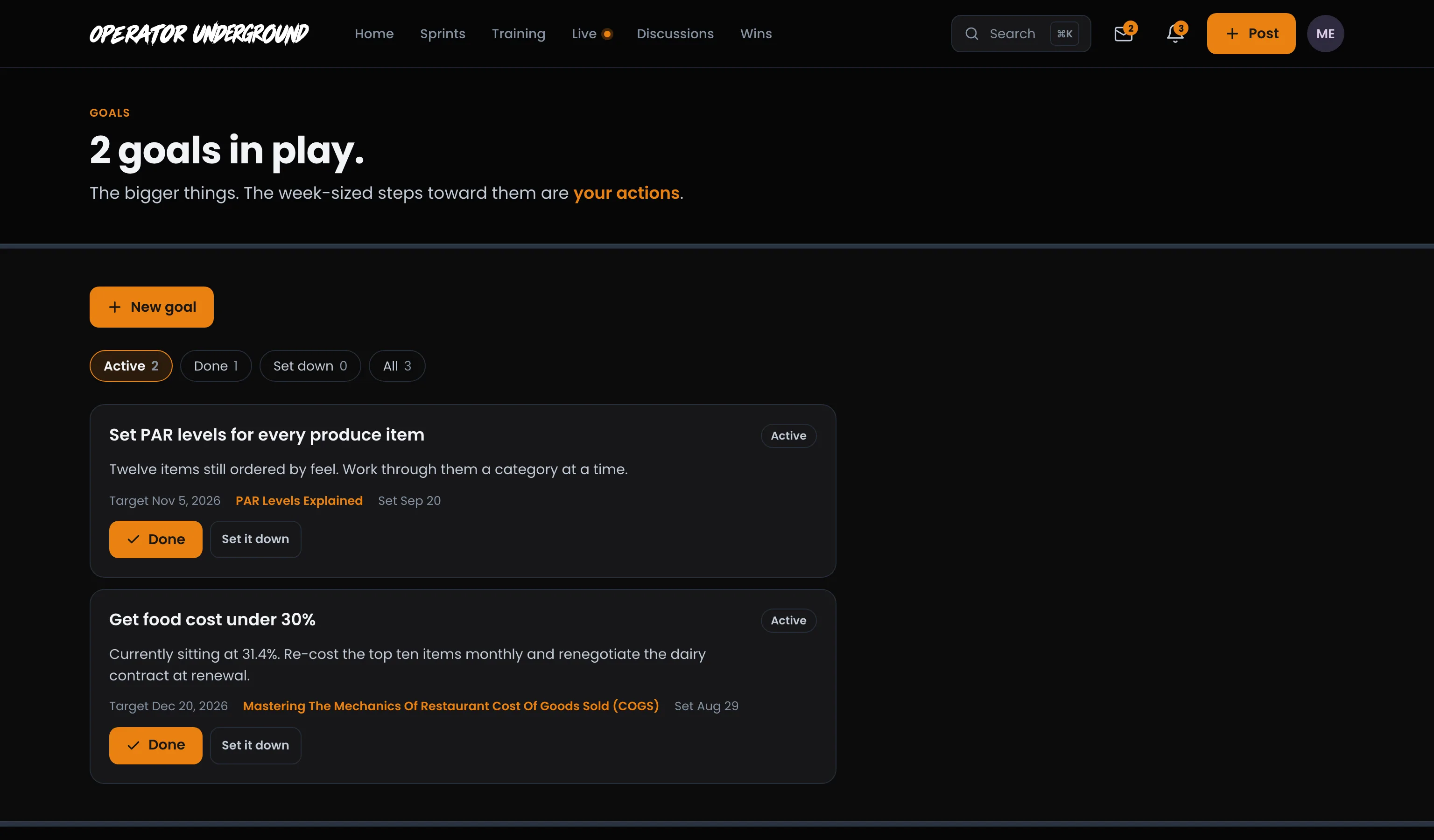
Mark a goal Done, or Set it down if it no longer fits. Pick it back up brings it back. The filters along the top show Active, Done, Set down or All.
Delete your account
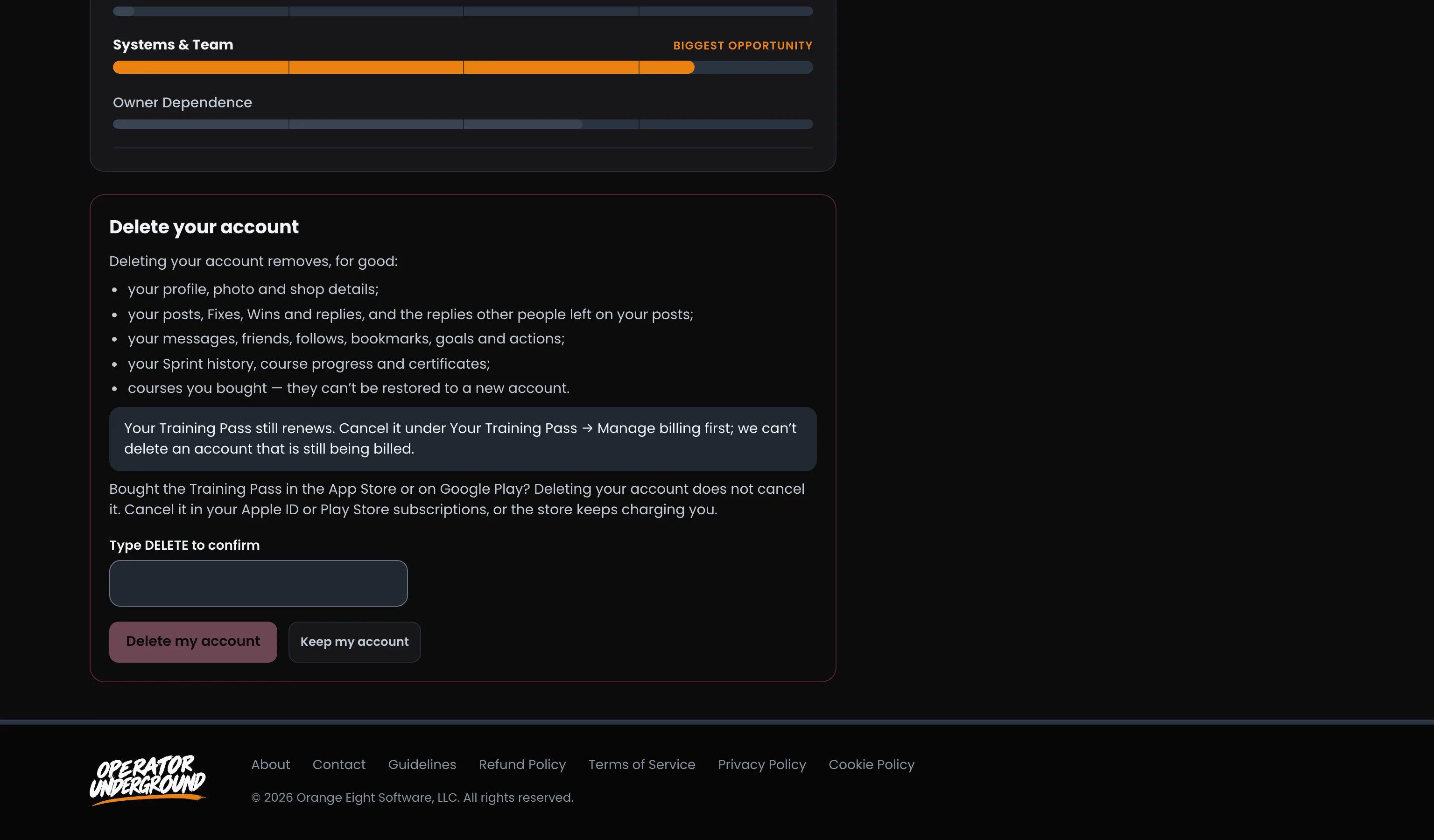
Delete your account is the last card on Settings. Press Delete account… and it lists exactly what goes, for good: your profile and shop, your posts, Fixes, Wins and replies (and the replies others left on them), your messages, friends, follows, bookmarks, goals and actions, your Sprint history, course progress and certificates, and courses you bought.
To go ahead, type DELETE in the box and press Delete my account. Keep my account backs out.
Caution
This can't be undone, and courses you bought can't be restored to a new account.
A couple of things stop a delete:
- A Training Pass that still renews. Cancel it first under Your Training Pass → Manage billing, then come back. A pass already set to cancel does not block you.
- An instructor account. If courses or tools you teach are attached to your account, email support and we will move them off and delete it for you.
A pass bought in the App Store or on Google Play is not cancelled by deleting your account. Cancel it in your Apple ID or Play Store subscriptions.
Ready to dig in? Sign in to the Operator Underground and open Settings from your account menu.
Access: All members