
Enrolling in a Course
Contents4 sections
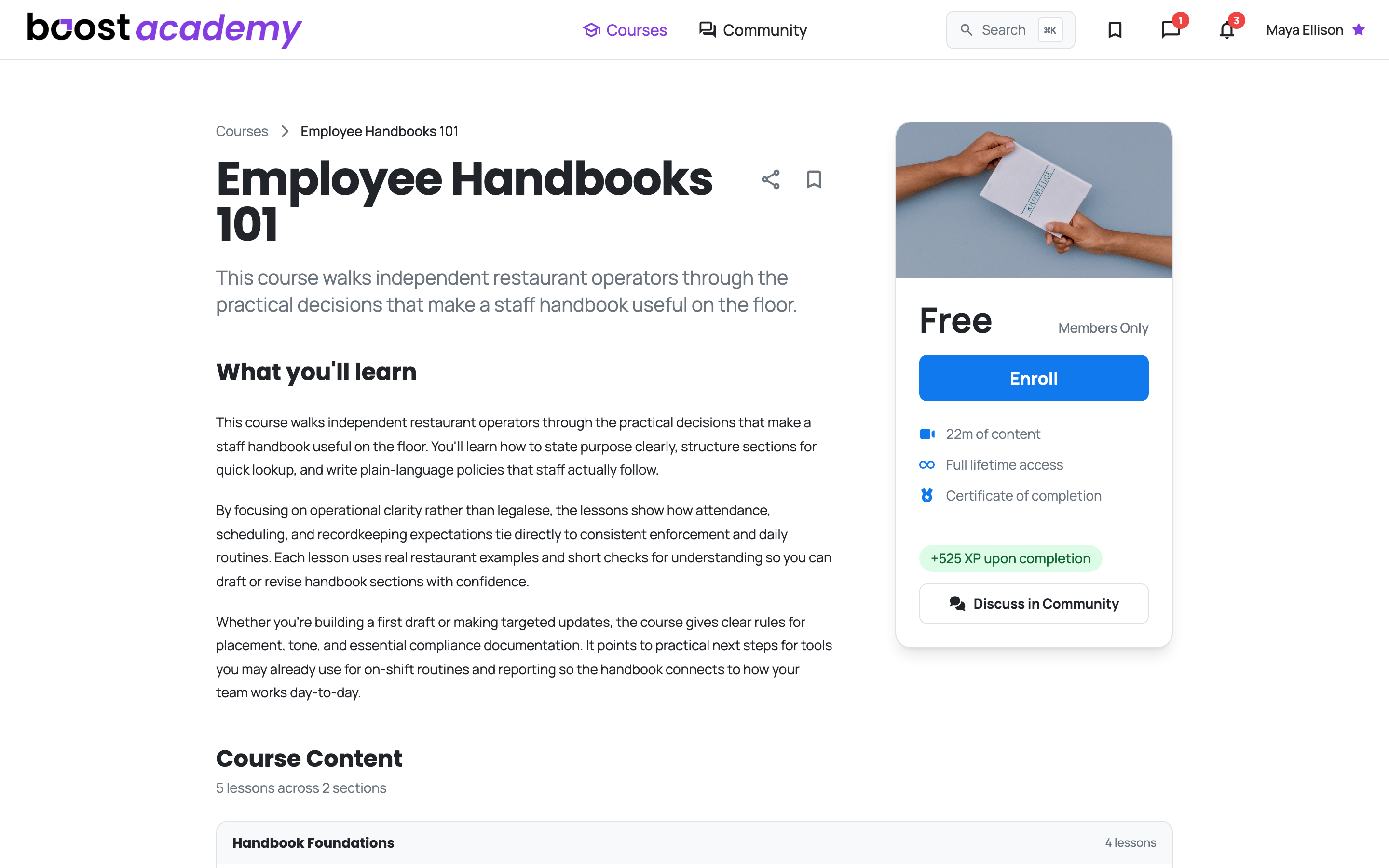
Know Before You Commit: Every course page shows you the whole picture up front. What you'll learn, how long it takes, and exactly what you get for finishing. Nothing about the curriculum is hidden behind the enroll button, so you can decide whether it's worth your evening before you spend it.
What the panel is telling you
The Short Version, on the Right: That panel next to the description is the deal in four lines.
- Total run time, so you know if this is a lunch break or a Sunday morning
- Full lifetime access, so the material stays yours to come back to
- Certificate of completion when you finish
- XP toward your standing in the community
You'll also see whether the course is Free and whether it's Members Only. A members-only course still costs nothing to join, the label just means it's part of what your Boost Academy account gets you.
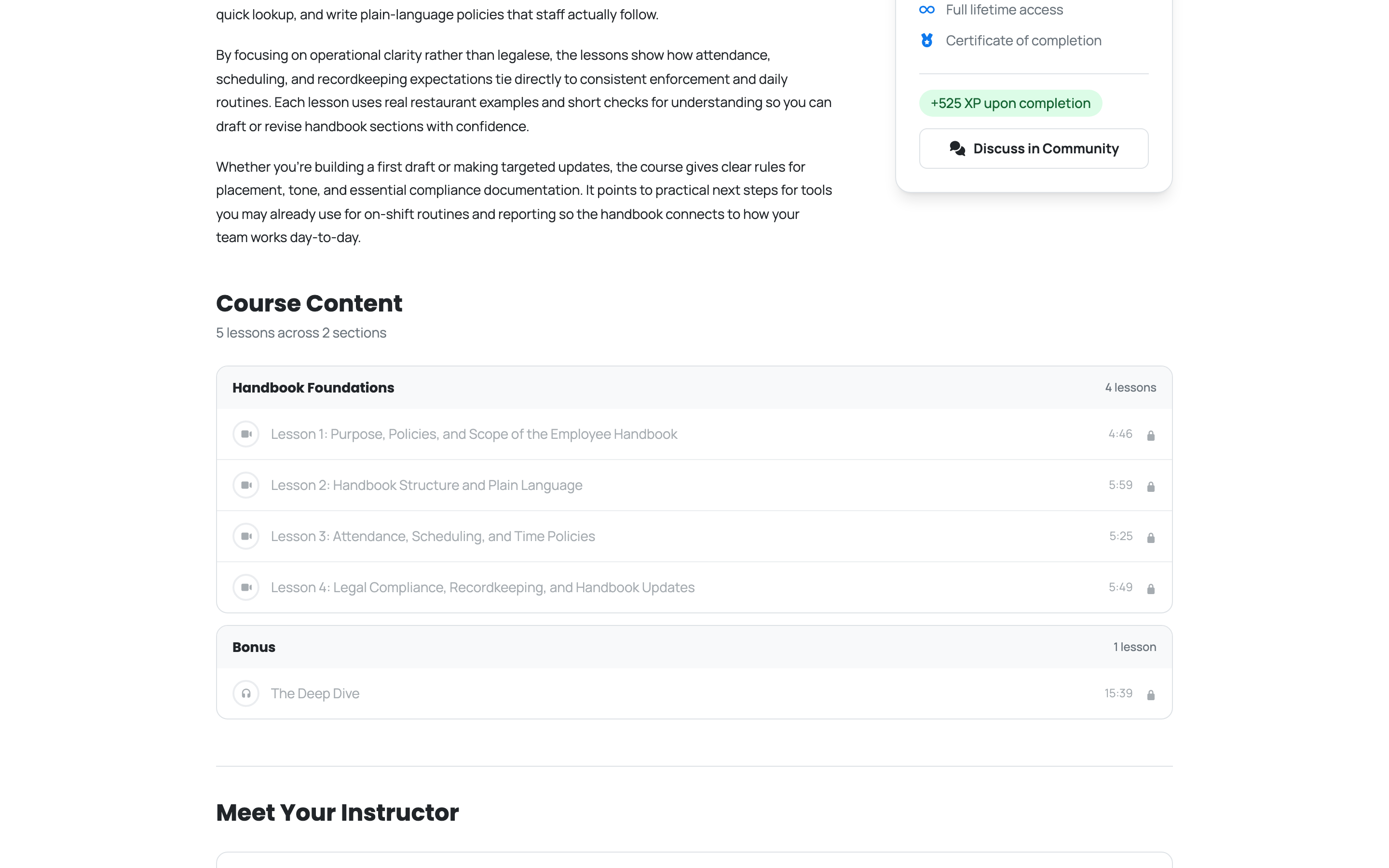
Everything is listed, nothing is hidden
See the Whole Curriculum First: Scroll down and the full lesson list is right there, section by section, with the run time on each one. Before you enroll, every lesson reads Enroll to unlock this lesson. That's the only thing standing between you and the material, and it's one click.
Enroll and start
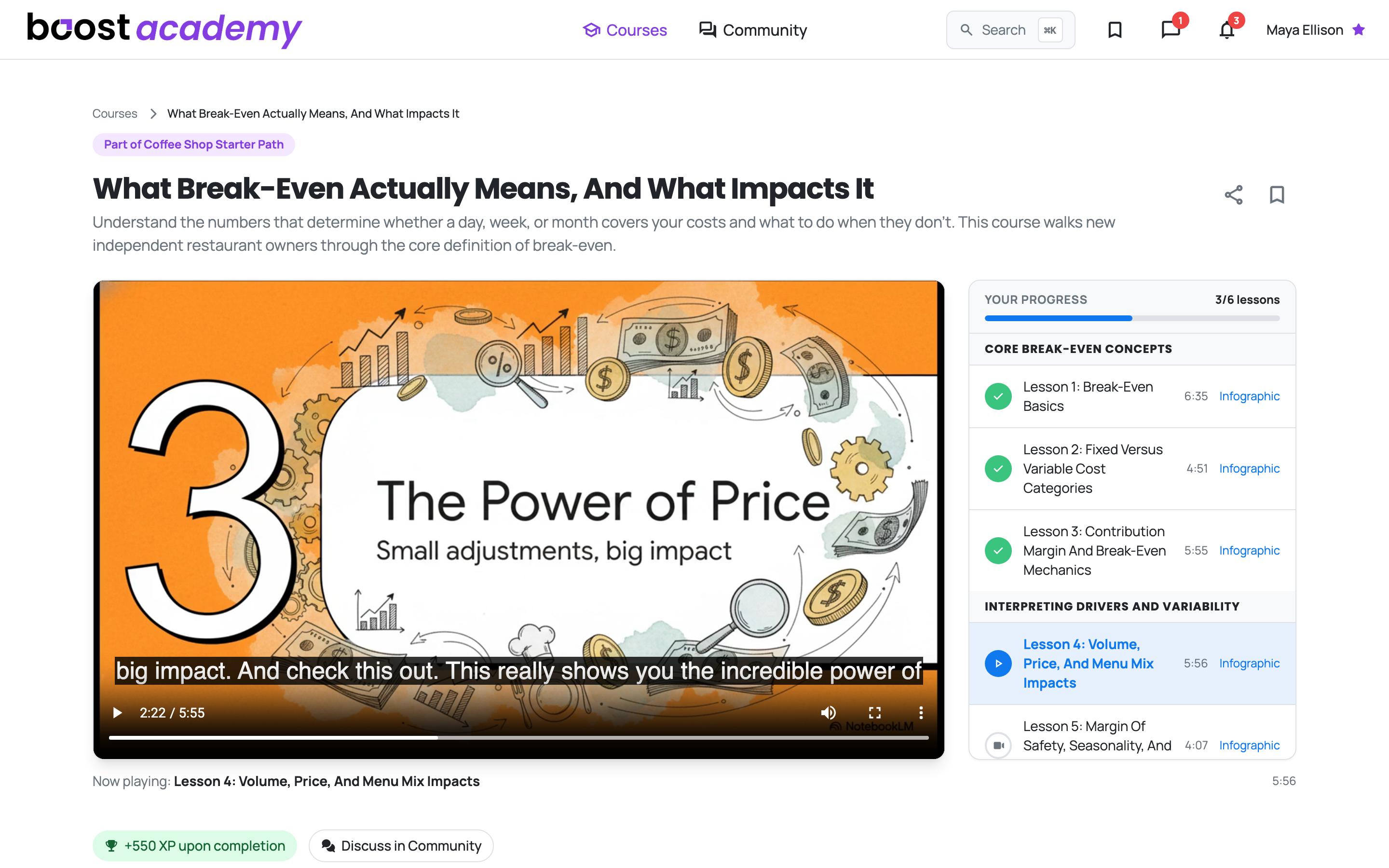
One Click and You're In: Hit Enroll and the page switches straight to the learning view: player on the left, your full lesson list on the right, first lesson queued up. No confirmation step, no checkout, no waiting.
From here the course tracks itself. Finish a lesson and it gets a green check, and the progress bar at the top of the rail counts you toward that certificate.
Ready to dig in?
Log in to Boost Academy, open Courses, and enroll in the one that matches what you're fixing this month.
Access: All members. Free and members-only courses cost nothing to join.