

Adding Your Team
Contents5 sections
Everyone who works in Boost should have their own login. It is what makes checklist sign-offs and activity records mean anything, and it is what lets you take access away cleanly when somebody leaves.
See who is on your account
Go to Account > Team. Every person is listed with what they can reach.
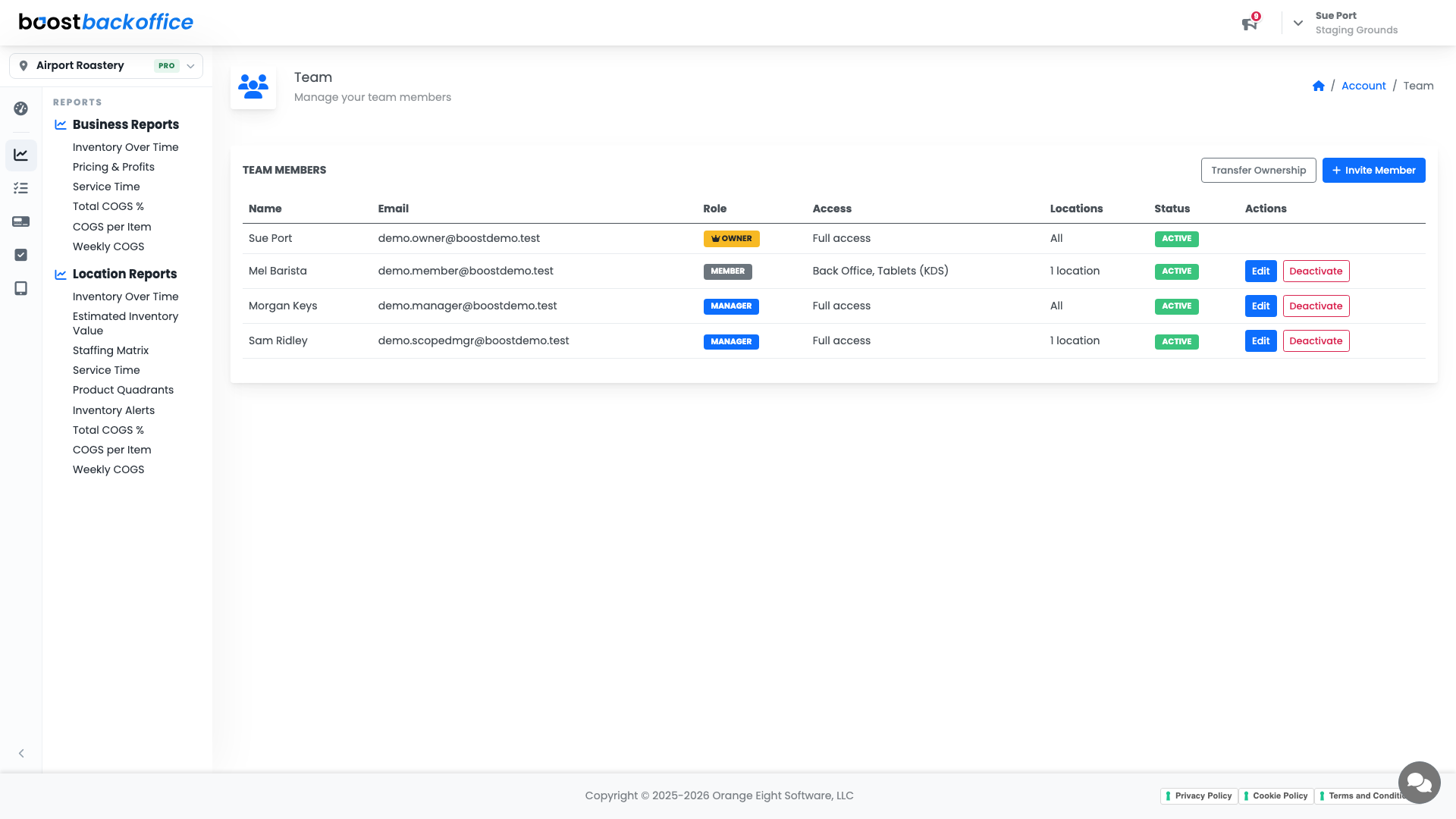
| Column | What it tells you |
|---|---|
| Role | Owner, Manager, or Member |
| Access | Which parts of Boost that person can use |
| Locations | All of them, or a named few |
| Status | Whether the login is active |
The three roles
- Owner is the account itself. There is one, and it can transfer ownership.
- Manager covers the sensitive tier: billing, integrations, locations, and the team page.
- Member is everyday staff. What they see is set by the app grants you give them, and they can be limited to specific locations.
Important
Give the narrowest access that lets somebody do their job, especially on locations. A barista who works one shop rarely needs to see another shop's numbers.
Invite somebody
Press Invite Member, enter their email, and set their role and access. They get an invite and set their own password, so you never handle anyone's credentials.
Edit changes a person's role, access, or locations later. If an invite goes astray you can resend or revoke it.
When somebody leaves
Deactivate switches a login off while keeping the history that person signed. That is the right move for a leaver: the record of who did what stays intact, and the access goes. Reactivate brings them back if they return.
Note
The team page is owner and manager only, and team management starts on the KDS plan.
What you should see
One row per person who actually works with you, each with a role that matches what they do, and nobody active who left months ago.
Account Level: KDS & Pro