

Switching Between Light and Dark Mode
Contents3 sections
Boost can run light or dark, and you set it per device — including the displays your customers see.
Switch your own theme
The control lives with the rest of your account settings.
-
Click your initials in the top right corner of Back Office to open the menu.
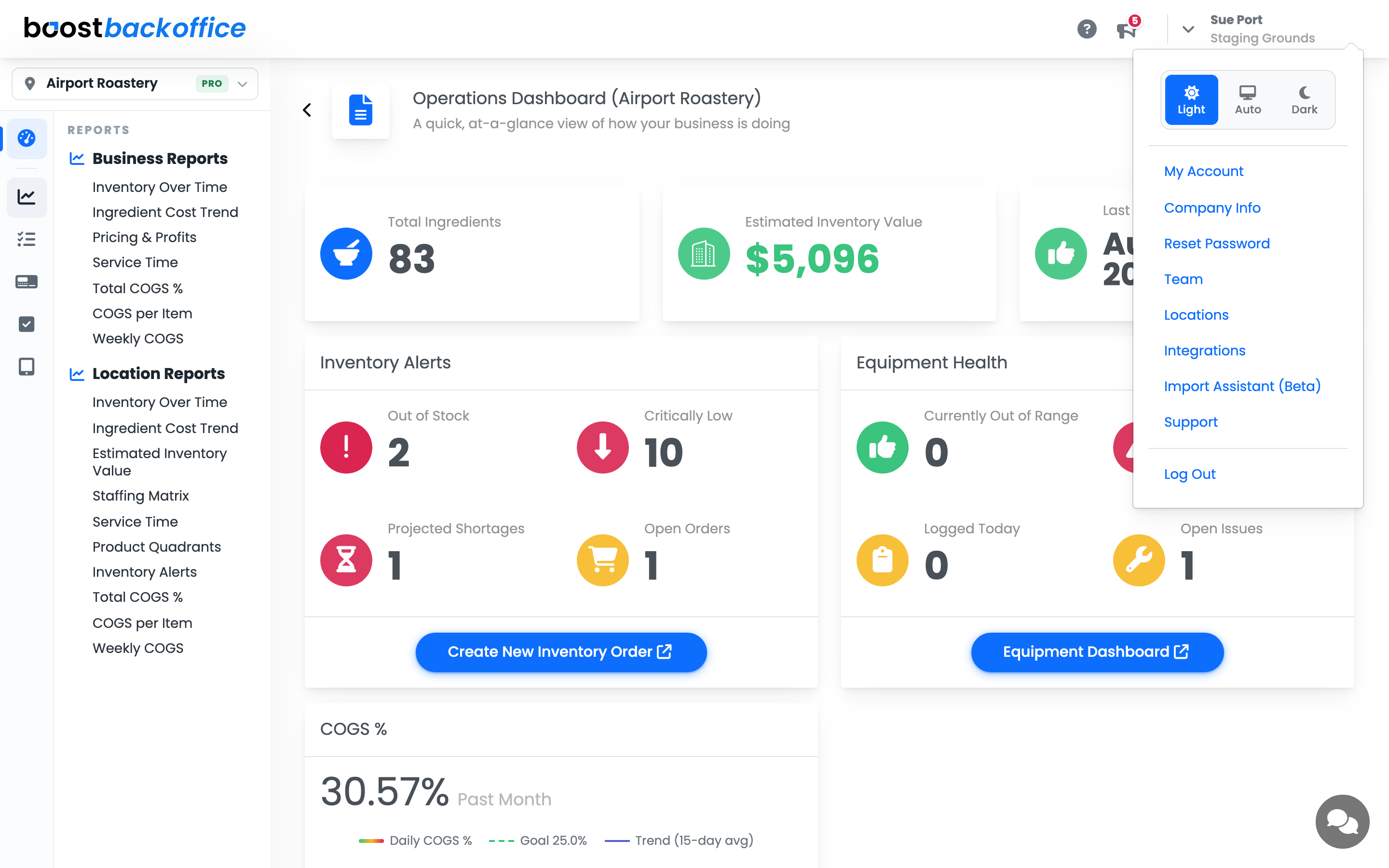
-
The theme control sits at the top of the menu. Choose one of three options:
Option What it does Light Always the bright theme. Dark Always the dark theme. Auto Follows the device's own setting, so a laptop that dims itself in the evening takes Boost with it. -
The page changes as soon as you pick, so you can see the result before you close the menu.
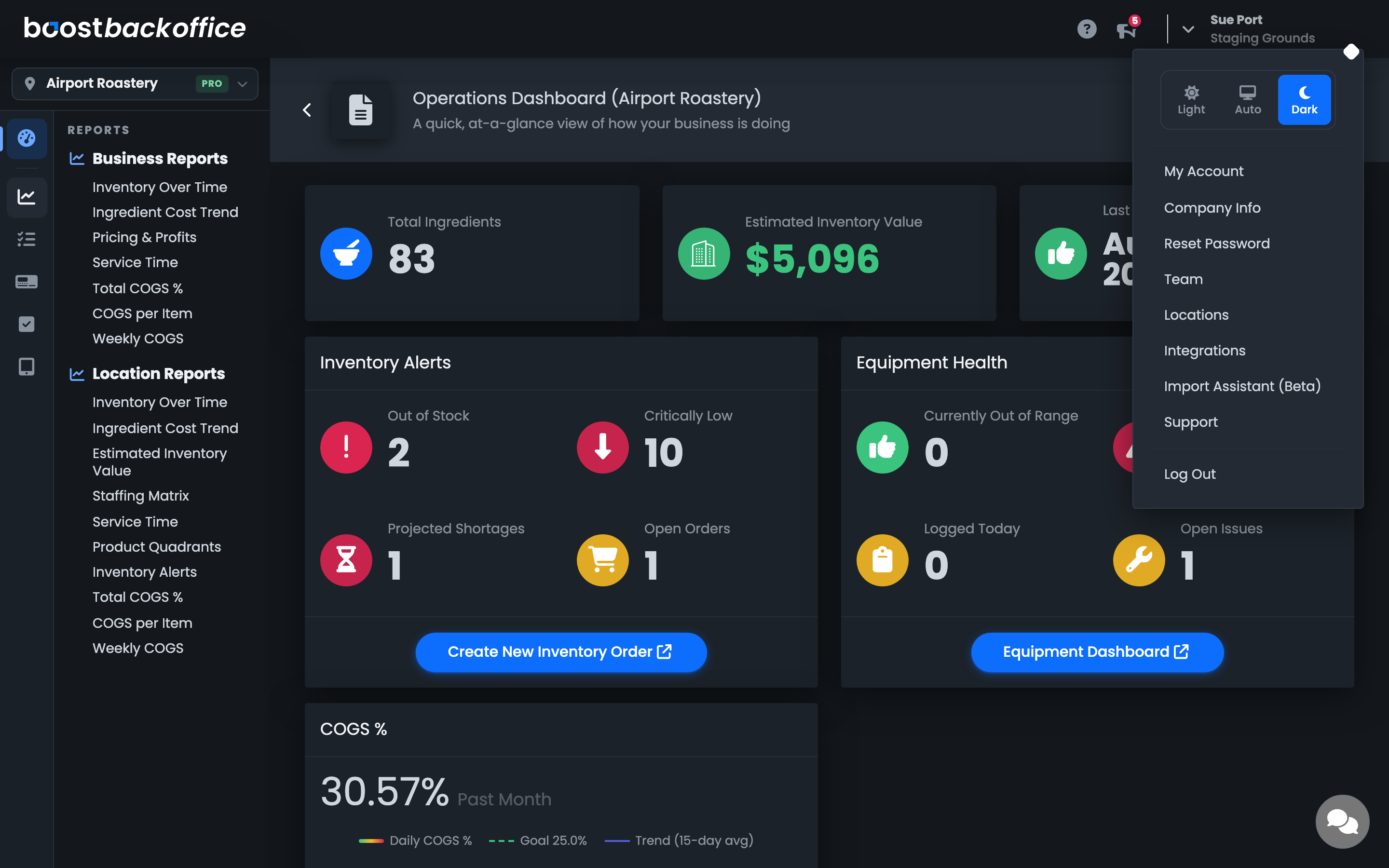
The Back of House tablets work exactly the same way — the identical control sits at the top of the menu in the top right corner of the tablet app.
Important
Your choice is remembered per device and per browser, not on your account. The tablet by the espresso machine and the laptop in the office each keep their own, and signing in on a new device starts fresh. Nothing you pick affects anyone else on your team.
Set the theme on a customer screen
Pickup and notification displays have no menu of their own, because nobody stands at them. You set each one from the back office instead.
-
Go to On Location > Screens > Device Settings.
-
Find the screen's row and click its Theme cell.
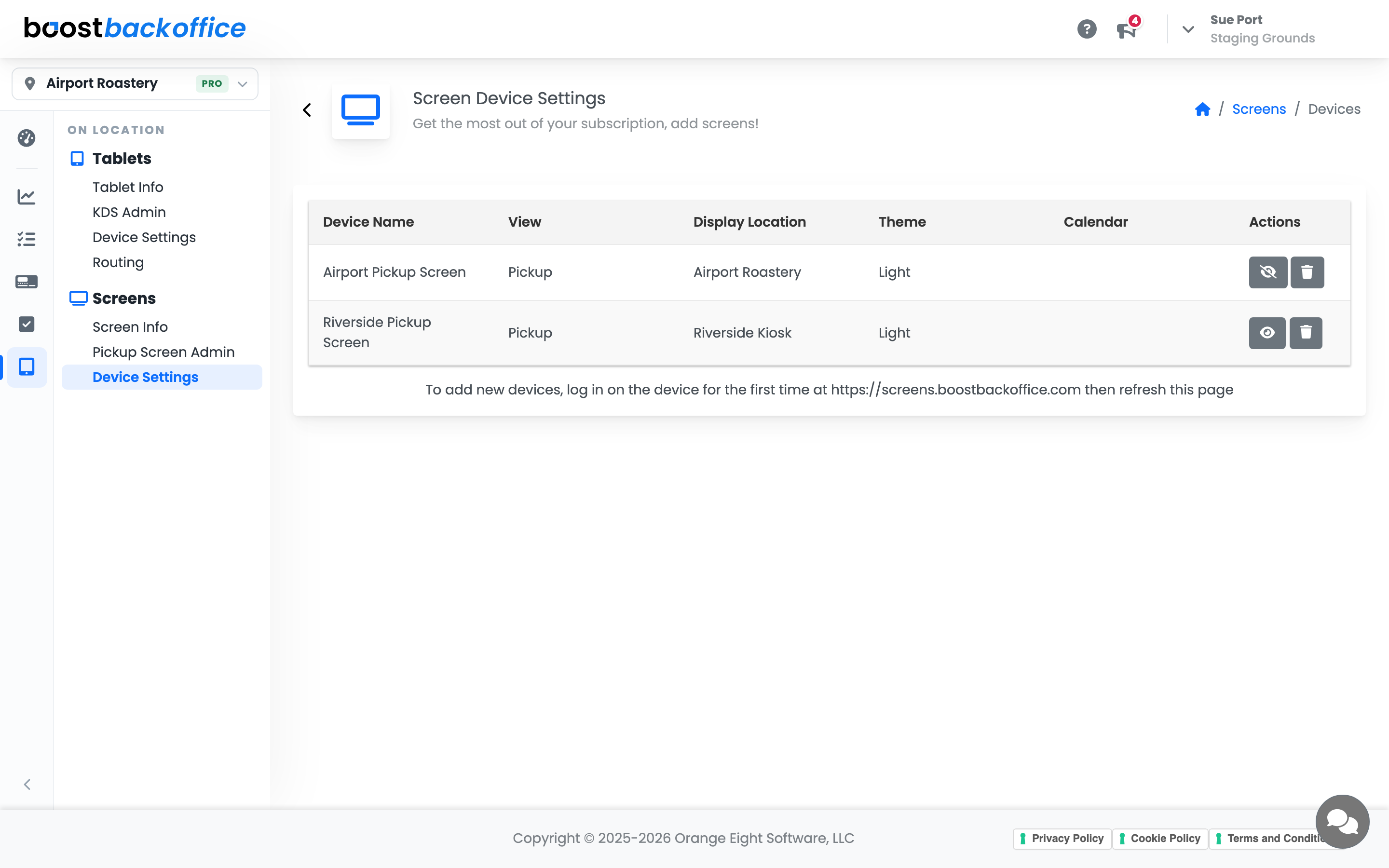
-
Choose Light or Dark.
That display changes straight away — no reload, and no walk out front. Each screen is independent, so the one in a sunny window can stay light while the one over the pickup counter runs dark.
What stays the same
The colours your team reads at a glance do not move:
- Order tickets on the kitchen display keep the same reds, yellows and blues in both themes, so a darker screen never costs anyone a beat mid-rush.
- The chalkboard pickup screen keeps its own look whichever theme that device is set to.
Account Level: All