

Reading the KDS Order Board
Contents4 sections
The KDS board is the screen your team works from. Every ticket that needs making is on it, in the order it needs making, with the colours doing the thinking about what is urgent.
Read the counters first
The row across the top is the shape of your queue before you read a single ticket.
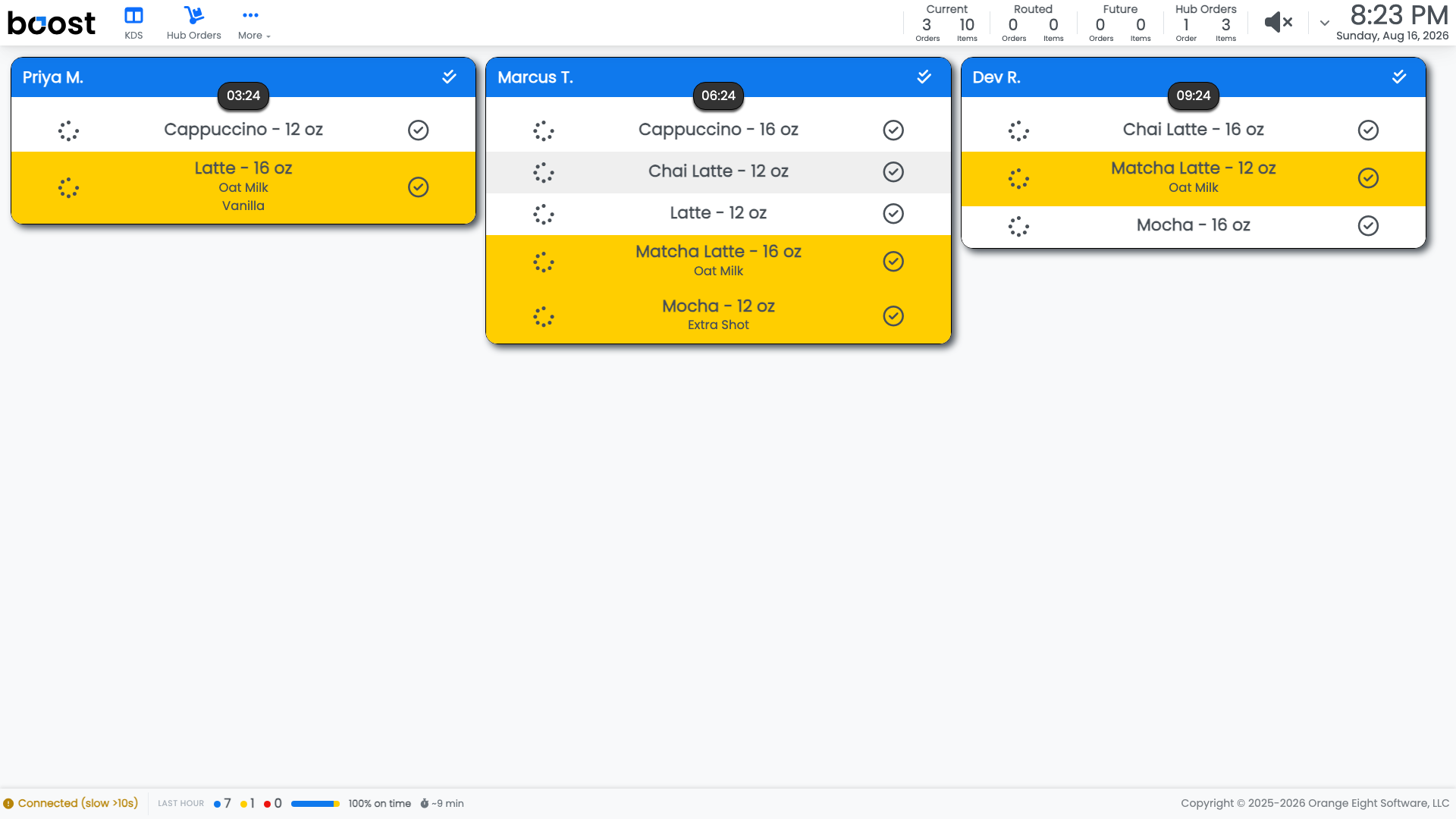
| Counter | What it means |
|---|---|
| Current | Orders and items that need making now |
| Routed | Orders assigned to another station's route |
| Future | Orders placed for later |
| Hub Orders | Internal orders from your other locations |
Orders and items are counted separately on purpose. Three orders and ten items is a very different morning from three orders and three items.
Read the tickets
Each card is one order: the customer's name at the top, then the items with their size and any modifiers, so an oat milk swap is visible on the line rather than hidden in a note.
The timer on each card counts down to that order's promised pickup time, and the header colour follows it: blue while there is time in hand, yellow in the final minute, and red once the promise has passed, at which point the timer counts how late it is. Late work is obvious from across the room rather than something you have to read for.
Tip
If the whole board is red, the timings under KDS Admin are probably describing a shop that works faster than yours does. Set them from a normal morning, not your best one.
The status line
The footer tells you two things worth glancing at: whether the tablet is Connected, and what has come through in the last hour. A tablet that has lost its connection is not receiving new tickets, and that is the first thing to check when the board looks impossibly quiet.
What you should see
A board where the oldest ticket is at the front, colours that match how the shift actually feels, and a connection status that stays green.
Account Level: KDS & Pro