
Routing Orders to the Right Tablet
Contents3 sections
One board showing everything works until you have two stations. A route is a slice of your menu, and it is what stops the bar tablet filling up with sandwich tickets.
List your routes
Go to On Location > Tablets > Routing. Each route is a named slice: espresso bar, cold bar, kitchen, retail counter.
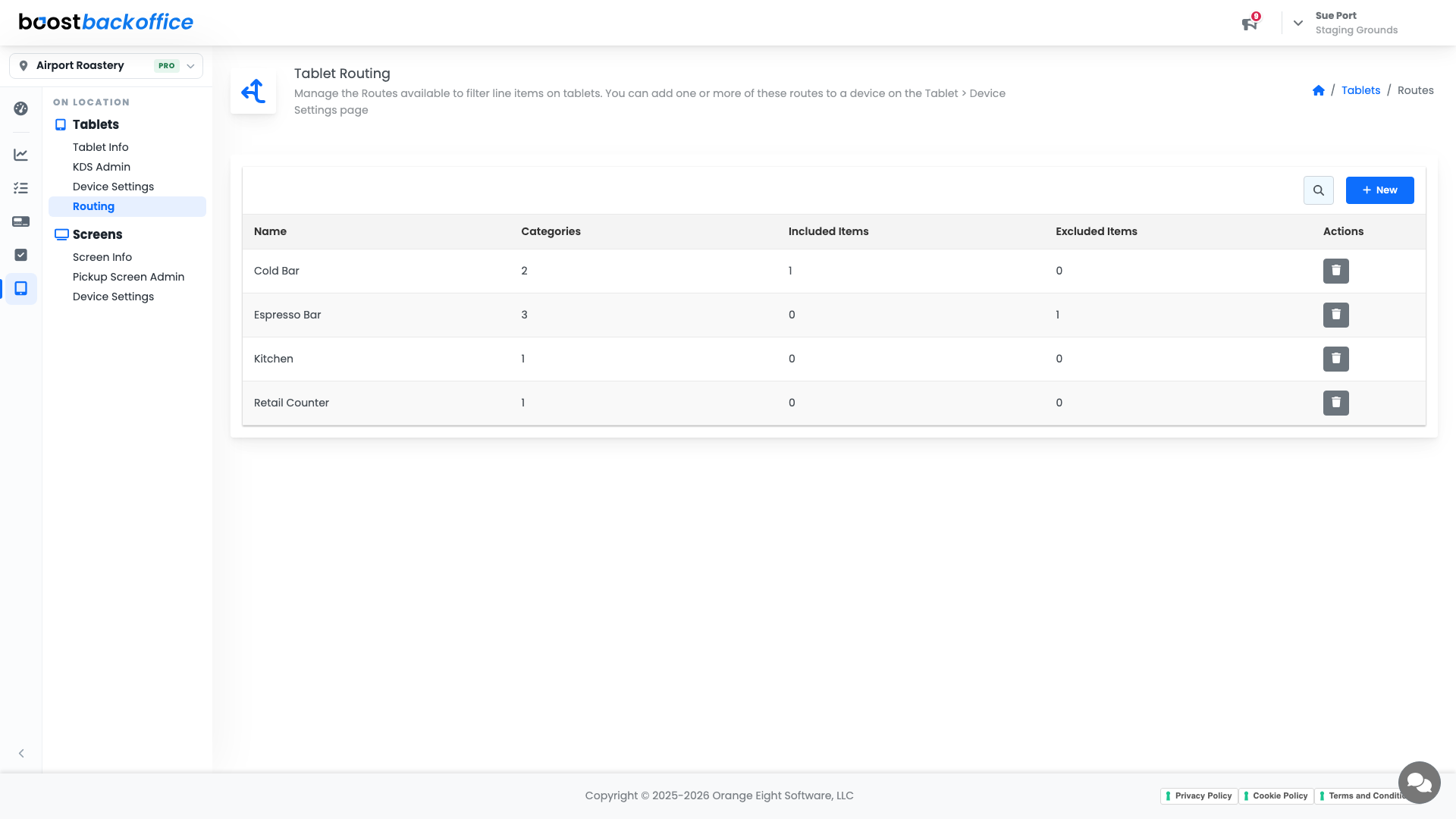
Press New to add one and give it the name your team already uses for that station.
Note
A route does nothing on its own. You attach it to a tablet under On Location > Tablets > Device Settings, and one device can carry more than one route.
Choose what a route carries
Open a route to control its content. There are two ways to fill it, and they work together.
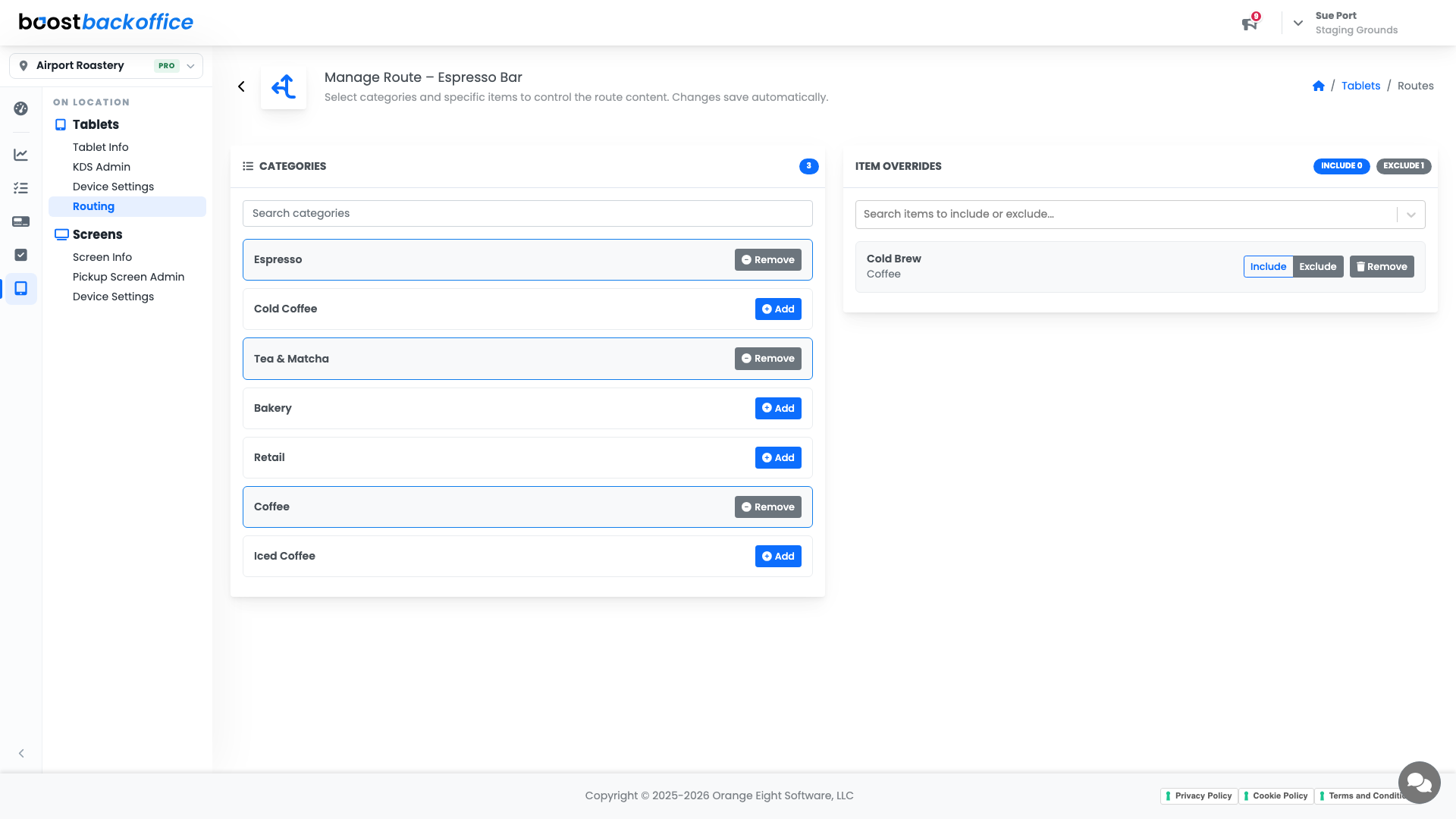
Categories is the broad stroke. Add a category and everything in it flows to this route; Remove takes it back off. Most stations are one or two categories and nothing more.
Item Overrides handles the exceptions, and it is why you rarely need a category per station:
- Include pulls a single item onto the route even though its category is not on it.
- Exclude keeps one item off even though its category is.
The example every shop hits: the bar takes Coffee, but cold brew is poured at the cold bar. Add the Coffee category, then exclude the cold brew item.
Tip
Changes save automatically. There is no save button, so make a change and check the station rather than hunting for a confirmation.
What you should see
Each station's tablet showing the tickets that station actually makes, with the counts at the top of the categories and overrides panels matching what you intended.
Account Level: KDS & Pro