

Setting Up Brands and Suppliers
Contents3 sections
Two small lists do a lot of work behind your ordering. Suppliers decide when Boost Back Office suggests an order and how much it covers. Brands keep two versions of the same ingredient from turning into one blurry number.
Set up who you order from
Go to Recipes & Ingredients > Ingredients > Suppliers, then press New to add one.
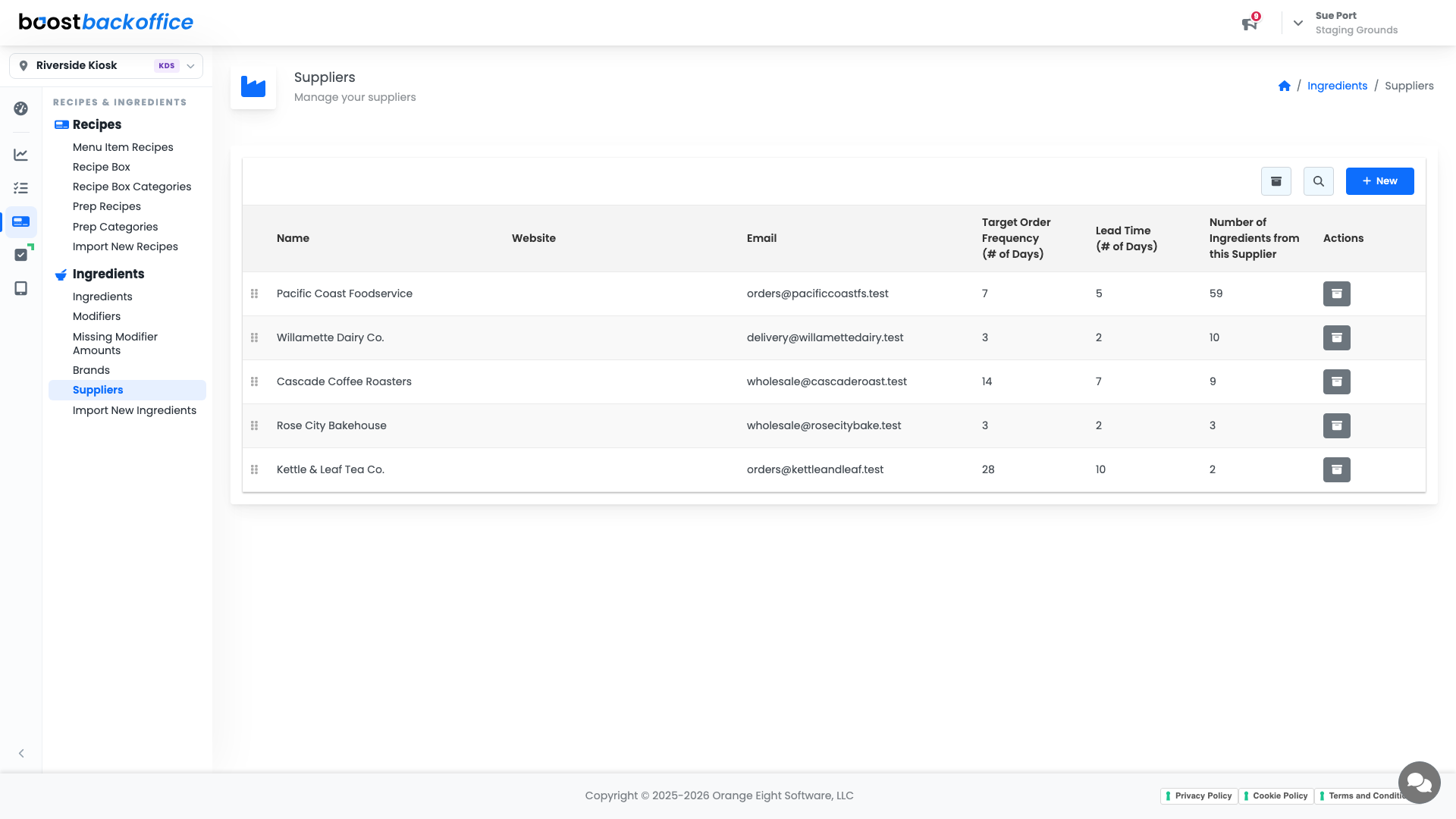
Two columns here drive your order suggestions:
| Field | What it does |
|---|---|
| Target Order Frequency (# of Days) | How often you place an order with them. An order has to cover the whole gap until the next one |
| Lead Time (# of Days) | How long delivery takes after you order |
A supplier you order from weekly with a five-day lead time needs an order that covers roughly twelve days of usage. That is the arithmetic nobody wants to do at 5am, and it is why these two numbers matter more than they look.
Name, website, email, order frequency, and lead time are all click-to-edit. Change a value, click away, done.
Tip
The email address is the one Boost sends the order to when you use Send Order on the order screen. Worth getting right once.
The Number of Ingredients from this Supplier column tells you how much of your shelf depends on each one, which is a useful thing to know before a price negotiation.
Label what you buy
Go to Recipes & Ingredients > Ingredients > Brands. A brand sits on the product you buy, not on the ingredient your recipes call for.
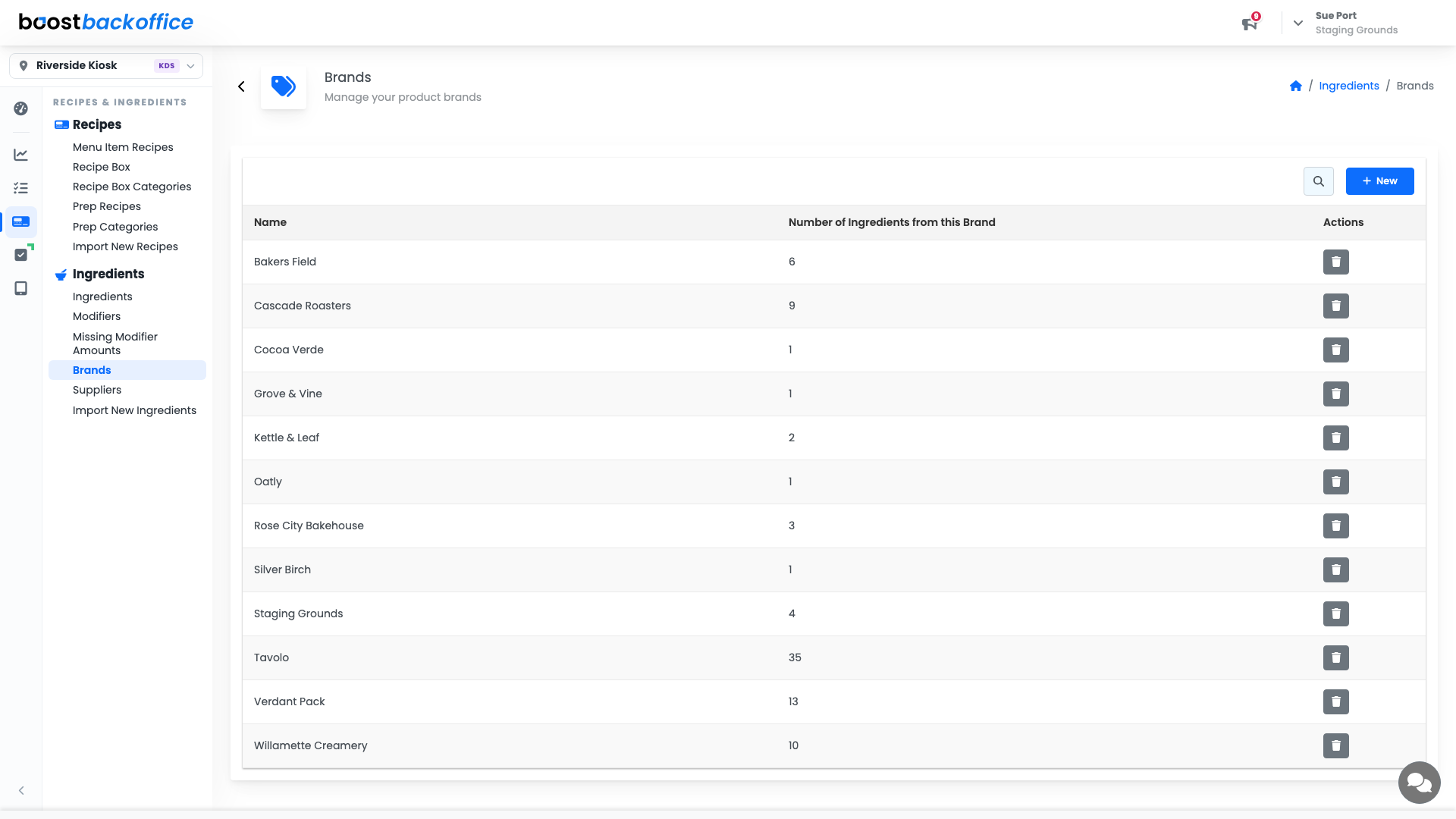
That separation is the point. Your recipe says oat milk. Your shelf might hold two roasters' oat milk at different prices, and your ordering, costing, and counting all stay honest because the brands stay distinct.
What you should see
Every supplier you actually order from, with a realistic frequency and lead time, and brands on the products where the difference matters.
Account Level: All