

Reading the Inventory Ledger
Contents5 sections
The Inventory Ledger is the receipt roll for your shop. Every count, delivery, sale, prep batch, and adjustment writes a line here, so when an on-hand number looks wrong, this is the page that tells you why.
Open the ledger
Go to Inventory > Ledger. Lines are listed newest first for the location you have selected.
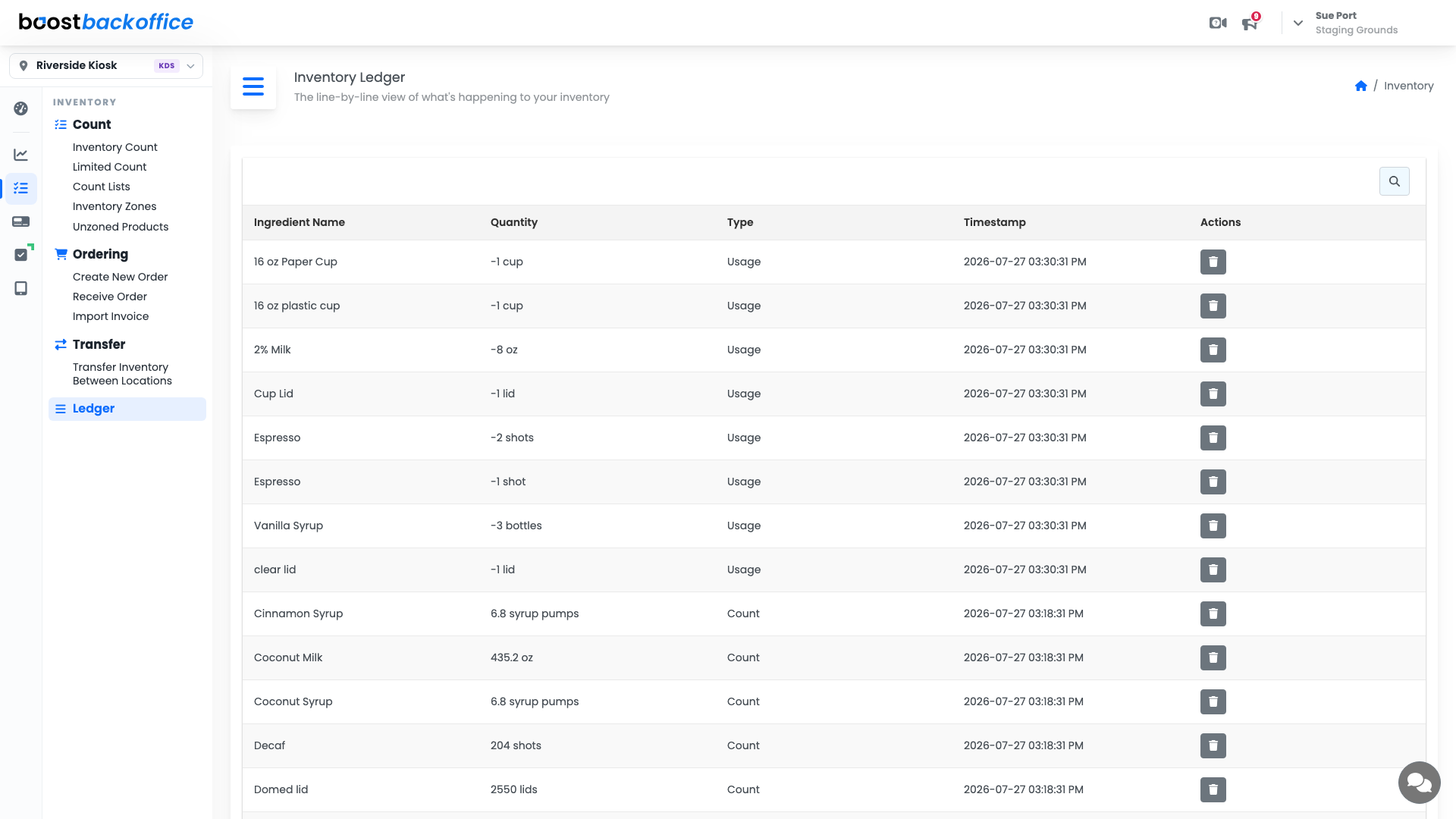
What each line tells you
| Column | What it means |
|---|---|
| Ingredient Name | The ingredient the line moved |
| Quantity | How much moved, in that ingredient's own unit. A negative number left the shelf |
| Type | Why it moved (see below) |
| Timestamp | When it was recorded |
The Type column is the useful one:
- Usage is inventory a sale consumed, worked out from the recipe behind the item that sold.
- Count is a number you entered on a count sheet.
- Purchased is stock a received order added.
- Prepped and Prep Usage are the two halves of a prep batch: what the batch created, and the ingredients it consumed.
Use it to explain a surprise
When an ingredient reads lower than it should, sort to it and read down. A missing delivery shows up as a Purchased line that never happened. A recipe that consumes too much shows up as Usage lines that are heavier than the drink deserves. A count typo shows up as a Count line with a number nobody would have written on purpose.
Tip
Ledger lines are the evidence behind every report. If a COGS number looks off, the ledger is where the explanation actually lives.
Removing a line
The trash button in Actions removes a line, and Boost asks Confirm Deletion first.
Caution
Deleting a ledger line changes your on-hand history. When you delete a Count, its paired variance entry goes with it. Correct a bad number with a new count where you can, and delete only when a line should never have existed.
What you should see
A run of lines that matches your day: usage through service, a purchase when the delivery landed, and a count on the morning you did one.
Account Level: All