
Setting Up Inventory Zones and Count Lists
Contents6 sections
Zones are what turn counting from a scavenger hunt into a walk. Each zone is a real place in your shop, and once your products live in the right ones, a count follows the same path your staff already walks.
Map the places you store things
Go to Inventory > Count > Inventory Zones. The question at the top of the page is the whole idea: where do you physically keep the things you count?
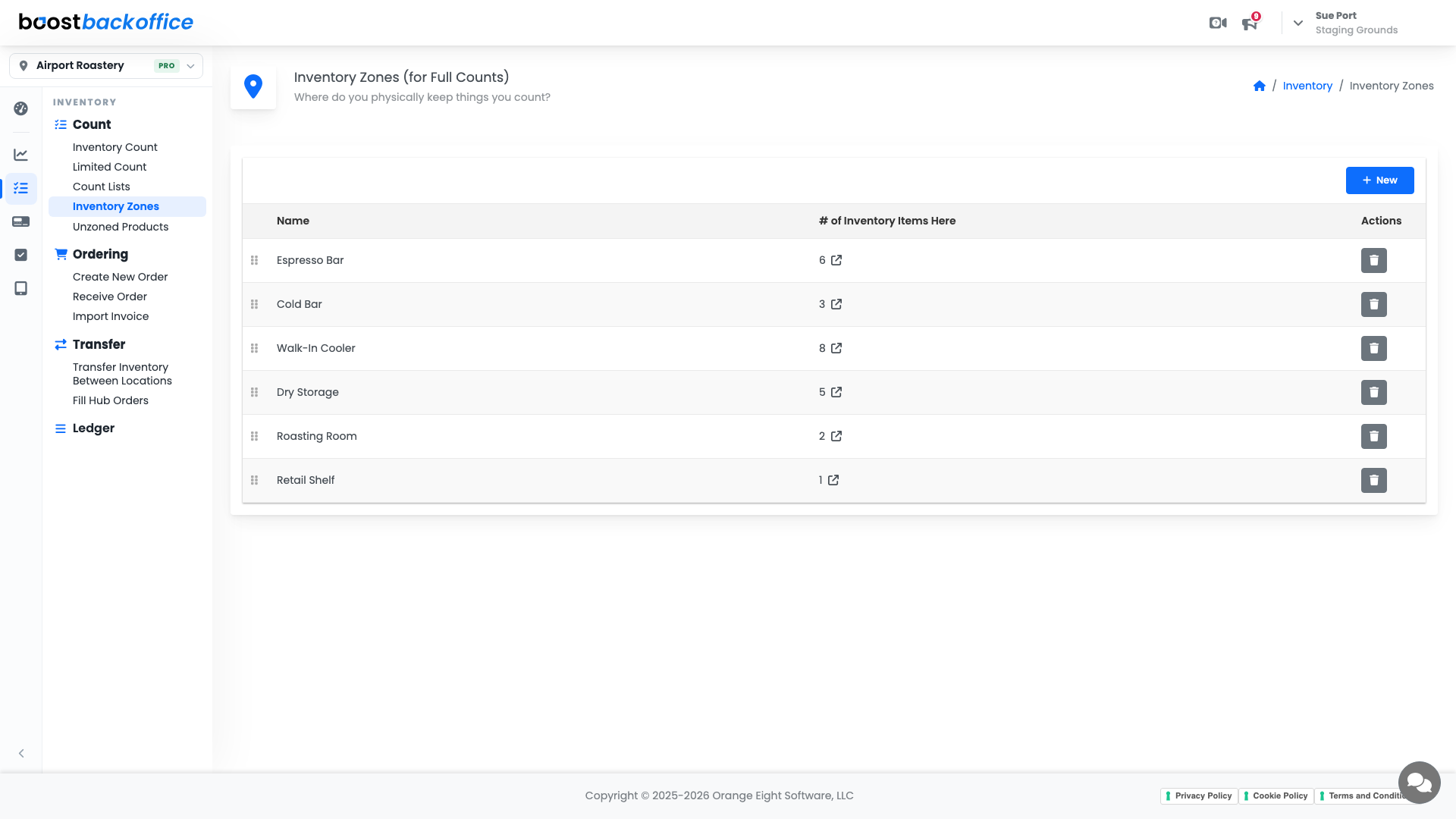
Use the names your team already says out loud. Walk-In Cooler beats Storage 2 every time, because the person counting at 6am should never have to translate.
Add a zone
- Press New.
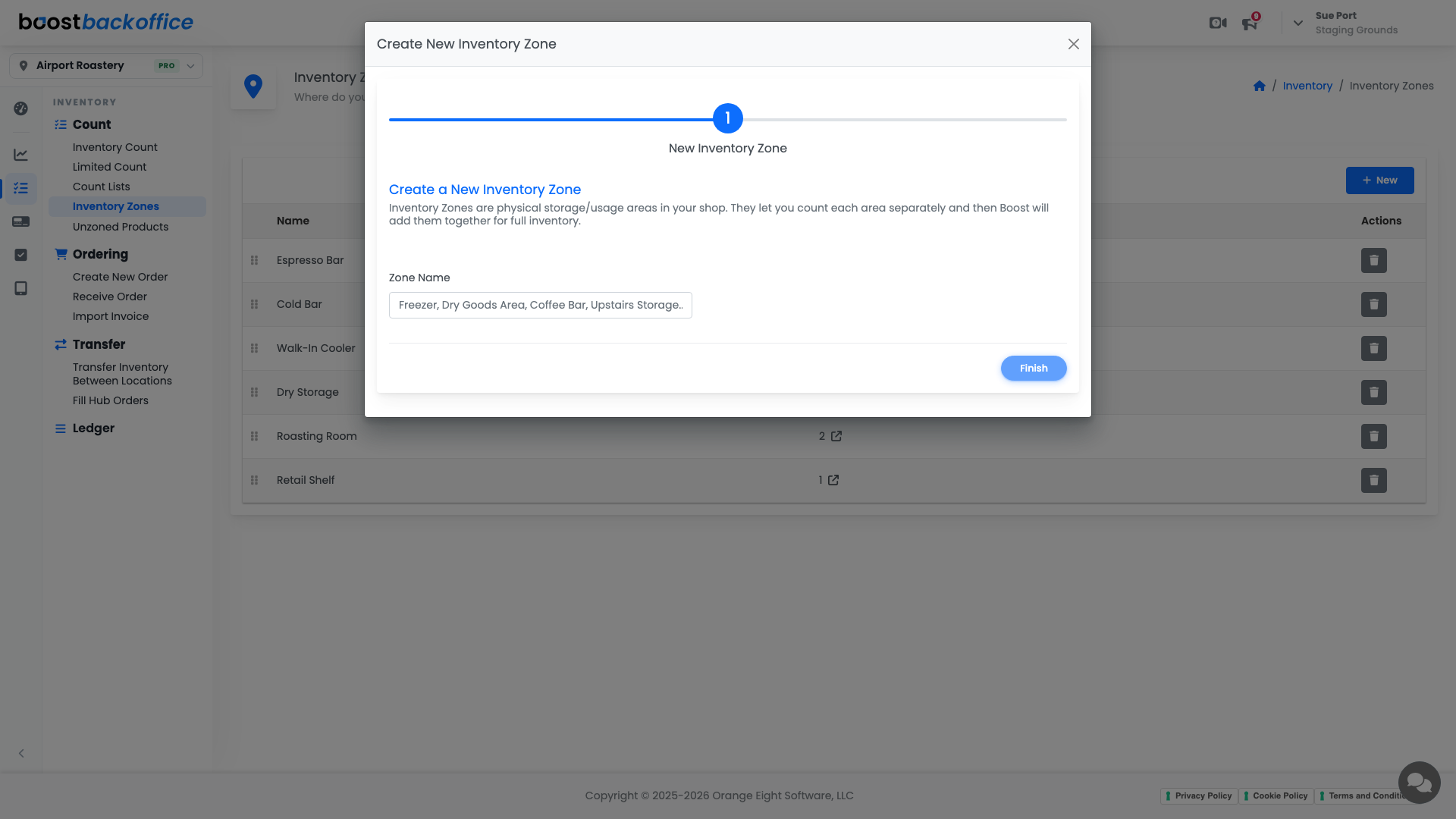
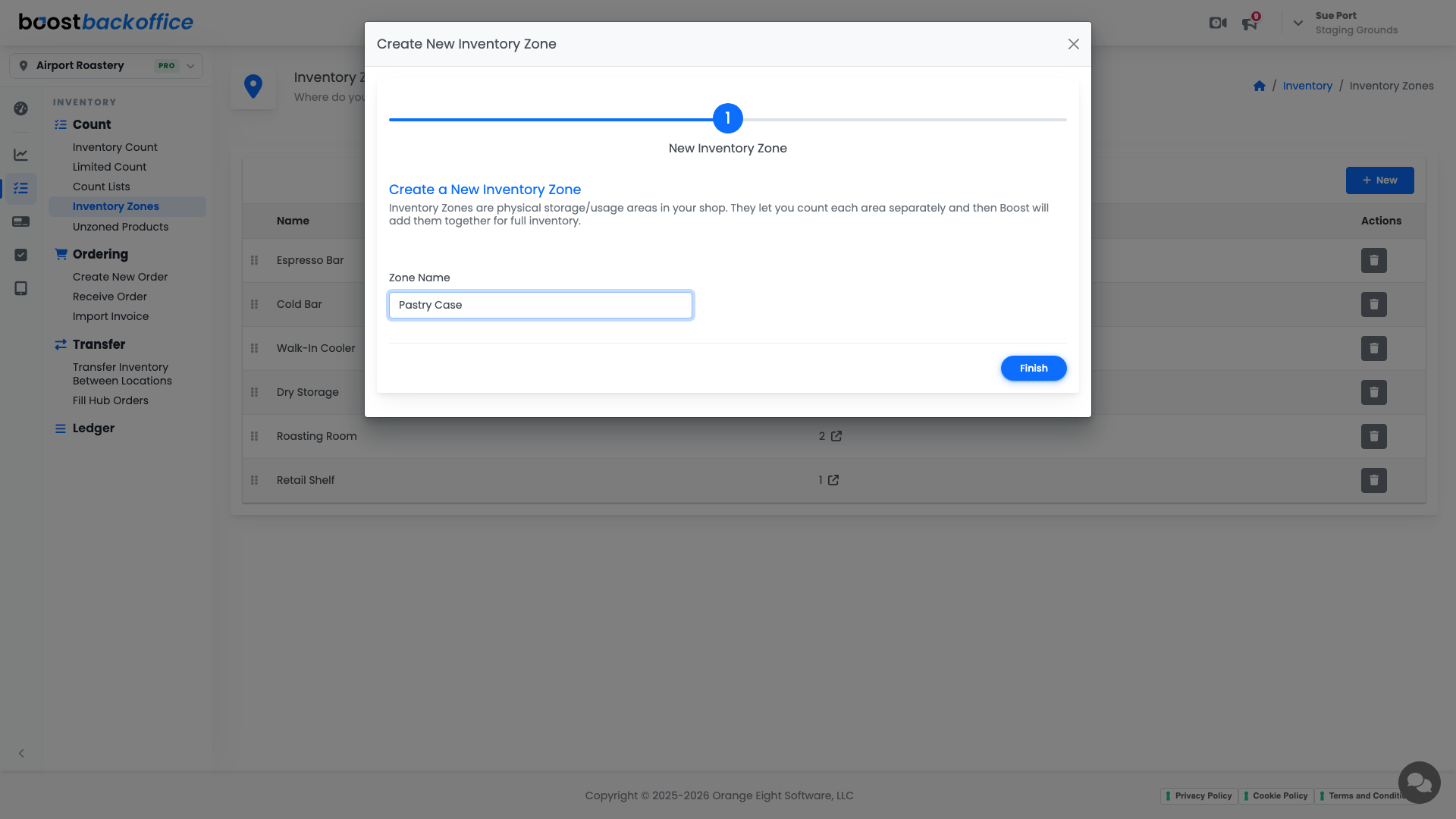
- Type a Zone Name.
- Press Finish.
Drag the rows into the order you actually walk them. That order is the order your count sheet uses, so a little dragging now saves a lap later.
Fill a zone with what lives there
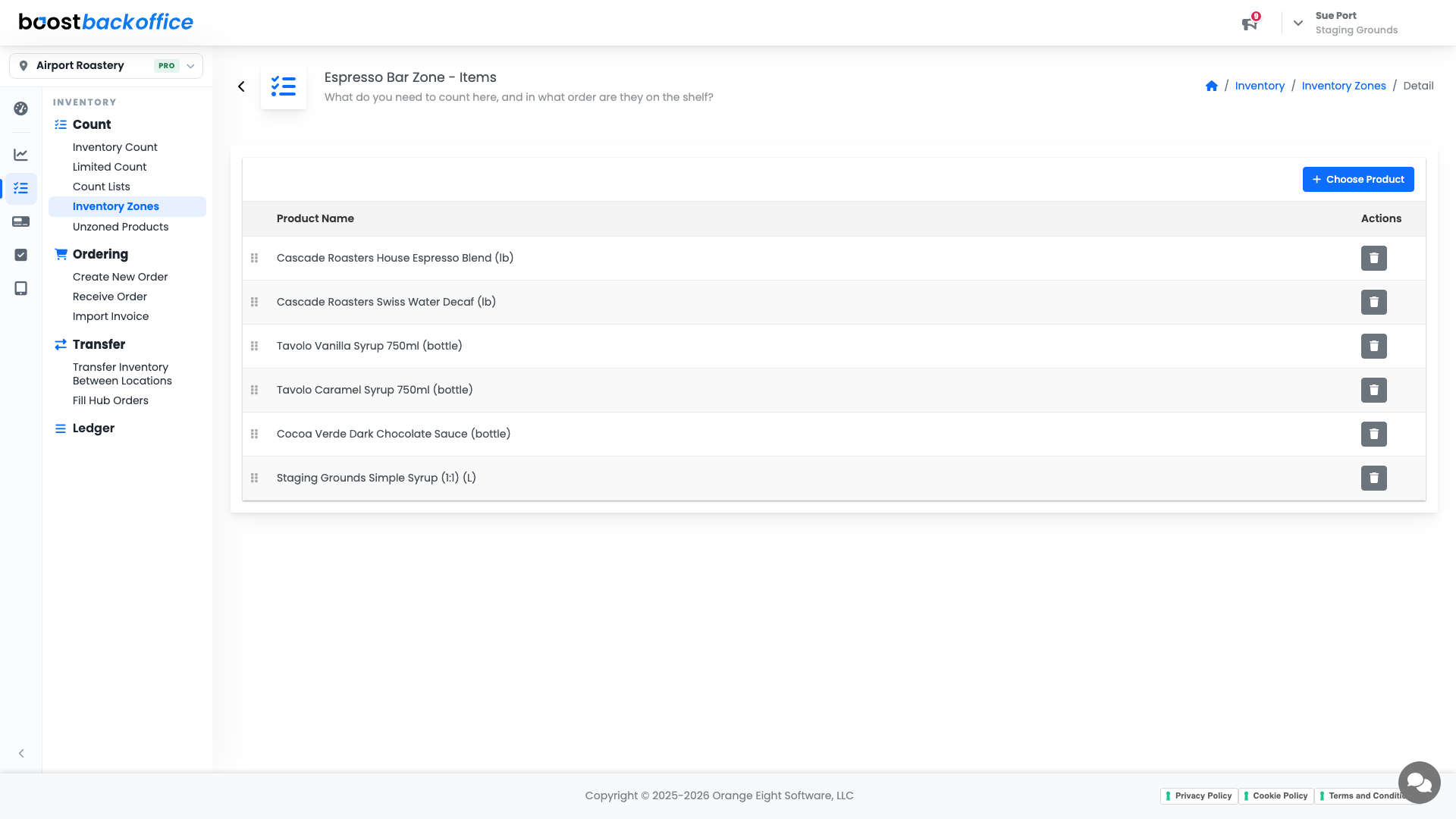
The number in the # of Inventory Items Here column opens that zone's item list. Press Choose Product and add every product you keep there.
Important
A product can live in more than one zone. Add the milk to both the under-counter fridge and the walk-in, and Boost adds the two counts together instead of making you do it in your head.
Group the fast movers into a count list
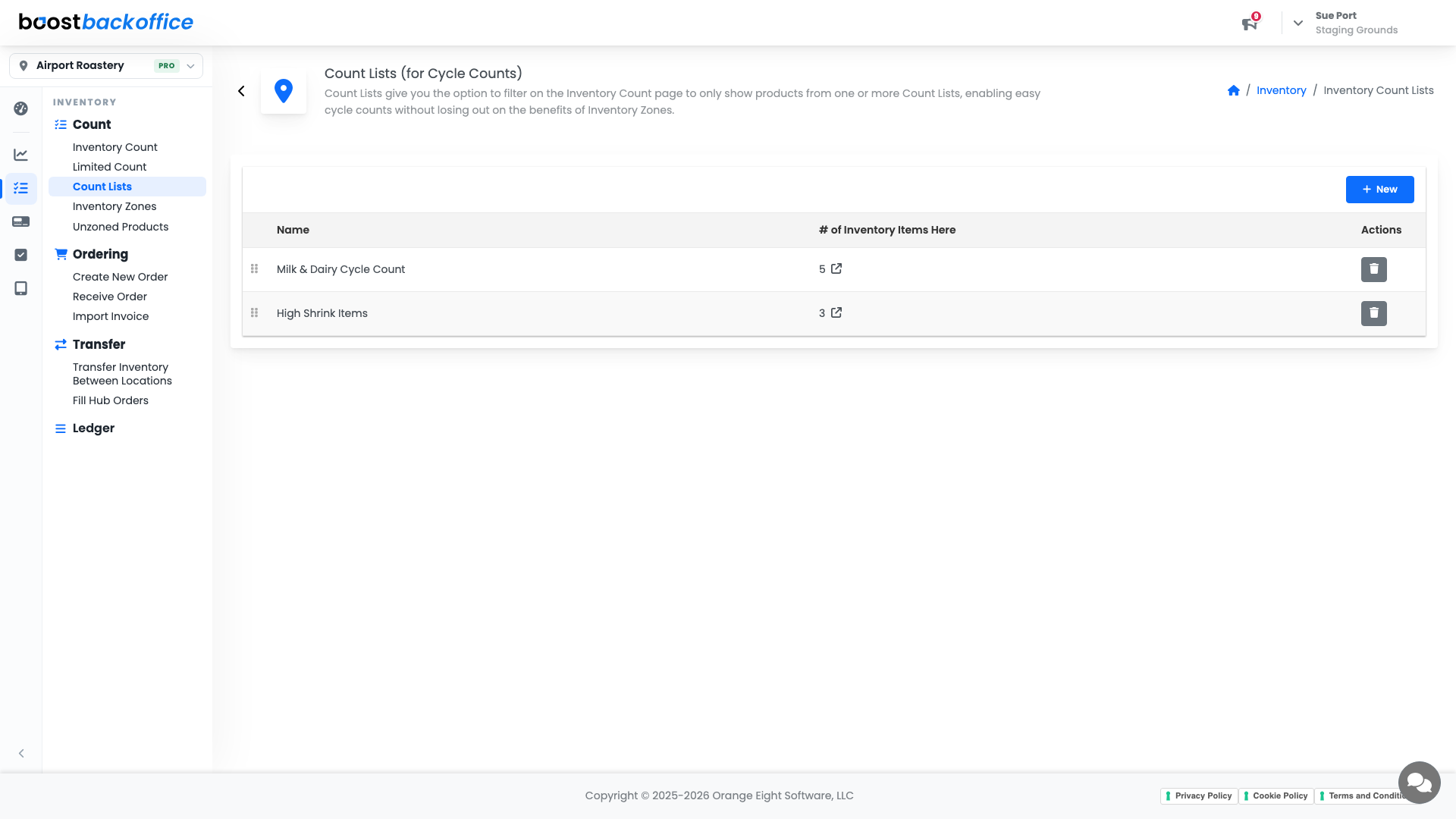
Count Lists work exactly the same way, but for cycle counts. Group the handful of items you check twice a week, and the Inventory Count page can filter down to just that list.
| Use | When |
|---|---|
| Inventory Zone | A physical place. Your full count walks every zone. |
| Count List | A group of items you check often, wherever they live. |
Catch anything you have not placed yet
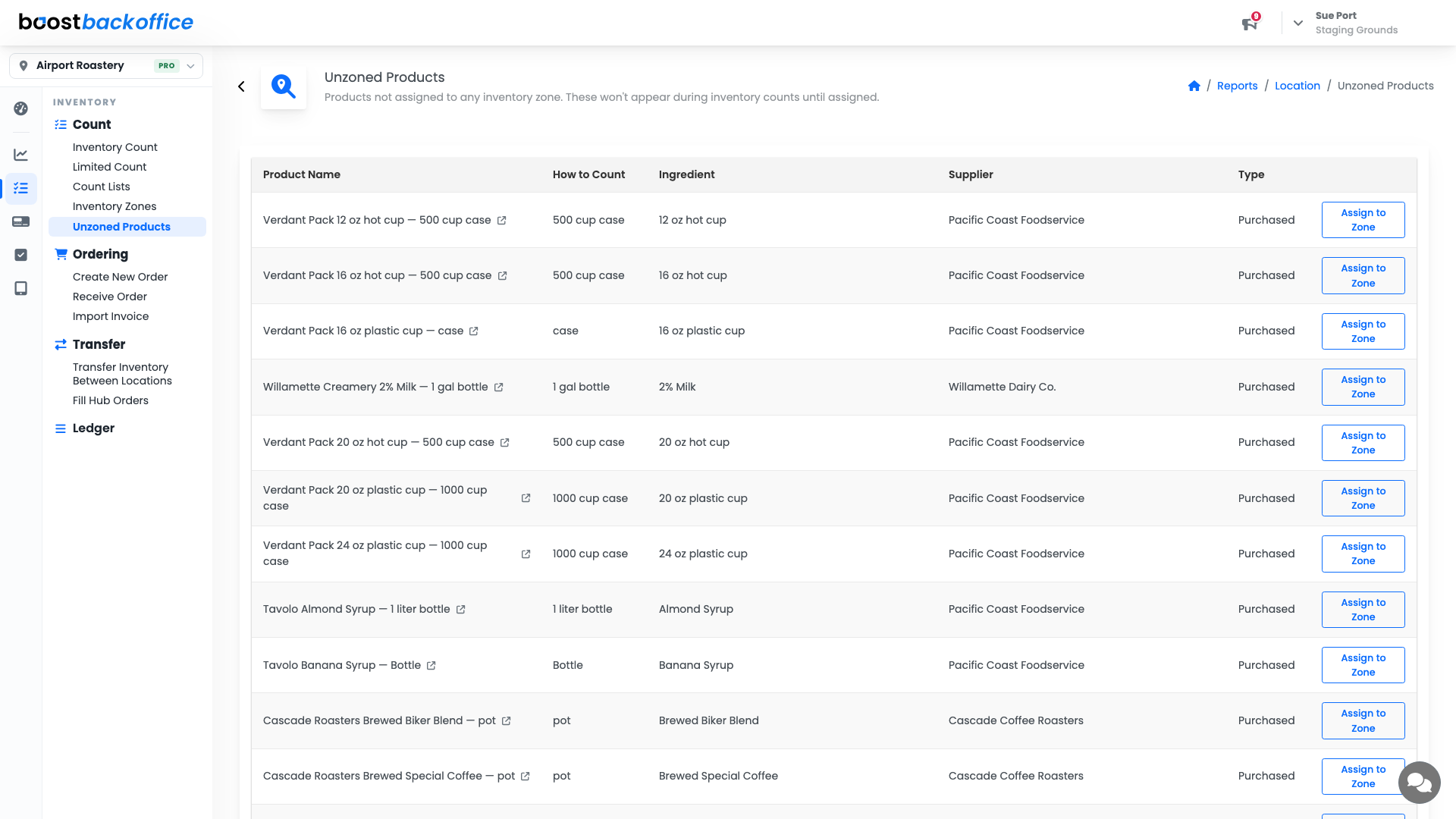
Inventory > Count > Unzoned Products is the safety net. Anything you track that is not yet in a zone shows up here, which is exactly the list of things that would quietly go missing from your counts.
What you should see
Zones named the way your shop talks, in the order you walk them, each holding the products actually stored there, and an empty Unzoned Products list.
Account Level: All