

Building a Menu Item Recipe
Contents6 sections
A recipe is the link between a sale and your shelf. Once a menu item has one, every one of those sold takes its ingredients out of inventory automatically, and every one of them tells you what it actually cost you to make.
Open your menu recipes
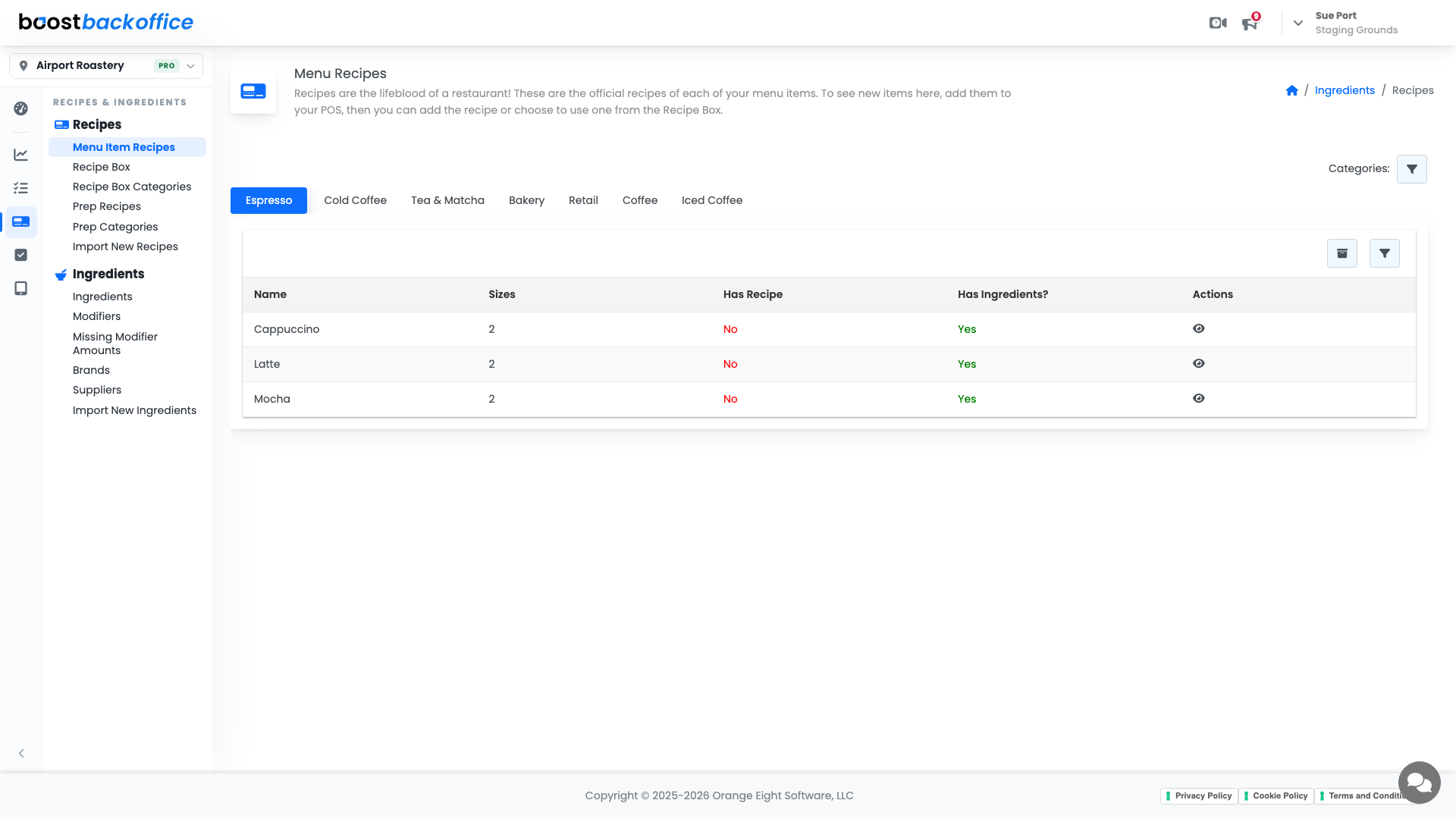
Go to Recipes & Ingredients > Recipes > Menu Item Recipes. The list is your POS menu, so items appear here once they exist in your POS.
Note
Boost does not invent menu items. To see a new drink here, add it to your POS first, then come back and give it a recipe.
Read the recipe grid
Open an item and you get a grid: a row per ingredient, and a column per size you sell.
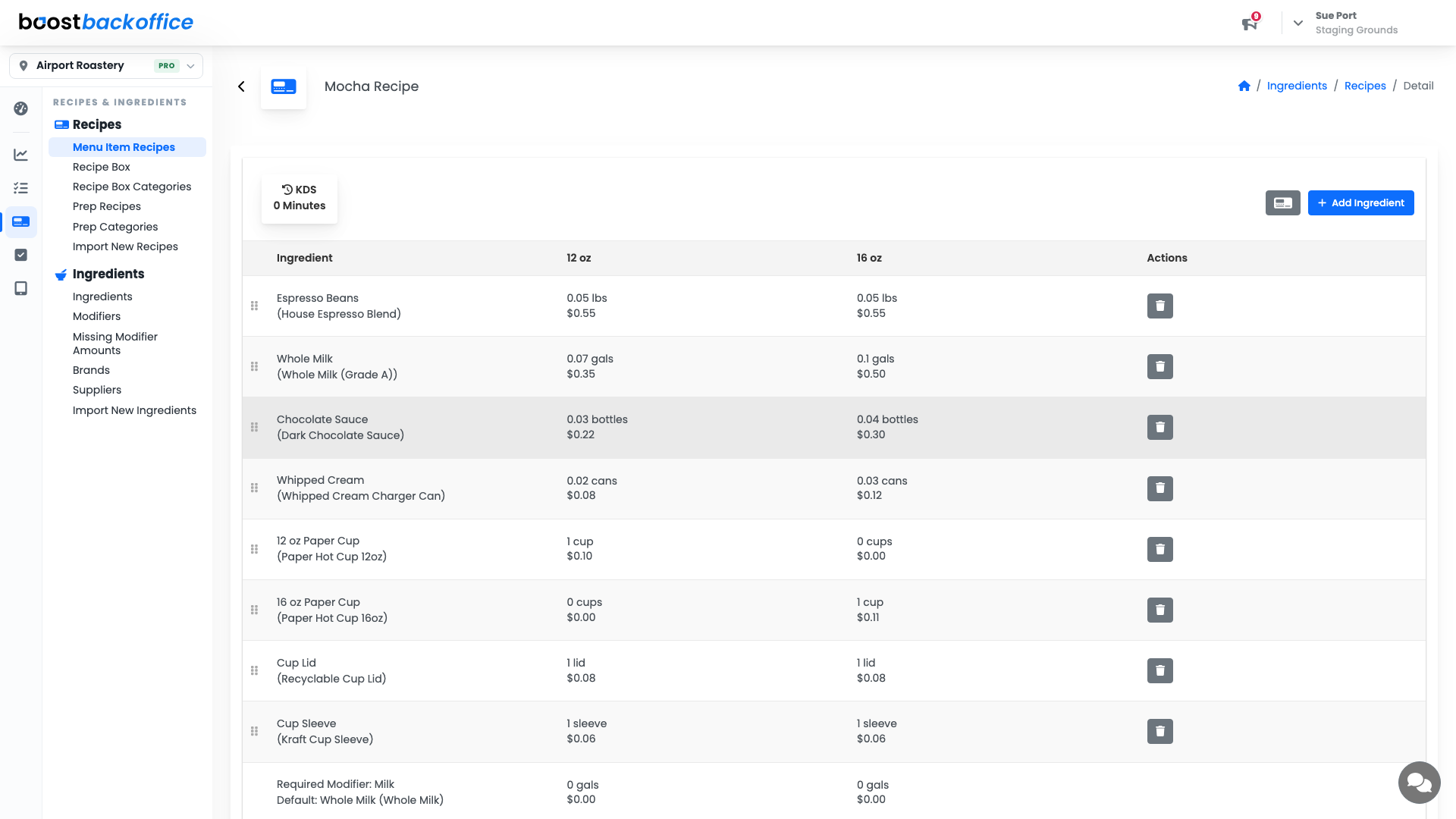
Each cell holds the amount that size uses and what that amount costs, so you can see where the money goes line by line. Cups, lids, and sleeves belong here too. They are inventory you buy and inventory a sale consumes.
Required modifiers show up as their own rows with their default choice, so the standard build is costed even before anyone customises it.
Add an ingredient
Press Add Ingredient to open the picker, which lists everything you already track.
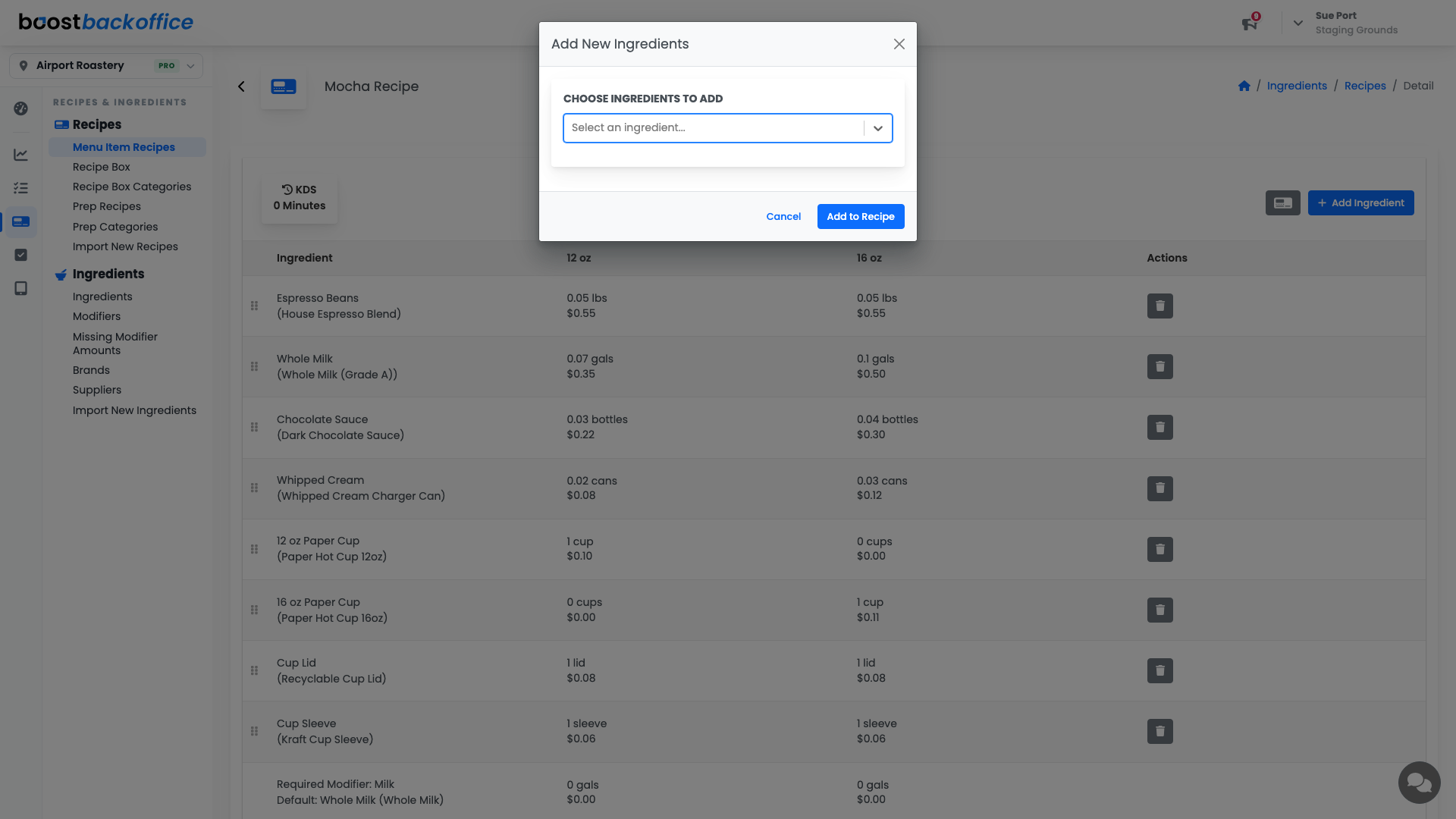
Once the row is there, click the amount in each size column and type how much that size uses. Click away and it saves.
Tip
Fill in every size while you are here. A 16oz that still says the 12oz amount will under-report your costs quietly, forever.
Or pull one from the Recipe Box
If you have already written the recipe in your Recipe Box, the button next to Add Ingredient imports it rather than making you build it twice.
Print or copy the recipe
Everything above lives on a screen. The print button above the ingredient list gets it off the screen and into the kitchen.
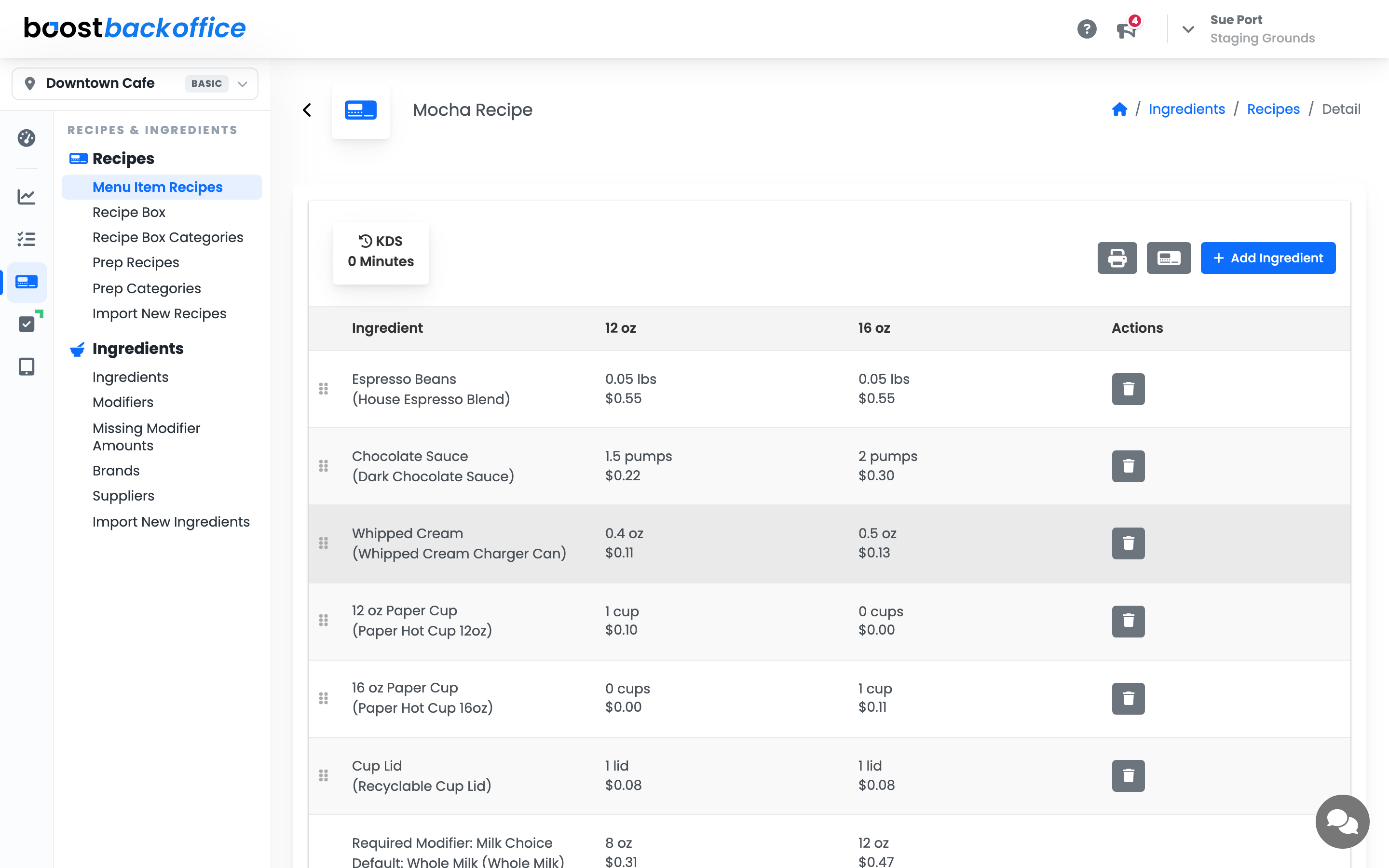
It opens a preview of the actual recipe card: the name, the ingredient list, and your instructions laid out to be read while someone is making the drink. What you see here is exactly what prints.
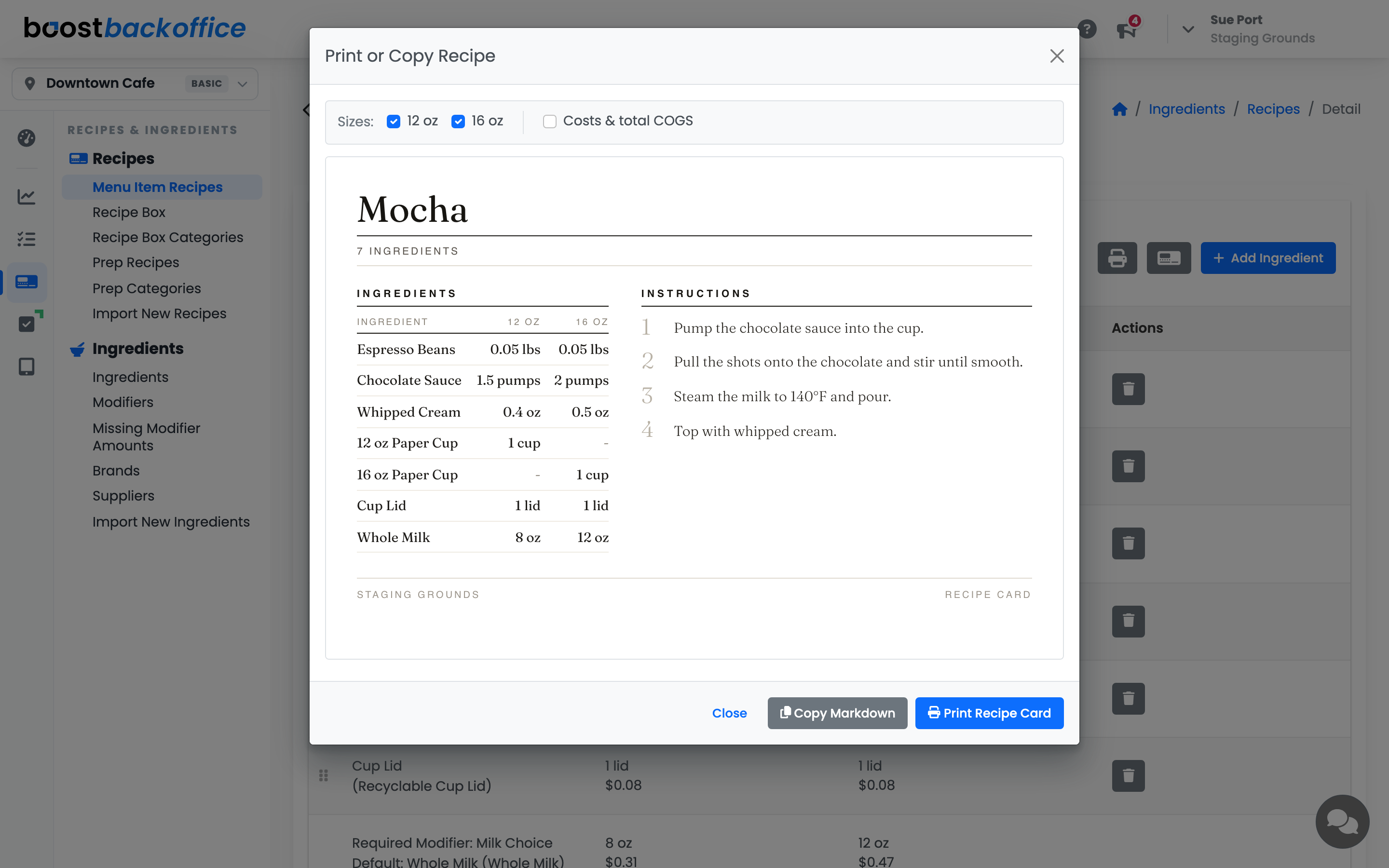
Sizes print side by side, and the checkboxes at the top drop any size you do not want on the page. Costs & total COGS is off by default, so the card stays a recipe until you ask for the money — switch it on and each ingredient shows what it costs in each size, followed by the cost, price and COGS for every size.
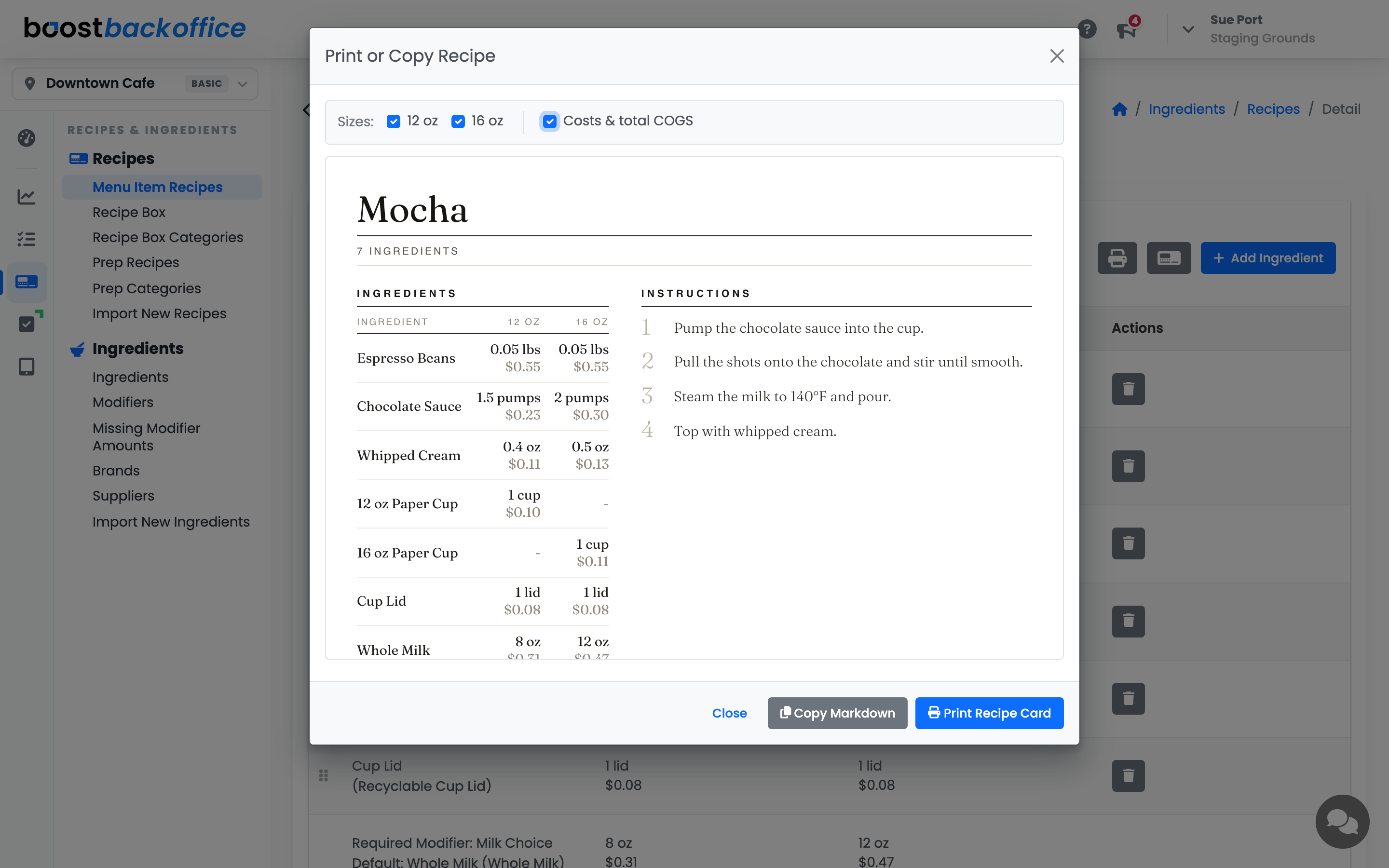
Copy Markdown puts the same recipe on your clipboard as plain text, ready to paste into a doc, a message, or a post.
Note
Modifiers stay off the card. A required modifier's default is printed as the plain ingredient, so the card reads like a recipe rather than a POS record.
What you should see
An amount in every size column for every ingredient, a cost that looks like what the drink really costs to make, and usage lines appearing in the ledger the next time one sells.
Account Level: KDS & Pro