

Completing a Checklist on the Tablet
Contents3 sections
The checklist your manager built in the office shows up on the tablet at the time it is due. Your team works down it and signs off, and the record lands back in the office without anybody typing anything up.
Open the checklist
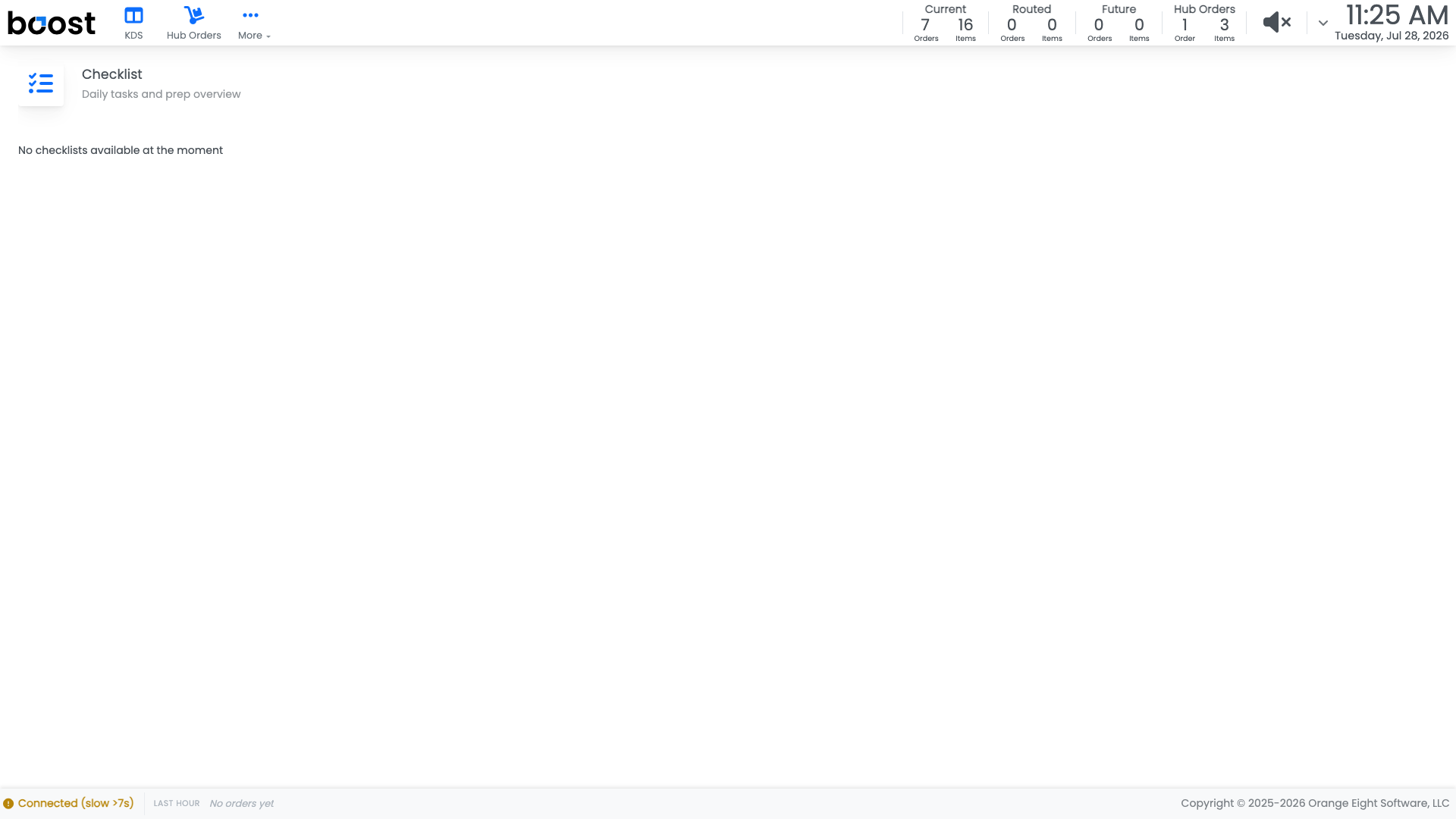
On the tablet, open Checklist. The lists scheduled for right now are the ones you will see.
Work down the items in order and mark each one as it is done, signing off with your initials.
Note
If the screen says there are no checklists available, that is usually the schedule rather than a fault. A daily checklist appears from its start time, and a weekly one on its day.
Why the initials matter
Sign-offs are recorded against whoever entered them, and they feed the Checklist Activity report in the office. That is what makes a checklist worth having: not the ticking, but being able to show later that the fridge really was checked at six.
Important
Sign off with your own initials, and only for work you actually did. A checklist that gets ticked in one burst at the end of a shift tells your manager nothing, and it is obvious in the reporting.
What you should see
A short list that matches the shift you are on, ticked off as the work happens, and a completion rate in the office that reflects a shop running properly.
Account Level: KDS & Pro