

Setting Up a New Tablet
Contents4 sections
A new tablet introduces itself by being signed into. There is no pairing code and no serial number to type: open the app, sign in once, and the device registers itself against your account.
On the device
Open the Boost tablet app and sign in.
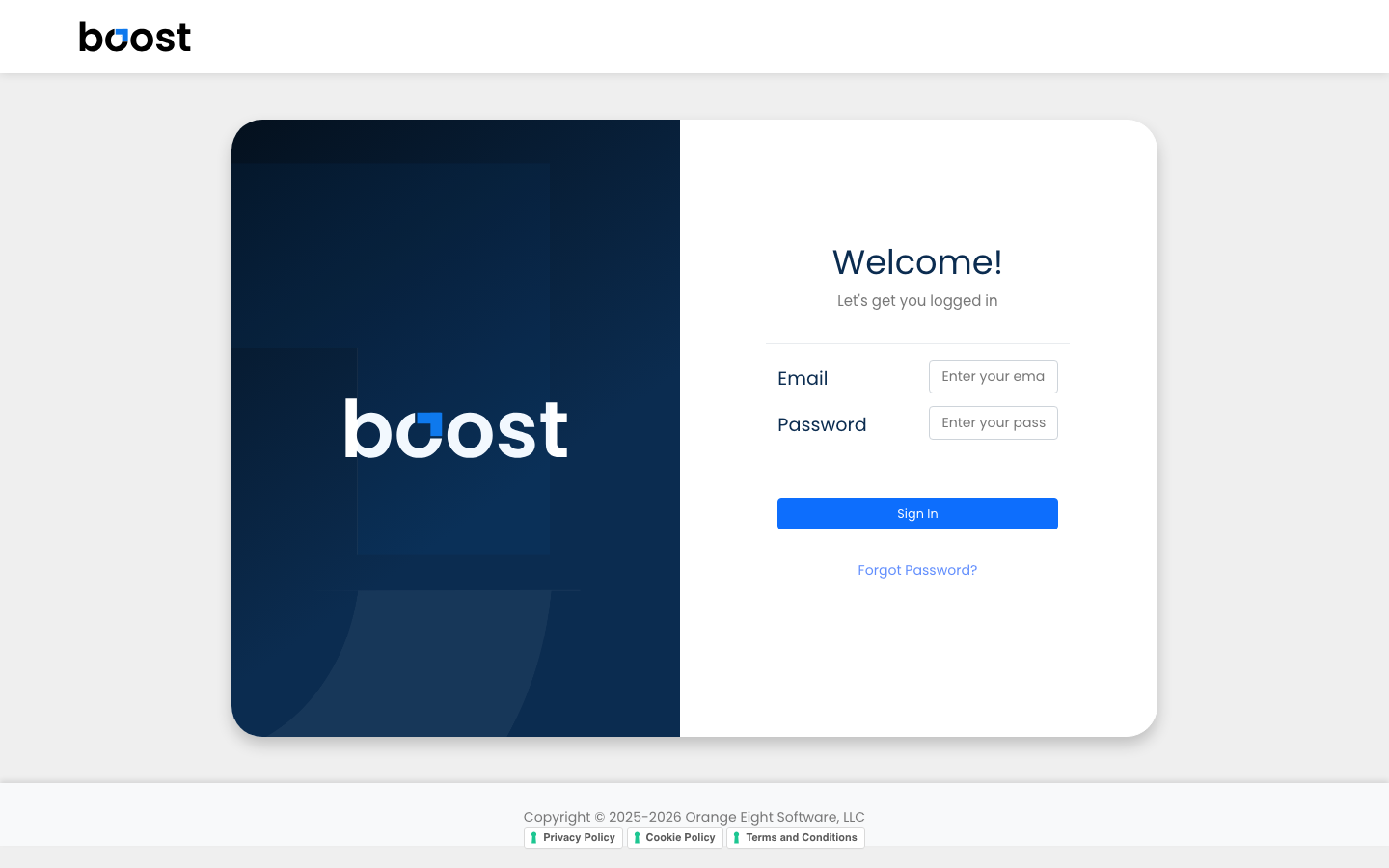
Use a real login for whoever is setting it up. Once signed in, the tablet remembers the device and stays signed in, so your team is not entering a password at the start of every shift.
In the back office
Go to On Location > Tablets > Device Settings and refresh. The new device is in the list, waiting to be set up:
- Device Name: where it physically sits, like "Bar iPad" or "Kitchen Station".
- Display Location: which shop it belongs to.
- Routes: which slices of the menu it should show.
Important
A tablet with no routes shows everything. That is fine for a one-station shop and unworkable for two, so set the routes as soon as you have more than one place making drinks.
Which screens it shows
What a tablet offers beyond the order board, things like prep, waste, checklists, counts, and ordering, is controlled per location. If a screen your team needs is missing from a tablet, that is a setting rather than a fault, and it is set for the location rather than the device.
What you should see
A tablet that comes up on the right station showing the right tickets, named so anybody could tell you which one it is.
Account Level: All