

Reading the Inventory Over Time Report
Contents3 sections
A single count tells you what you have this morning. Inventory Over Time tells you the story that got you there — whether an item is creeping up, drifting down, or holding steady.
Before you start
The chart is drawn from your inventory ledger, so an ingredient needs some history — deliveries, counts, or usage — before there's a line to look at.
Charting one shop
-
Open Reports → Location Reports → Inventory Over Time. The report follows whichever location is selected at the top of the sidebar.
-
Pick an ingredient from the Ingredient picker. Nothing is charted until you do — this report is deliberately one item at a time, so the shape stays readable.
-
Set Start Date and End Date. It opens on the last four weeks, which is usually the right window for "is this item behaving?"
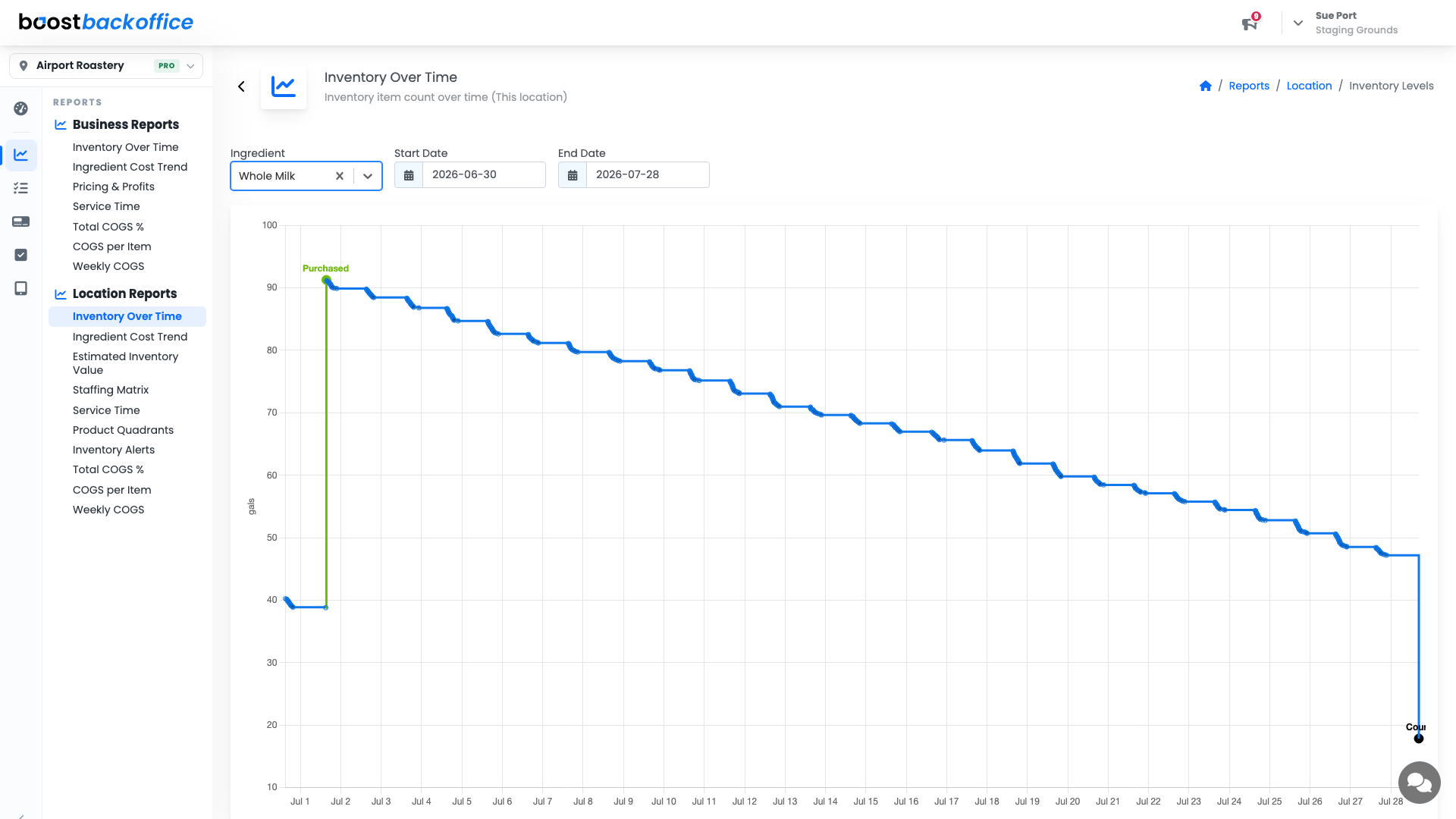
Read it left to right and the pattern gives you three things at a glance:
- The staircase down is everyday use — each small step is stock going out the door.
- A vertical jump labelled Purchased is a delivery landing.
- A point labelled Count is a physical count resetting the baseline. If the line jumps at a count, what you counted and what the system expected didn't agree.
Tip
A staircase that never quite reaches the bottom before the next delivery means you're carrying more than you need. That's cash sitting in a fridge.
Comparing every location
Open Reports → Business Reports → Inventory Over Time for the same chart across your whole company. The pickers are identical and the subheading switches to All locations.
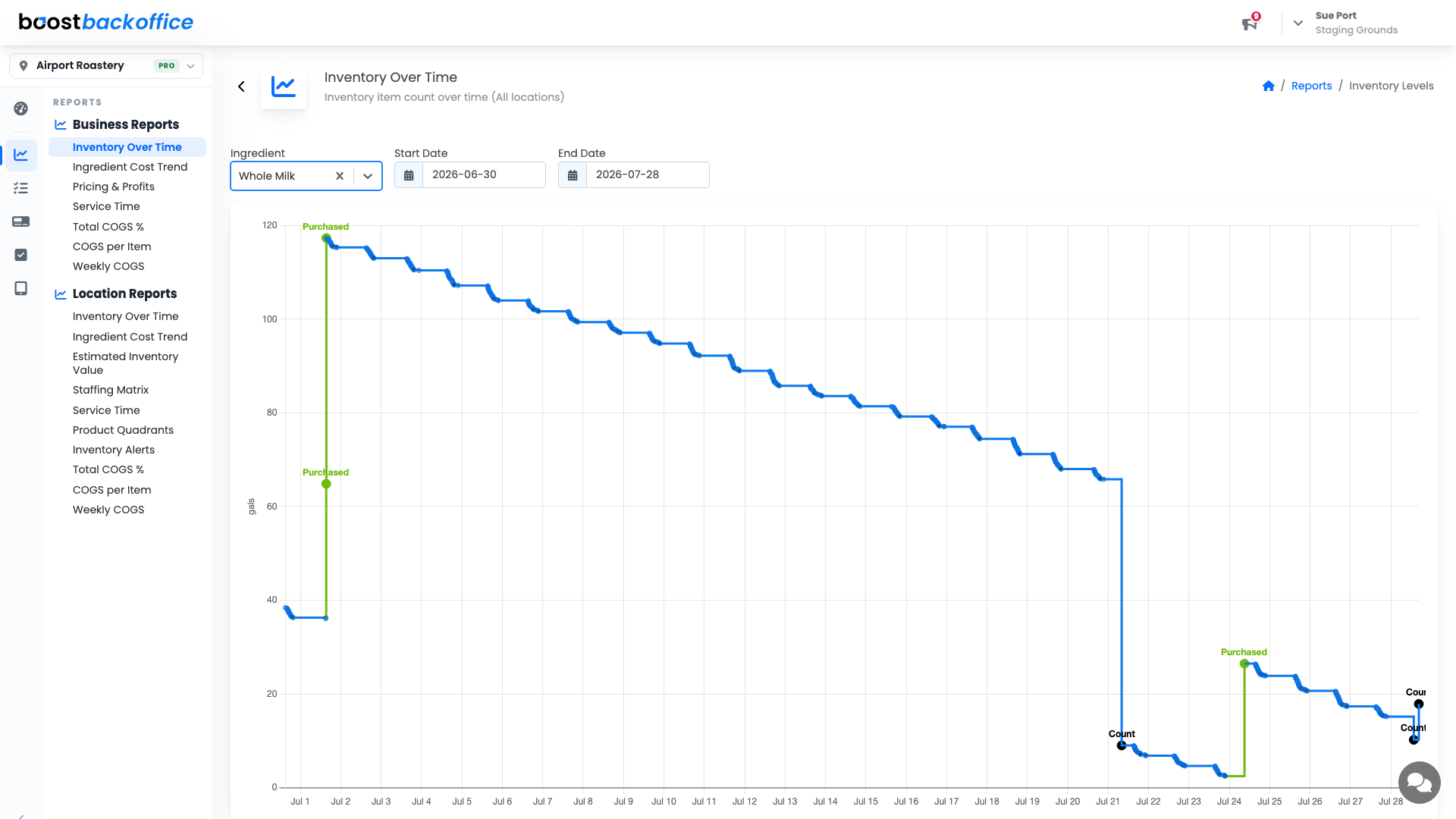
This is the view that catches one shop quietly holding twice the stock of the others, and it's where multiple deliveries and counts in the same window show up side by side.
Note
The Business Reports version covers every location on the account, so it's available to owners and managers whose access isn't limited to specific shops. If your account limits you to one location, use the Location Reports version.
What you should see
A line that steps down through the week and jumps back up on delivery day. If it's flat, that ingredient isn't being tracked through usage or counts yet — start with a count and the picture fills in from there.
Account Level: All