

COGS by Ingredient Category and the QuickBooks Export
Contents5 sections
Your total cost of goods sold tells you the number moved. COGS by Category tells you what moved it, by splitting that total across your ingredient categories, and then hands your bookkeeper a journal entry that QuickBooks Online imports as is.
Before you start
Give your ingredients categories first under Recipes & Ingredients > Ingredients > Ingredient Categories (see Organizing Ingredients into Categories). Anything without a category shows up as Uncategorized.
Open the report
Go to Reports > Business Reports > COGS by Category for every location together, or Reports > Location Reports > COGS by Category for the location you're in.
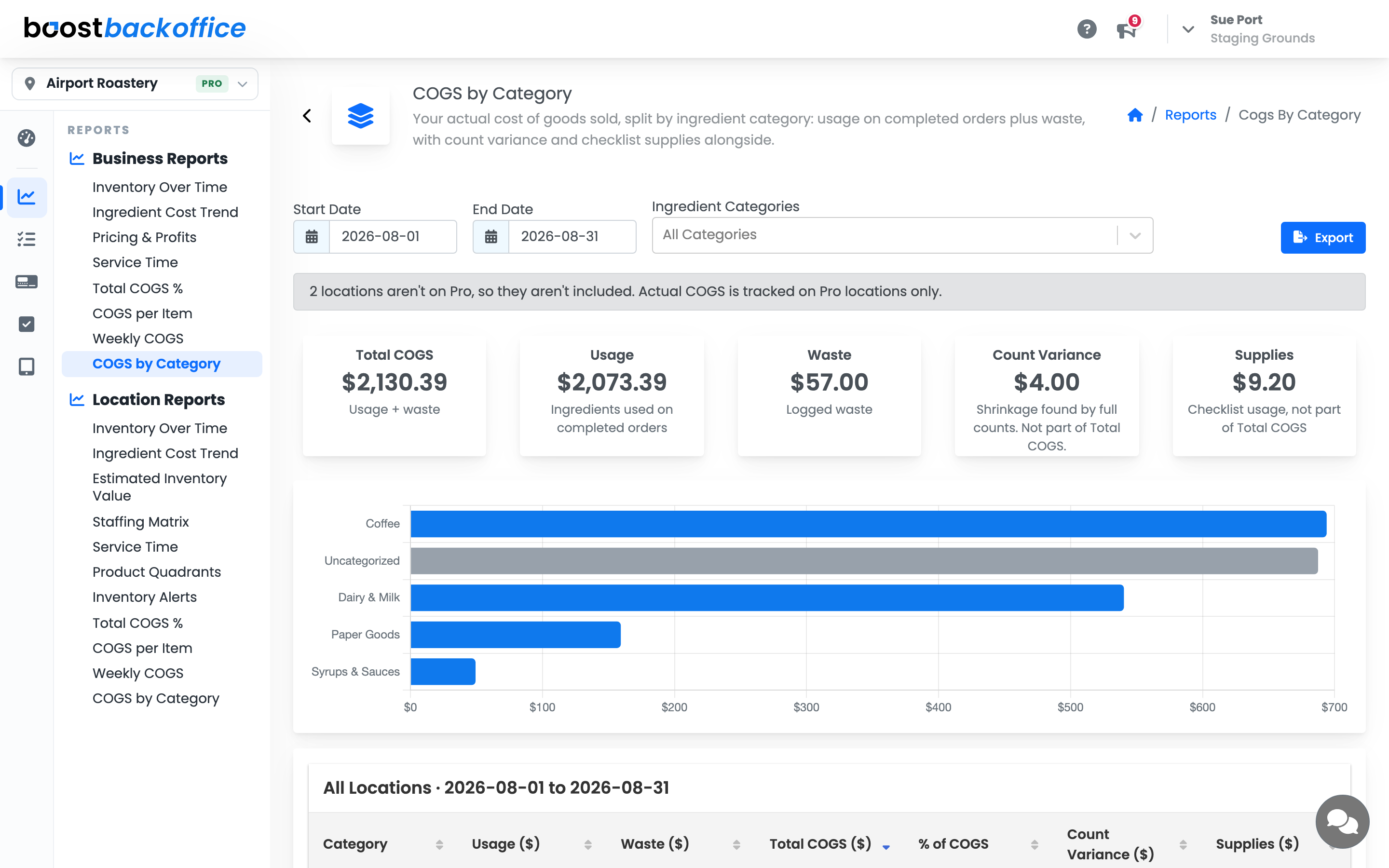
- Start Date and End Date open on last month. Change either one to cover any stretch of days.
- Ingredient Categories narrows everything to the categories you choose. Leave it empty to see them all.
Read the numbers
Total COGS is what your ingredients cost you: what went into completed orders plus what you logged as waste. It's the same total the Total COGS % report uses, so the two always agree for the same dates.
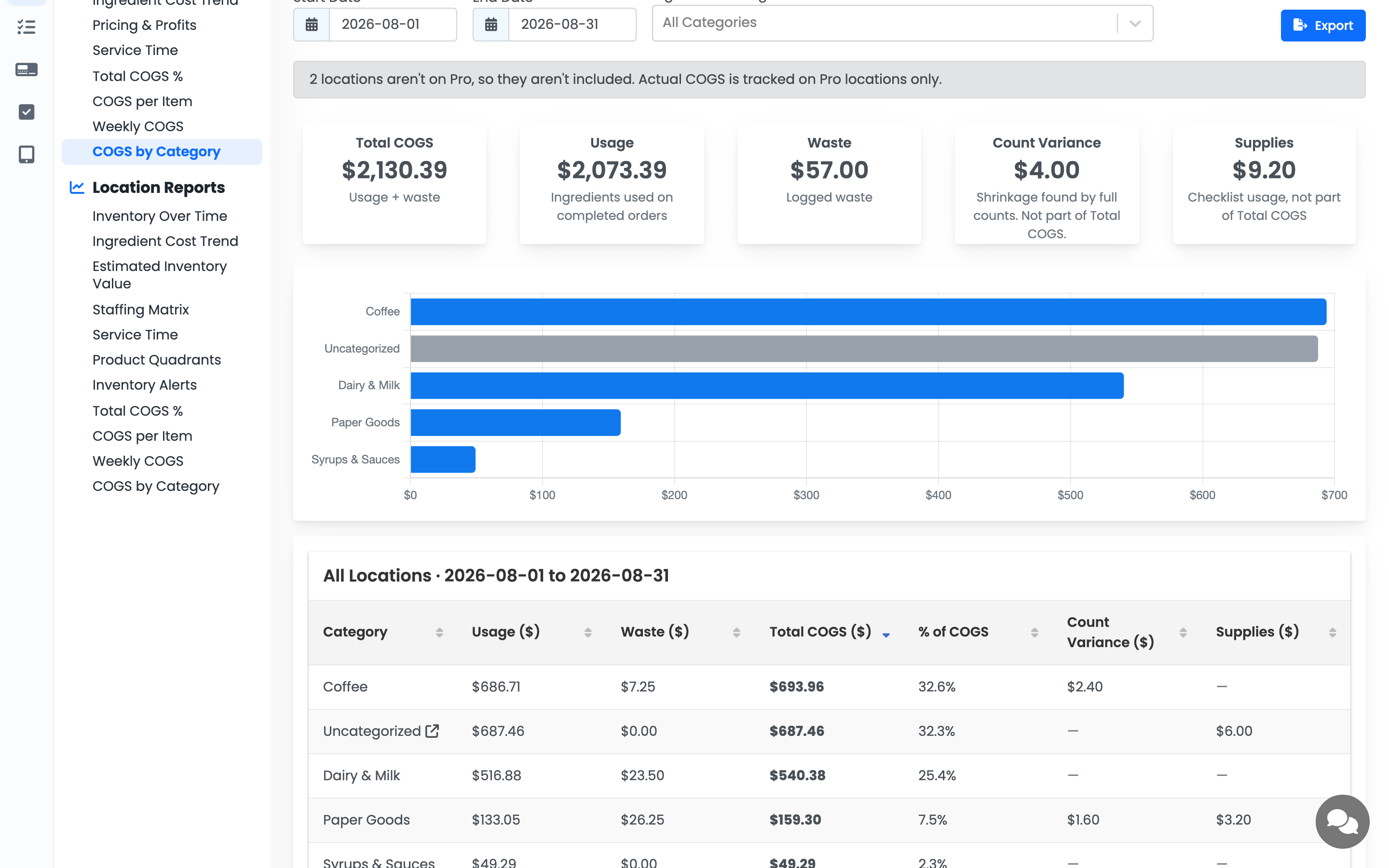
| Column | What it means |
|---|---|
| Usage | Ingredients used on completed orders |
| Waste | Ingredients you logged as waste |
| Total COGS | Usage plus waste |
| % of COGS | This category's share of the total |
| Count Variance | Shrinkage (or overage) your full counts found. Shown alongside, not part of Total COGS |
| Supplies | Supplies your checklists used, like trash bags or sanitizer. An operating expense, not COGS |
In the business view, Break down by location splits each category by location.
Note
Prepping isn't a cost yet. When beans become cold brew, nothing has left the shop, so COGS counts the cold brew when it's sold or wasted, under the cold brew's own category.
Only Pro locations are included, and the report tells you when some aren't.
Export for QuickBooks
Export uses exactly what's on screen: the same dates, categories, and locations.
-
Press Export and choose the file you need.
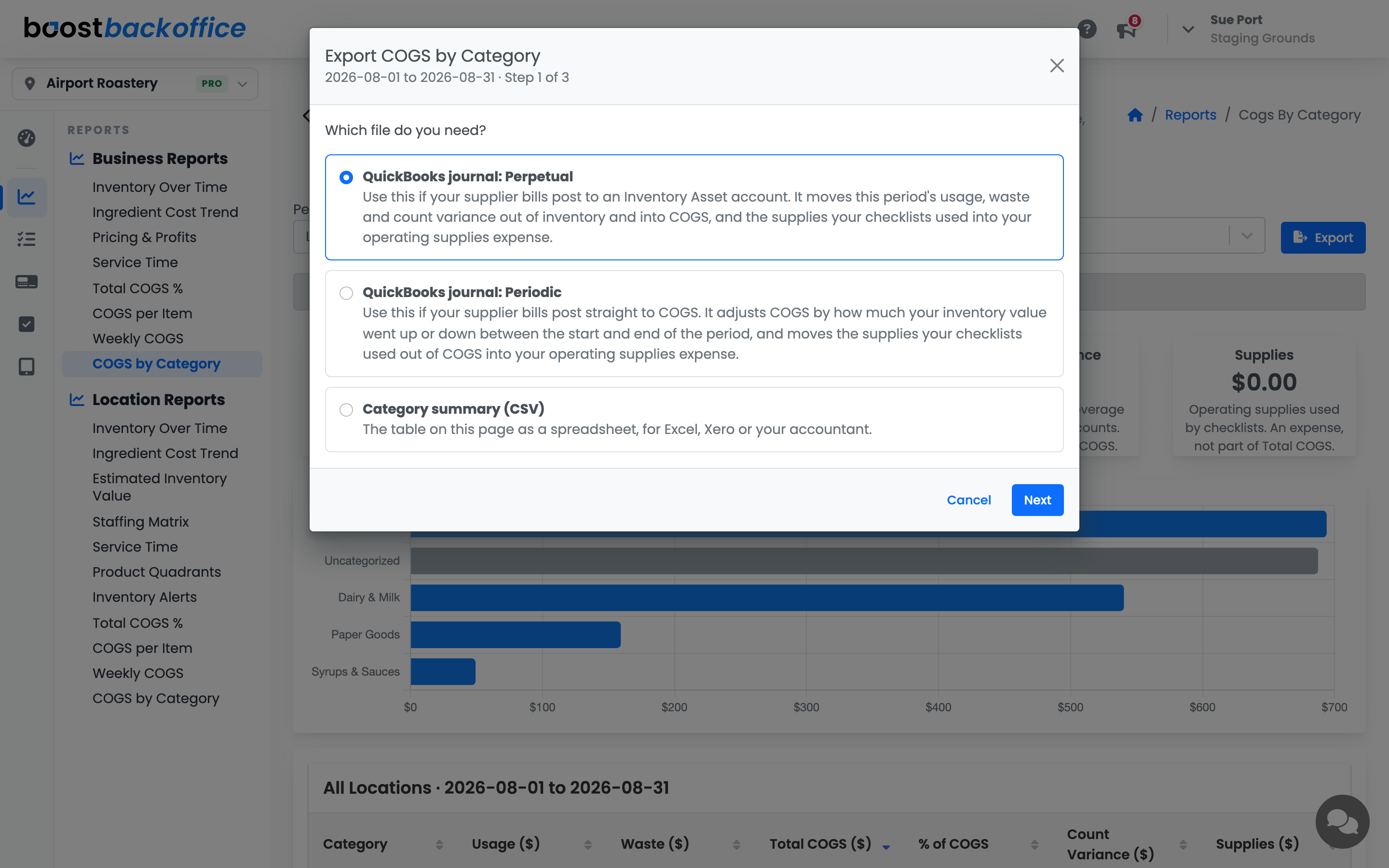
- QuickBooks journal: Perpetual if your supplier bills post to an Inventory Asset account. It moves what you used, wasted, and lost to count variance out of inventory and into COGS.
- QuickBooks journal: Periodic if your supplier bills post straight to COGS. It adjusts COGS by how much your inventory value went up or down over the period.
- Category summary (CSV) for a spreadsheet, another accounting program, or your accountant.
-
Press Next and enter your QuickBooks account names exactly as they appear in your chart of accounts. A sub-account includes its parent, like
Cost of Goods Sold:Coffee.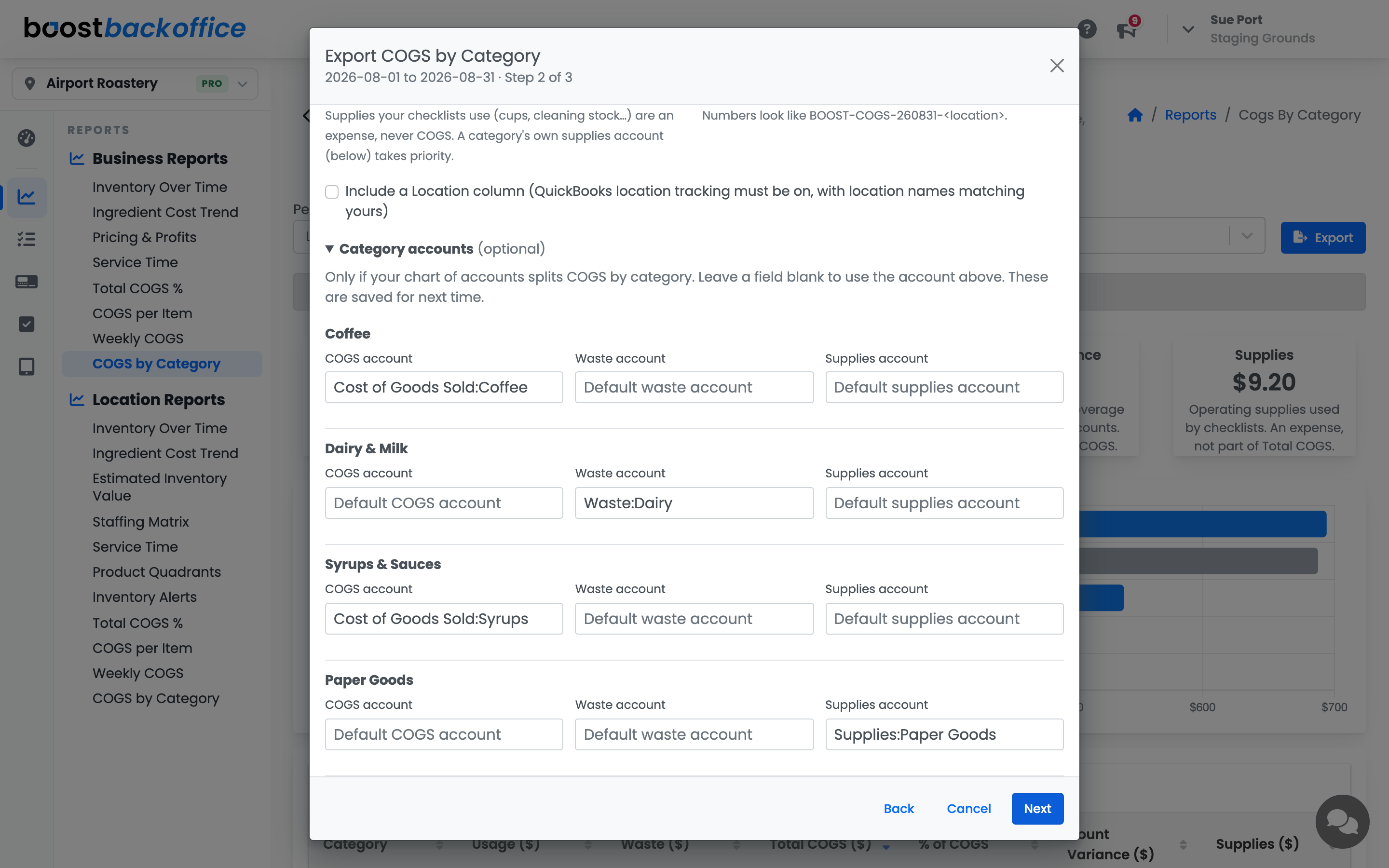
The Inventory Asset and Default COGS accounts are required. Waste and count variance accounts are optional, and the supplies account is only asked for when your checklists used supplies that don't already have an account. Boost remembers all of it for next time.
If your chart of accounts splits COGS by category, like
Cost of Goods Sold:CoffeeandCost of Goods Sold:Dairy, open Category accounts under the defaults. Each category in your export gets its own COGS account field, plus Waste account on a perpetual journal and Supplies account when your checklists used supplies. Anything you leave blank uses the default above it, and Boost saves these too. Uncategorized always uses the defaults. -
Press Next to preview. Check that it says Balanced, then press Download.
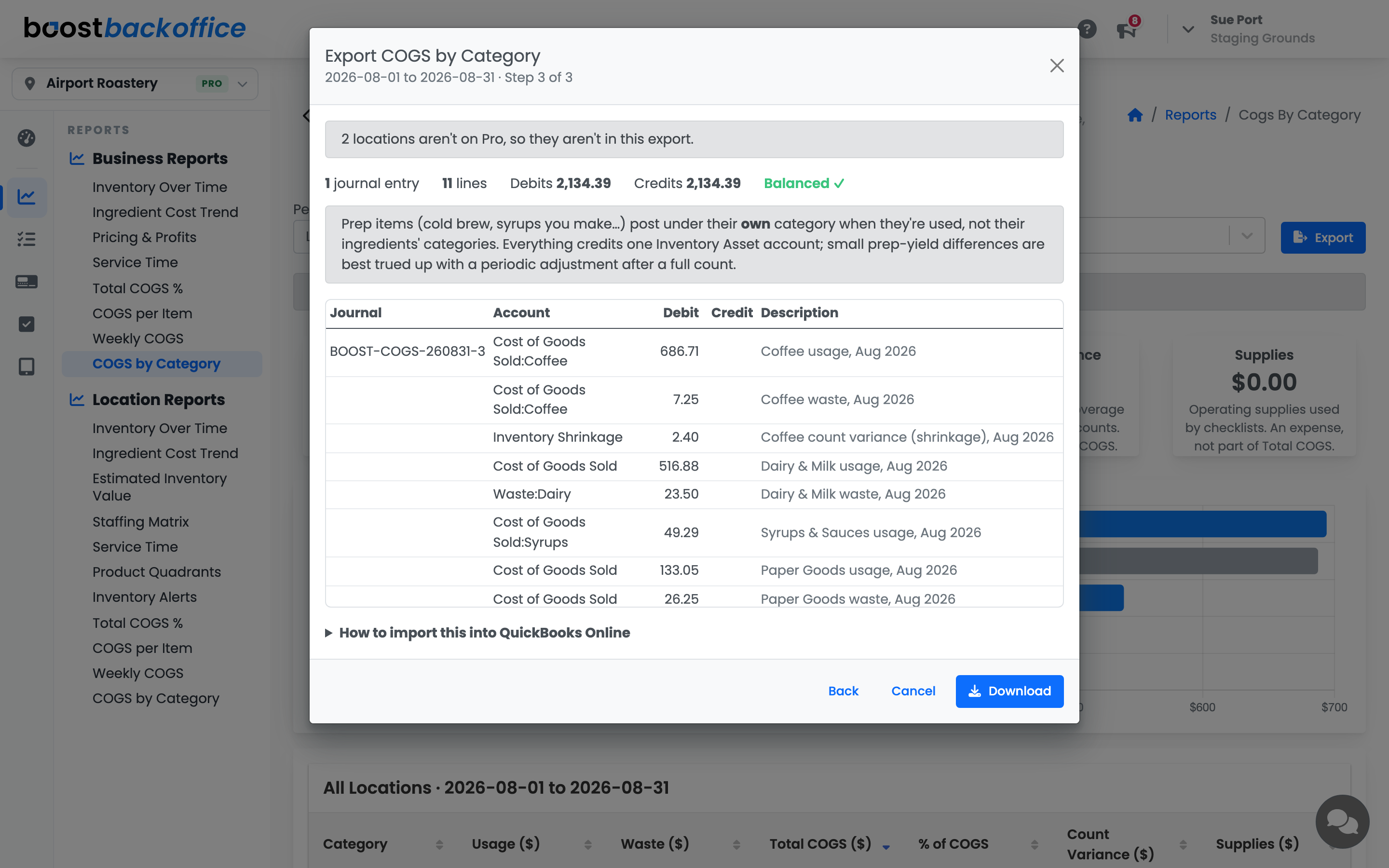
Each location gets its own journal entry, dated the last day of the period. QuickBooks takes up to 1,000 rows at a time, so a bigger export downloads as more than one file.
Note
The periodic journal values your stock at each ingredient's current cost, at both the start and the end of the period, just like Estimated Inventory Value.
Import it into QuickBooks Online
- In QuickBooks, go to Settings > Import Data > Journal Entries and upload the file.
- Match the columns (they're already named the way QuickBooks expects) and choose the MM/DD/YYYY date format.
- If you use account numbers, turn them off before importing and back on after.
Careful
Keep QuickBooks' duplicate journal number warning on. A duplicate means you've already imported a journal for that location and period, and importing again would count the cost twice.
Every account in the file has to exist in QuickBooks before you import.
What you should see
Your cost of goods sold split into categories you recognize, a total that matches Total COGS %, and a journal entry your books accept on the first try.
Account Level: Pro