

Notifications on the Underground
Contents6 sections
Someone answered your Fix while you were on the line. The Underground tells you, in the bell and by email if you want it, and you decide how much it gets to interrupt you.
The bell
Never Miss the Answer: The bell in the header shows how many notifications are new (it tops out at 9+). Press it to open your notifications, newest first. Each one says who did what, shows a line of it, and how long ago. New ones carry an orange dot.
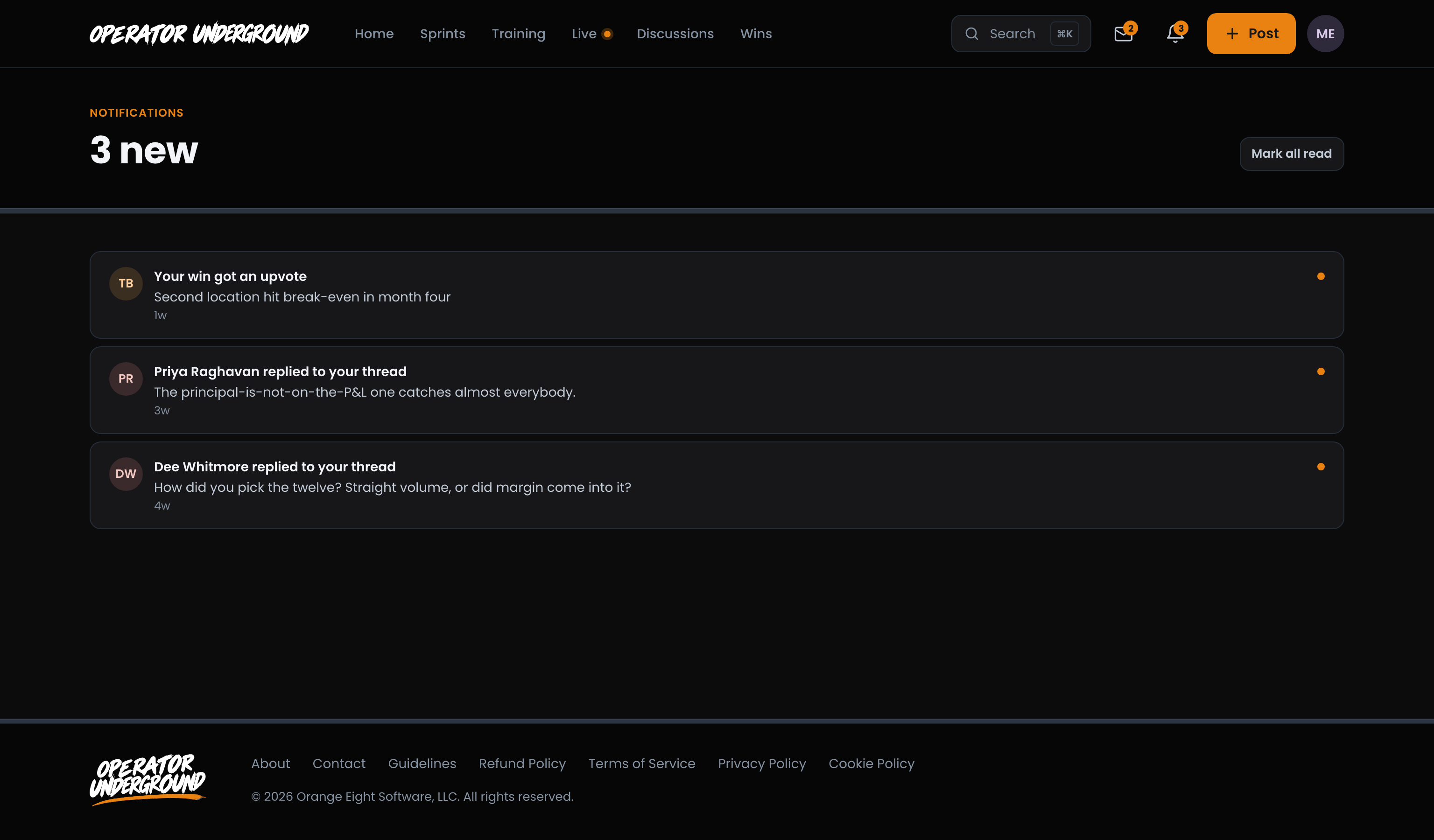
- Open one and it takes you to the thing itself: the reply in its thread, the message, the session. It is marked read and the bell's count drops.
- Mark all read clears every dot at once. The page then says You're caught up.
- Show older at the bottom loads the next batch.
Note
The envelope next to the bell is for Messages, with its own unread count. Messaging and friends on the Underground covers it.
Choose what reaches you
Hear About What Matters, Skip the Rest: Open Settings from your account menu. The Notifications tab, under Tell me about, lists every kind of notification:
- Replies to your posts and threads you follow
- Direct messages
- Friend requests, and people accepting yours
- New lessons in courses you take
- Live session reminders and replays
- Announcements from the Underground
- Your Sprint's daily job: one notification per Sprint day, when that day's job opens at the hour you picked for the Sprint. It reads Day 3: and the job, so you know what tonight's work is before you open anything.
- An action you committed to is due
- Recognition you earn: one notification when you pass a new standing title, reading Your standing: and the title. It opens the standing card on your profile. Only work done counts, never posting.
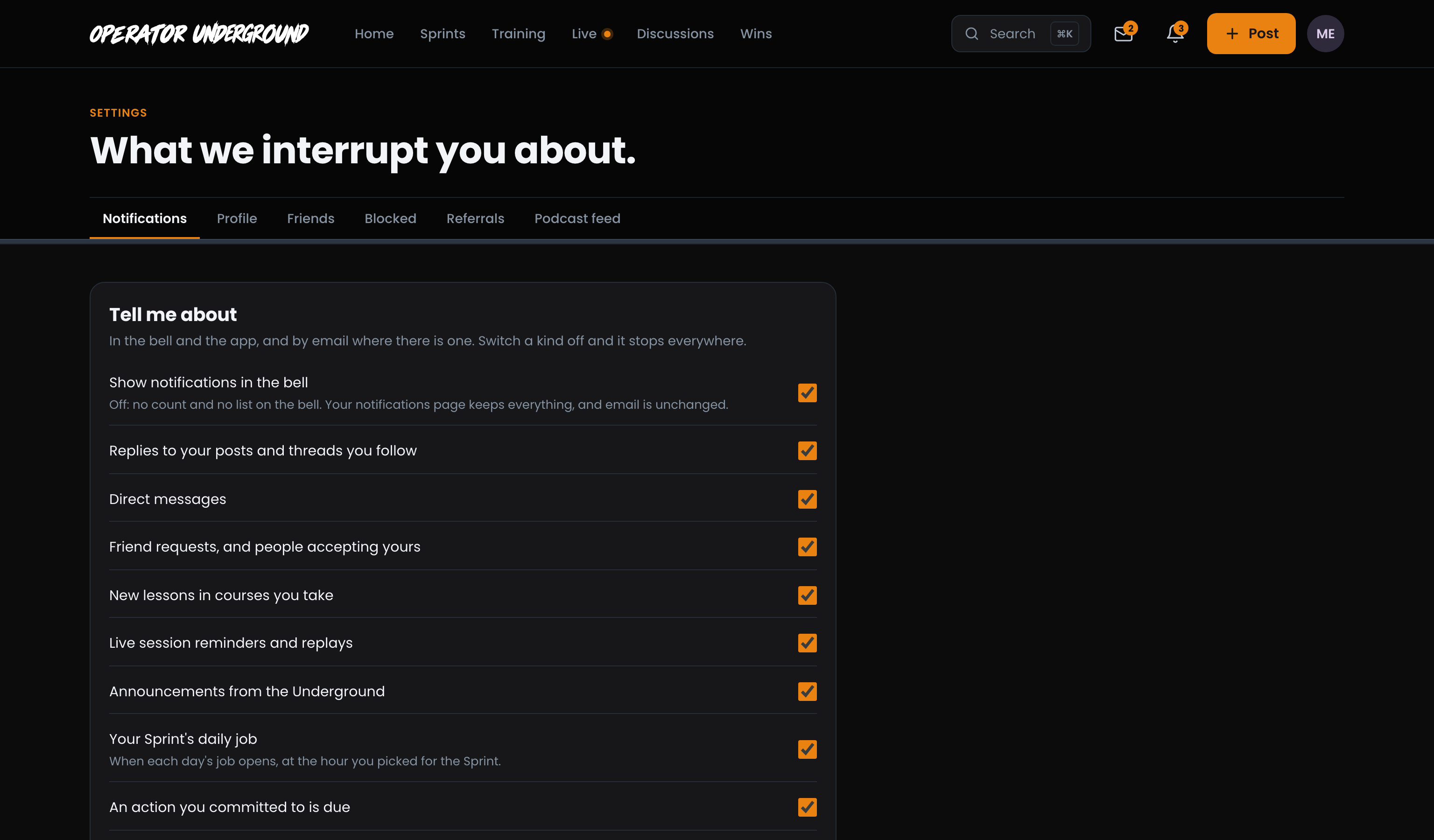
Untick a kind and it stops everywhere: the bell, the app, and email where there is one. Press Save at the bottom of the email section to keep your changes.
Tip
Following a thread is how you hear about every reply on it. Press Follow this thread in a thread's side panel, and the replies reach you here.
Turn the bell off
Heads Down for the Rush: Want to stop being pinged without missing anything? Untick Show notifications in the bell at the top of Tell me about, and press Save.
- The bell shows struck through, with no count, on the Underground, on Boost Academy and in the app.
- Your notifications page still lists everything, with a note that the bell is off and a link, Turn the bell back on in Settings.
- Email is not affected. Reply emails, the digest and Sprint emails follow their own settings below.
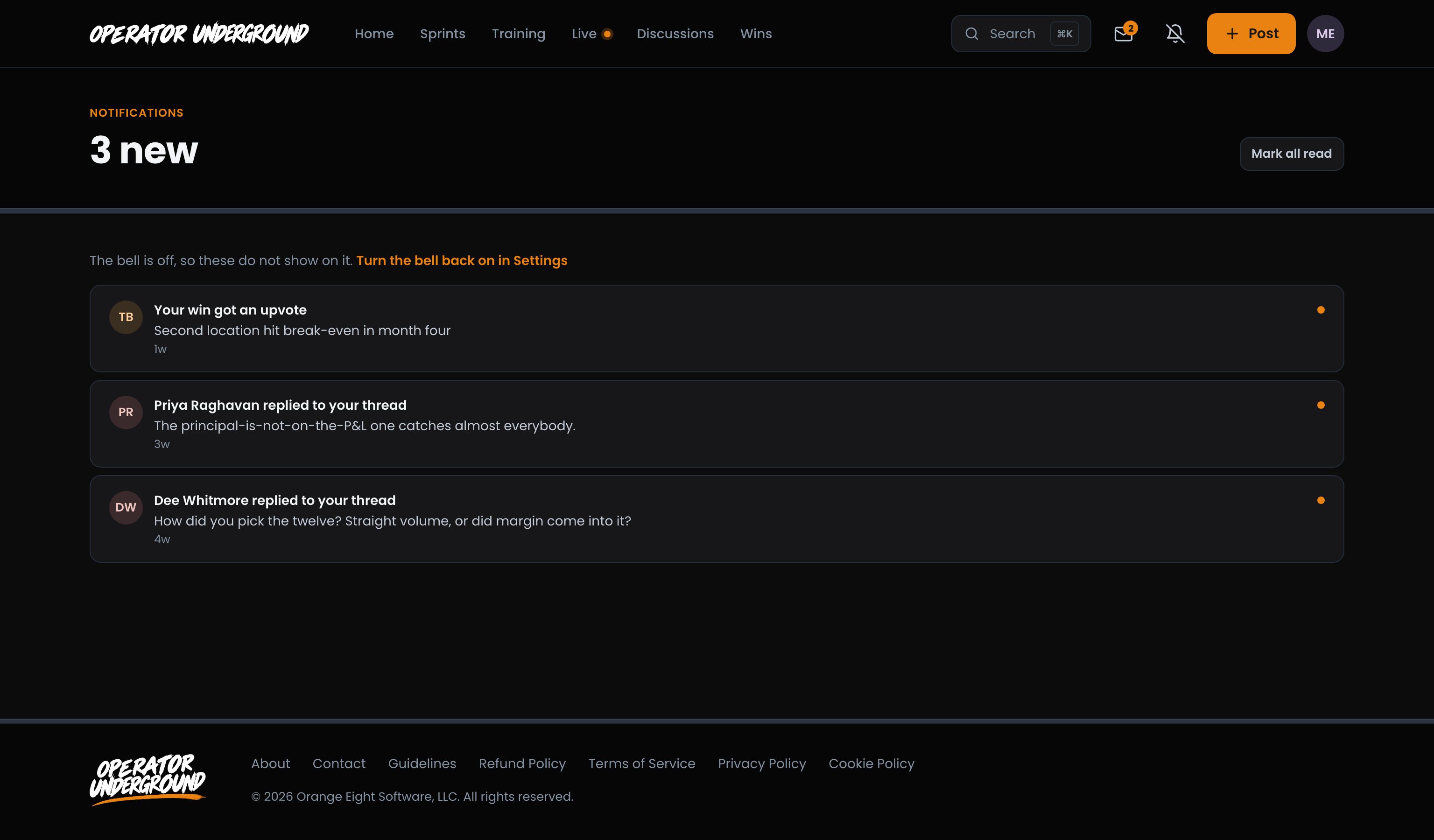
Tick it again and press Save, and the bell and its count come straight back.
Replies by email
Step Away From the Screen: Under By email, Email me when someone replies to decides which replies also land in your inbox:
| Choice | You get an email for |
|---|---|
| Replies to my posts (the default) | A reply on something you started, or a reply aimed straight at you |
| Every thread I follow | All of the above, plus replies on every thread you replied to or followed |
| None | Nothing by email. Replies still show up in your notifications |
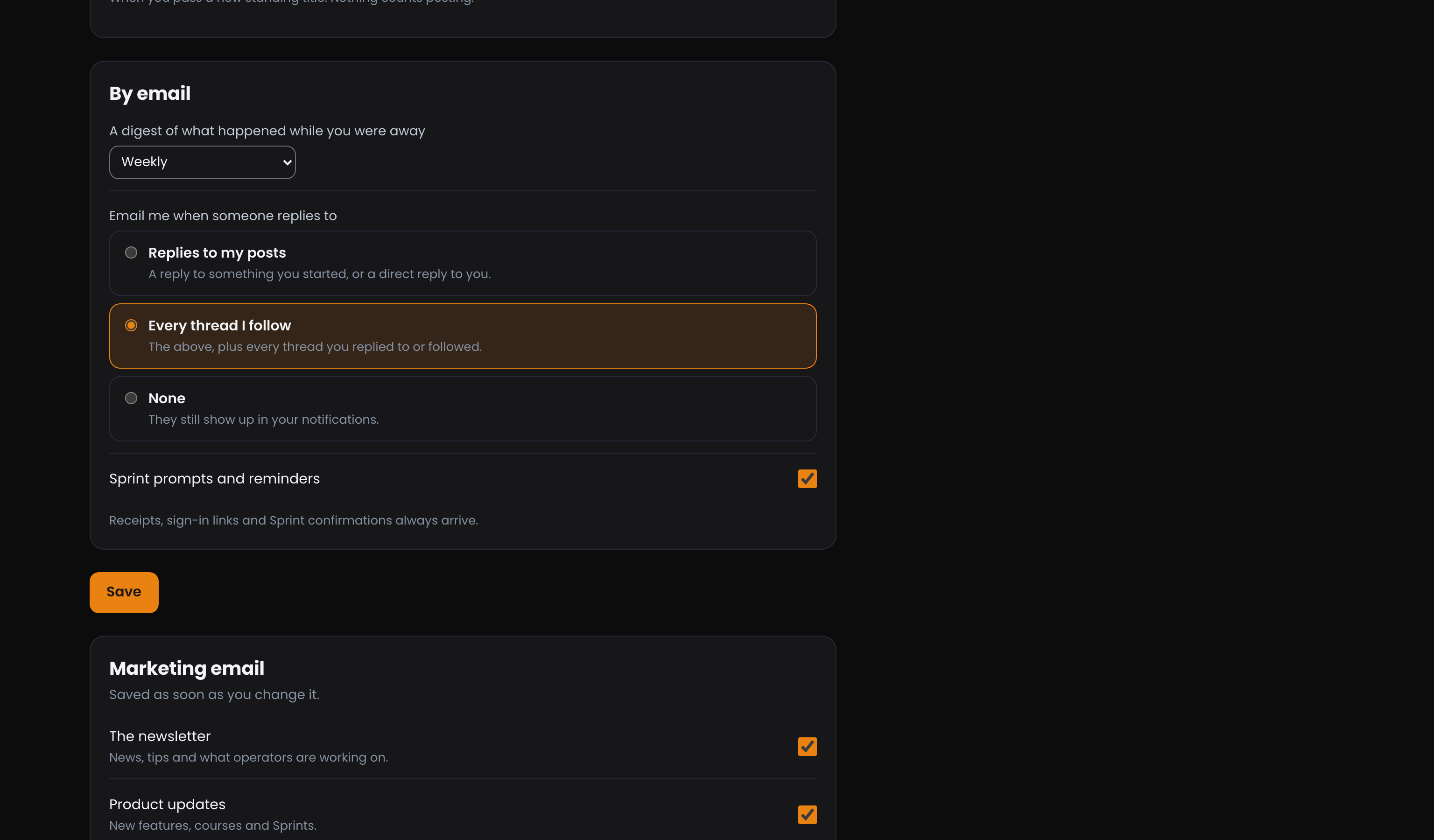
Reply emails come from the Operator Underground, and the link at the bottom of each one brings you back to these settings.
The digest
Catch Up in One Email: A digest of what happened while you were away can be Never (the default), Daily or Weekly. The Underground's digest rounds up:
- the discussions people were most active in
- live sessions coming up in the next week
- on the weekly digest, the wins members posted that week
It only comes if something new happened, so a quiet week does not get you an empty email. And it only goes to members who have visited the Underground.
New to the Underground? For your first month, Home also offers the digest in a Keep up by email card with Weekly and Daily buttons, until you pick one.
Important
One digest setting covers both sites. Boost Academy sends its own digest of new courses on the same schedule, so picking Weekly here gets you both, and Never stops both. The Stop the weekly digest link (Stop the daily digest on the daily one) at the bottom of either digest also turns both off, and Manage preferences beside it brings you back to these settings. Reply emails and Sprint emails keep their own settings.
Sprint prompts and reminders, the last switch under By email, switches the emails that keep a Sprint moving on or off. The bell notice for each day's job is its own switch, Your Sprint's daily job, above.
Receipts, sign-in links and Sprint confirmations always arrive, whatever you choose.
Marketing email
The newsletter and Product updates are in their own card, and each saves the moment you tick or untick it, with no Save to press.
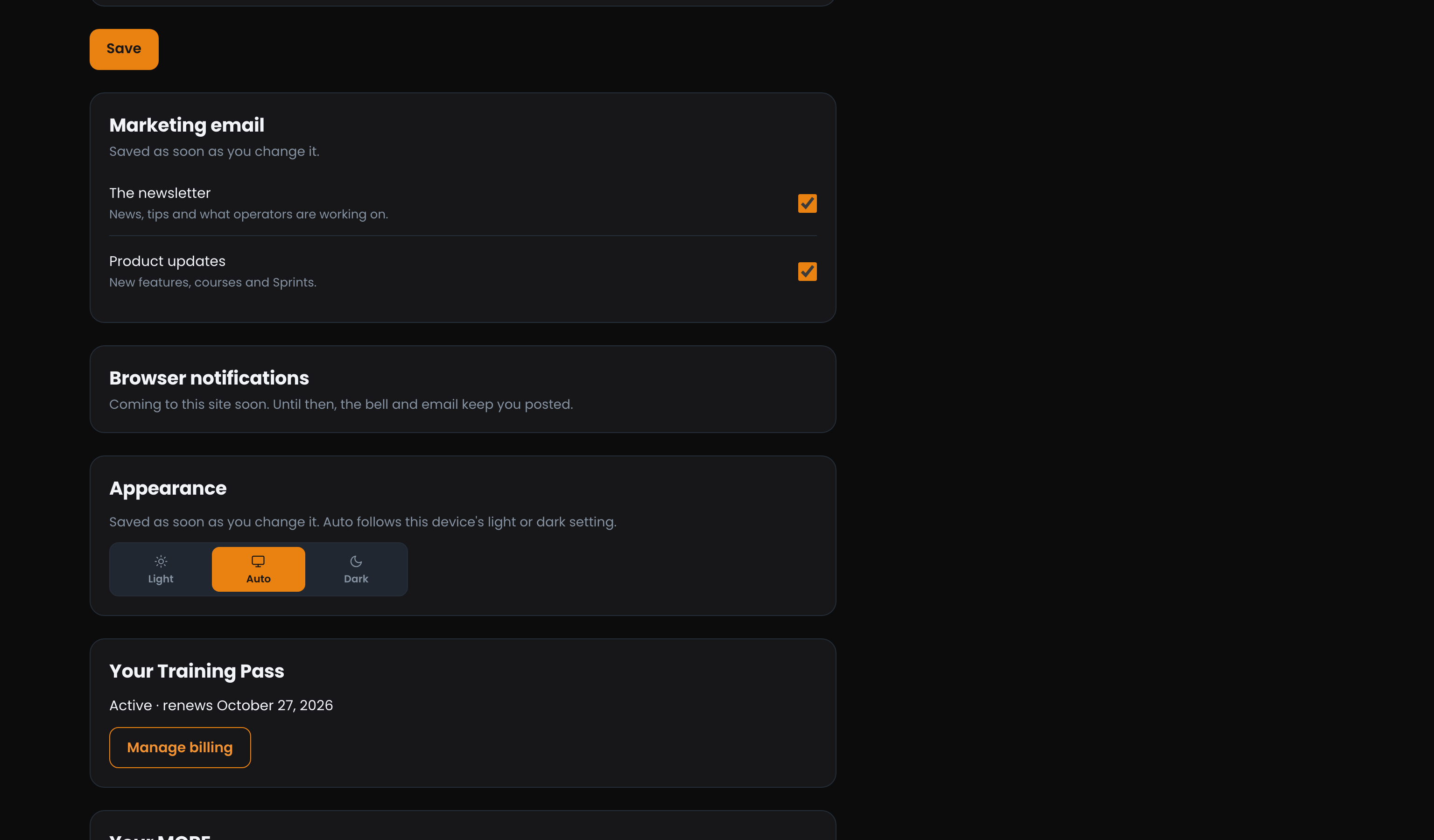
Browser notifications are not offered on the Underground yet. Until they are, the bell and email are how you hear.
Ready to dig in? Sign in to the Operator Underground, open Settings from your account menu and set it up the way you work.
Access: All members